
For the managed package runtime, the first Integration Procedure retrieves all Contacts with the same AccountId in two lists, one containing addresses, the other birthdates. It then merges the two lists into one.
 This information is for Omnistudio for Managed Packages. For Omnistudio on standard runtime, see Omnistudio Help.
To download a DataPack of this example for Omnistudio for Managed Packages, click here.
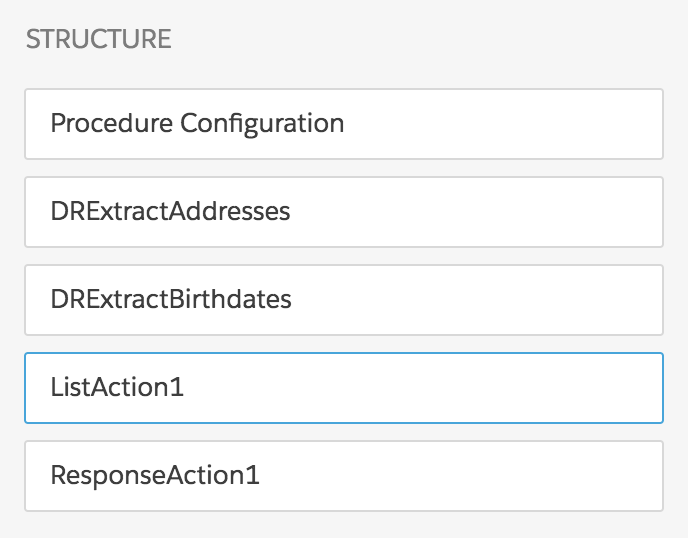
The Integration Procedure has these components:
- An Omnistudio Data Mapper Extract Action component named DRExtractAddresses
- A Data Mapper Extract Action component named DRExtractBirthdates
- A List Merge Action named ListAction1
- A Response Action named ResponseAction1
The Structure panel looks like this:
-
Create the Data Mapper Extract that the DRExtractAddresses component calls. Name it
GetAddresses and give it these settings:
Extract A Contact extract step set to contact AccountId = id Output These mappings: - contact:Id to contact:id
- contact:FirstName to contact:firstName
- contact:LastName to contact:lastName
- contact:MailingStreet to contact:street
- contact:MailingCity to contact:city
- contact:MailingState to contact:state
If you aren't sure how to create a Data Mapper Extract, see the examples in Omnistudio Data Mapper Extract Examples (Managed Package). -
Create the Data Mapper Extract that the DRExtractBirthdates component calls:
- Clone the GetAddresses Data Mapper and name the clone GetBirthdates.
- On the Output tab, delete the city, state, and street mappings.
- Add a mapping from contact:Birthdate to contact:birthdate.
- From the Omnistudio Integration Procedures tab, click New.
- Provide an Integration Procedure Name, a Type, and a SubType, and click Save.
- Drag the first Data Mapper Extract Action component into the Structure panel.
- Give the component an Element Name of DRExtractAddresses and a Data Mapper Interface of GetAddresses.
- Drag the second Data Mapper Extract Action component into the Structure panel below the first.
- Give the component an Element Name of DRExtractBirthdates and a Data Mapper Interface of GetBirthdates.
-
Drag a List Action component into the Structure panel below the second Data Mapper
Extract Action component and give it these settings:
MERGE LISTS ORDER - DRExtractAddresses:contact
- DRExtractBirthdates:contact
MERGE FIELDS id SORT BY - lastName
- firstName
- Drag a Response Action component below all the others.
- Give the component a Send JSON Path of ListAction1 and a Send JSON Node of contactMerge.
- On the Preview tab, in the Input Parameters pane, click Add New Key/Value Pair.
- Enter id as the Key and an Account Id from your org as the Value.
-
Click Execute.
The output looks like this:
{
  "contactMerge": [
    {
      "birthdate": "1975-10-03",
      "street": "300 Broadway",
      "state": "FL",
      "city": "Orlando",
      "lastName": "Jones",
      "id": "0036100001E5xrWAAR",
      "firstName": "Cathy"
    },
    {
      "birthdate": "1976-10-04",
      "street": "400 Washington Blvd",
      "state": "AZ",
      "city": "Phoenix",
      "lastName": "Jones",
      "id": "0036100001E5xrvAAB",
      "firstName": "Doug"
    },
    {
      "birthdate": "1973-10-01",
      "street": "100 Main Street",
      "state": "CA",
      "city": "San Francisco",
      "lastName": "Smith",
      "id": "0036100001E5xqnAAB",
      "firstName": "Albert"
    },
    {
      "birthdate": "1974-10-02",
      "street": "200 Second Street",
      "state": "OR",
      "city": "Portland",
      "lastName": "Smith",
      "id": "0036100001E5xr2AAB",
      "firstName": "Ben"
    }
  ]
}
What’s next: Create an Advanced List Merge Example (Managed Package).