
For the managed package runtime, set up an OS Action.
 This information is for Omnistudio for Managed Packages. For Omnistudio on standard runtime, see Omnistudio Help.
- Open the Vlocity Cards tab, and click on a version of a card to open the Card Designer.
- Click Add OS Action in the Actions section of a card state
- In the Id field, enter a unique name to distinguish the action from other actions in the Card Designer.
- In the Display Name field, enter the name that the action displays to the user.
-
Click in the Omniscript typeahead field to choose an active
Omniscript from the drop-down list. Beginning with Vlocity Insurance and Health
Winter '20 , the Omniscripts are listed as
Type/SubType/Language. For example, if you select CustomerInteractionAccountCMT/Creation/English, the Type is the Omniscript name CustomerInteractionAccountCMT, the SubType is Creation, and the Language is English. -
(Optional) Enter values for these properties:
-
Action Options: To add custom parameters, set conditions for when the OS Action displays, and configure optional settings for LWC enabled cards, select this checkbox. See Configuring Action Options (Managed Package).
-
Icon: Select a Vlocity icon or an SLDS icon to display next to the action link. For a complete list of Vlocity Icons, go to the Vlocity Actions tab, open any action, and click the Vlocity Icons header label to reveal the list of icons.
-
Open URL in: Select Current Window or New Tab/Window to indicate where to open the target URL.
-
Visualforce Page: Choose a Visualforce page to display the Omniscript on a custom page. For example, if you have a custom template for your Omniscript, you might create a custom page to display it.
-
Layout: Select the Lightning or Newport for the layout. This feature works for Angular Omniscripts only.
-
LWC Enabled: If the selected Omniscript is an LWC OS, this checkbox is automatically selected.
-
When LWC Enabled is checked, enter values for these properties:
-
Context Id: Enter the sObject's ContextId associated with your Omniscript. For example, if your LWC Omniscript updates account information, your context Id is an account record ID.
-
Console Tab Icon: Select a Vlocity icon or an SLDS icon to display in the subtab of a console after the OS action link is clicked. For example, select standard:account for an Omniscript that updates account information.
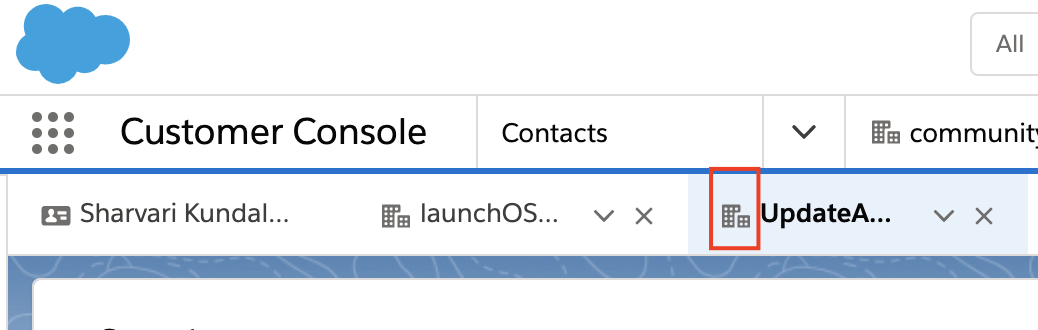
-
Console Tab Label: Enter the visible label of the Console Tab Icon. For example, Update Account.
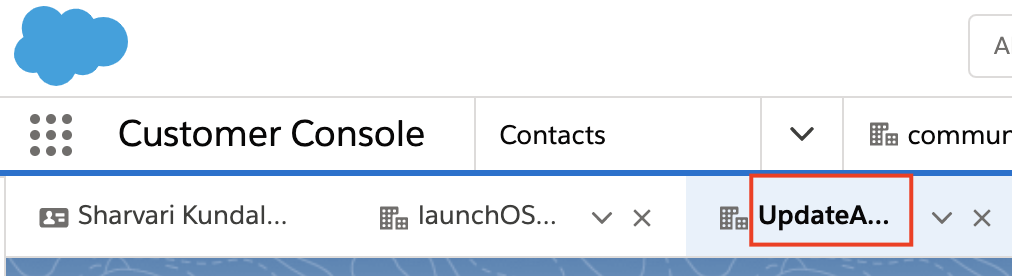
-
-