
For the managed package runtime, configure a data source to invoke an Apex Class and method to fetch data to populate a card.
Before you begin:
 This information is for Omnistudio for Managed Packages. For Omnistudio on standard runtime, see Omnistudio Help.
- Know the Apex remote class and method you need to invoke before you can configure a
remote data source. Managed packages can include Apex remote classes and
methods.
To see existing Apex classes:
- In your org, go to Setup, and in the Quick Find box, enter Apex.
- Click Apex Classes.
- Beginning with Vlocity Health and Insurance Spring '21, add an Apex class permissions checker to ensure only authorized users can access VlocityOpenInterface classes (APIs) from a remote action on a card.
Apex remote data sources can run asynchronously through Apex. This increases the CPU time but ensures that long-running transactions are not timed-out.
For optimal flexibility and easier implementation, use an Integration Procedure as a data source to execute multiple actions in a single server call.
- In your org, click the App Launcher, click Vlocity Cards, click a version of a card layout to open the Card Designer.
-
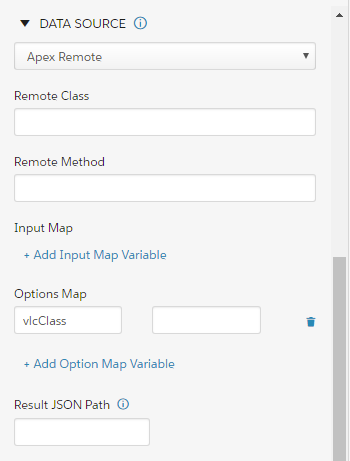
In the Layout or Cards pane, from the Data Source picklist,
select Apex Remote.
-
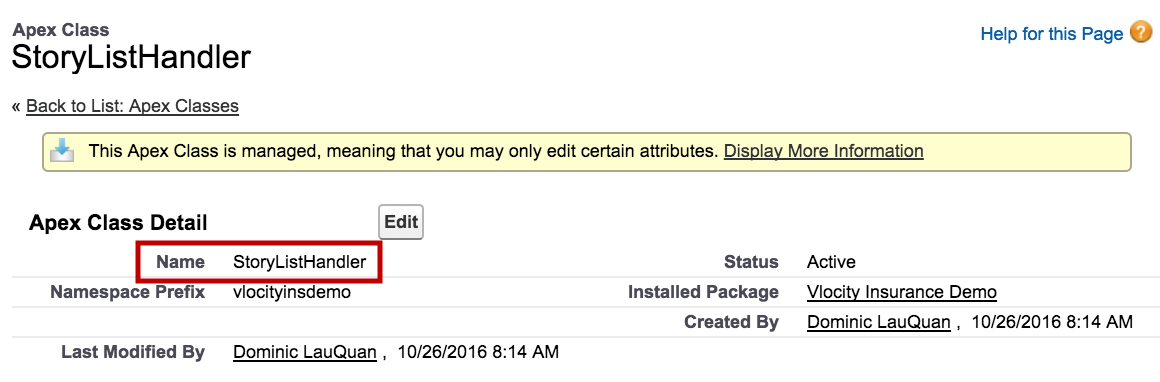
Enter the name of the Remote Class.
 Important
The Apex Class must implement the Vlocity Open Interface otherwise an error message displays.
-
Enter the name of the Remote Method.
For example, you can access the remote Apex method getStories from the remote Apex class StoryListHandler.
-
Click + Add Input Map Variable to add one or more
name-value pairs to pass to the remote Apex class method.
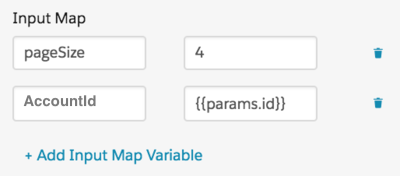
For example, to use the Page Parameters
{{params}}context variable to dynamically get the ContextId for your layouts and cards:-
In the first field of the Input Map, enter a ContextId form your Apex class method, such as
AccountId. -
In the second field of the Input Map, enter
{{params.id}}as the value. Parameters passed to the page are stored in the{{params}}context variable for use anywhere in the Vlocity Cards framework. In this case, your card or layout inherits the Id of the record page it's on in order to dynamically populate the card with that record's data. The remote method receives an inherited value as an Account Id from the layout or card, not the literal string{{params.id}}.
-
-
Click +Add Options Map Variable to add option variables to
the map passed to the remote method.
 Note
NoteBy default the
NS.IntegrationProcedureServicecontinuation object is set for you to use asynchronous callouts to make long-running requests from a Visualforce page to an external Web service and process responses in callback methods.NSrepresents your org's Namespace, such asvlocity_insorvlocity_cmt, as invlocity_ins.IntegrationProcedureService. -
(Optional). Enter values for these properties:
-
To drill down to a specific dataset, in the Result JSON Path field, enter a path. For example, enter records.results, which drills down to the
resultsarray and passes the array to the card or card layout. -
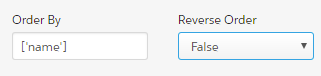
To sort data by a specific data field, enter the field name in the Order By input field.
-
To reverse the order of the data returned, select True from the Reverse Order picklist.
-
Set a Timeout value in milliseconds.
The timeout value controls the time that the framework waits for the designated data source to return a response. Timeouts improve handling user interactions with long running processes. Setting an appropriate timeout value allows the application and users to react accordingly to long wait times.
-
Set an Interval value in milliseconds.
The card component's data source refreshes continuously at the given interval and checks for changes in data source records. If changes are found, the layout or card component reloads. Setting an interval enables recursive updates of records.
-
- Preview a card using real data, add a test variable in the Test Data Source Settings fields.