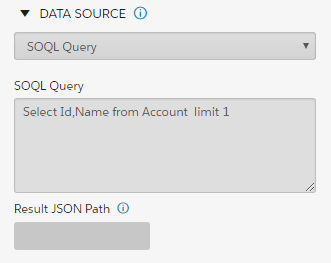
For the managed package runtime, configure a data source to use a Salesforce Object Query Language (SOQL) query to search an org's data for specific information.
 This information is for Omnistudio for Managed Packages. For Omnistudio on standard runtime, see Omnistudio Help.

When mapping fields, only fields in the field picker that have non-null values for the specific record in the test query are visible. Use a test record that you know has non-null values for all the fields you want to map. Or use custom fields if the test record doesn't have the fields that you want to map.
The SOQL queries are encrypted so that Cards do not display query information on the client-side. If security is a concern, use an Omnistudio Data Mapper instead of a SOQL query, because Data Mappers provide field-level security.
For optimal flexibility and easier implementation, use an Integration Procedure as a data source to execute multiple actions in a single server call. See Configuring an Integration Procedure Data Source (Managed Package).
To configure a data source for a card, perform the following steps:
- In the SOQL Query box, enter a SOQL expression. For example:
-
(Optional). Enter values for these properties:
-
To drill down to a specific dataset, in the Result JSON Path field, enter a path. For example, enter records.results, which drills down to the
resultsarray and passes the array to the card or card layout. -
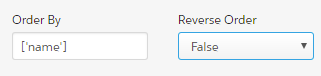
To sort data by a specific data field, enter the field name in the Order By input field.
-
To reverse the order of the data returned, select True from the Reverse Order picklist.
-
Set a Timeout value in milliseconds.
The timeout value controls the time that the framework waits for the designated data source to return a response. Timeouts improve handling user interactions with long running processes. Setting an appropriate timeout value allows the application and users to react accordingly to long wait times.
-
Set an Interval value in milliseconds.
The card component's data source refreshes continuously at the given interval and checks for changes in data source records. If changes are found, the layout or card component reloads. Setting an interval enables recursive updates of records.
-
- To preview a card using real data, add a test variable in the Test Data Source Settings fields. See Testing Data Source Settings (Managed Package).