
For the managed package runtime, configure elements for your Omniscript in the Properties panel of the designer when an element is selected, such as the name, label, and instructions for a step element.
Before you begin:
 This information is for Omnistudio for Managed Packages. For Omnistudio on standard runtime, see Omnistudio Help.
- Create an Omniscript. See Create an LWC Omniscript in the LWC Omniscript Designer (Managed Package).
- Set up your Omniscript with optional settings. See Set Up an Omniscript in the LWC Omniscript Designer (Managed Package).
- Add elements to your Omniscript. See Build an LWC Omniscript with Elements in the LWC Omniscript Designer (Managed Package).
To configure elements in the Lightning Web Component Omniscript Designer:
- From your Omniscript, click an element on the canvas or the Navigation Panel to open the Properties panel.
- Enter values for any required fields marked with an asterisk (*), such as the Name field of a Text input element.
- (Optional) Enter values for optional fields, such as the Placeholder and Label fields of a Text input element.
-
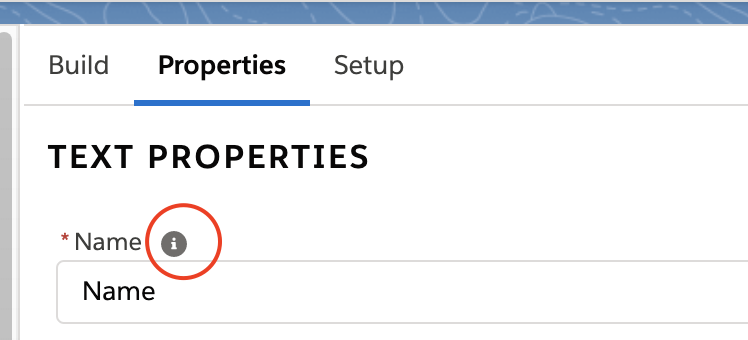
(Optional) To learn more about a specific property, hover over the tooltip icon
(i) next to the name of the property.
-
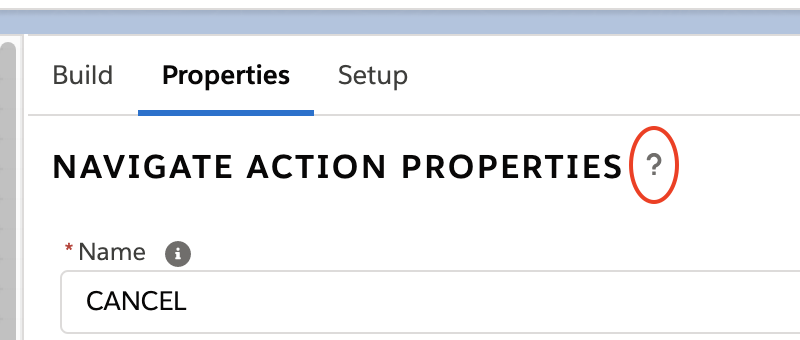
(Optional) For detailed documentation about your selected element, select the help
icon (?) next to the name of the property.
- To activate the element, click Active.