
For the managed package runtime, configure a data source to use methods from an SDK to provide the data for a Flexcard. An SDK allows you to call multiple data sources, reuse business logic, and control which fields appear on your Flexcard.
 This information is for Omnistudio for Managed Packages. For Omnistudio on standard runtime, see Omnistudio Help.
See Flexcard SDK Data Source (Managed Package).
|
Required Versions |
|---|
|
Available beginning Summer '21. |
Before You Begin
Create the static resource for the SDK. See Create the Static Resource for an SDK Data Source on a Flexcard (Managed Package).
- To configure the data source when creating a Flexcard, navigate to the Select Data Source Type step, select SDK, and click Next.
- To configure the data source from the SetUp Panel in the Flexcard Designer, click Setup, and select SDK from the Data Source Type dropdown.
-
From the SDK dropdown, select the SDK from the drop list.
This should be the name of the SDK as given in the static resource file, such as
Digitalcommerce JS SDK. Once you select that name, the Description field populates. The Flexcard finds the static resource name and loads the file specified insdkPath. - From the SDK Method dropdown, select from a list of functions available from your chosen SDK, such as getOffers method. For a list of Digital Commerce SDK methods, see the SDK Core Class Structure and Methods documentation.
-
(Optional) To pass data from the Flexcard to the SDK method, from the Input Parameters section select from one of these options:
-
Click + Add New:
-
In the Key field enter the name of a variable to pass to the method. Or, if a list of available parameters appears when you click into the Key field, select one, such as catalogCode.
-
In the Value field, enter the value of the variable as a merge field, such as Phones.
-
-
Click Edit as JSON to add variables as JSON, such as {"catalogCode":"Phones"}.
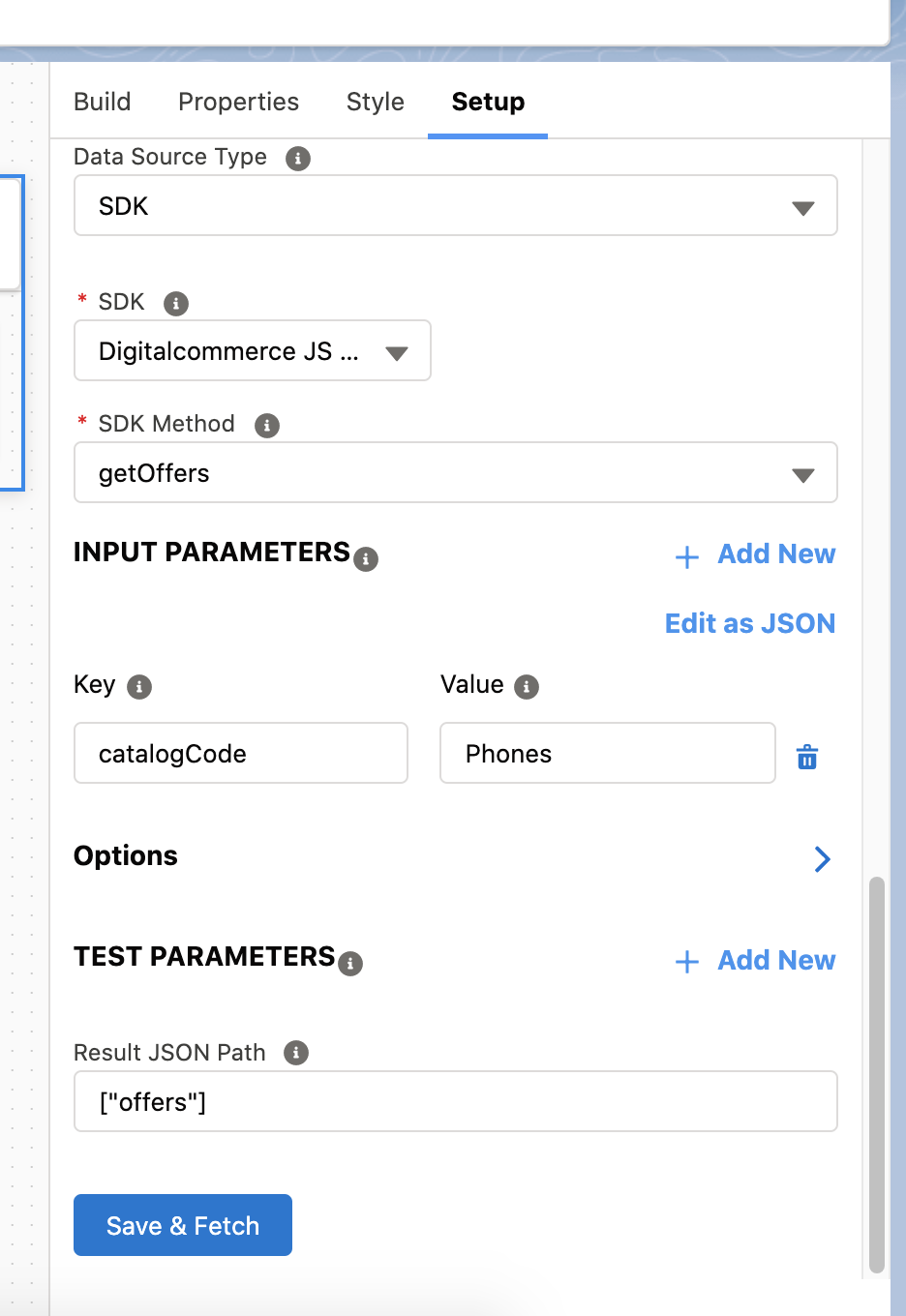
-
- (Optional) To configure other options common among all data sources, see Flexcards Data Source Properties (Managed Package).
- (Optional) If an input parameter has merge fields, such as {recordId}, add test variables in the Test Parameters section so that the query returns live data. See Test Data Source Settings on a Flexcard (Managed Package).
- Click Save + Fetch. The Flexcard Designer makes the API call and returns a response. You can test the response in the Test Response field. See Test Data Source Settings on a Flexcard (Managed Package).