
For the managed package runtime, make sure that your calculation procedure UI is set up for looping calculations, then configure looping variables.
 This information is for Omnistudio for Managed Packages. For Omnistudio on standard runtime, see Omnistudio Help.
- From the App Launcher, go to the Vlocity Calculation Procedures tab.
- Select your calculation procedure from the list. On the record page, click the Related tab.
- Click the name of the Calculation Procedure Version you're using.
-
Click the gear icon and select Edit Object.
A new browser tab opens and you are in Setup, in the Object Manager, and on the Vlocity Calculation Procedure Version page.
- Select Page Layouts, then select the page layout you're using.
-
Drag the following items from Fields onto the Vlocity Calculation Procedure
Version Detail section:
-
Enable Looping
-
Loop Specification
-
- Click Save.
- Return to the browser tab for the Calculation Procedure Version you're using and refresh the browser.
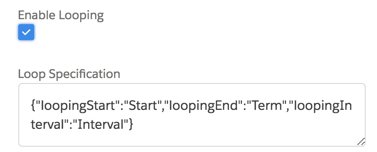
- Click the pencil icon for the Enable Looping field and check the Enable Looping box.
-
In the
Loop Specification field, type a JSON value in this format:
{"loopingStart":"StartVariableName","loopingEnd":"TermVariableName","loopingInterval":"IntervalVariableName"}The values must match the names of the variables you will set in the calculation procedure in the next step.
For example:
- Click Save.
-
In your calculation procedure, create three variables with a Data Type of
Number and a Precision of 0. The
names must match the variables you set in the Loop
Specification in the previous step.
For example:

-
Click Save Calculation Procedure.
After looping is configured, you can create calculation steps using the
indexvariable and thePREVIOUSfunction. See The Looping Feature in Calculation Procedures (Managed Package).