
For the managed package runtime, with the Flexcard Designer create, build, design, test, and activate a Flexcard before publishing it to a Lightning or Experience page. Use a drag interface with WYSIWYG editing to preview while you build dynamic context-specific user interfaces for customer interactions.
 This information is for Omnistudio for Managed Packages. For Omnistudio on standard runtime, see Omnistudio Help.
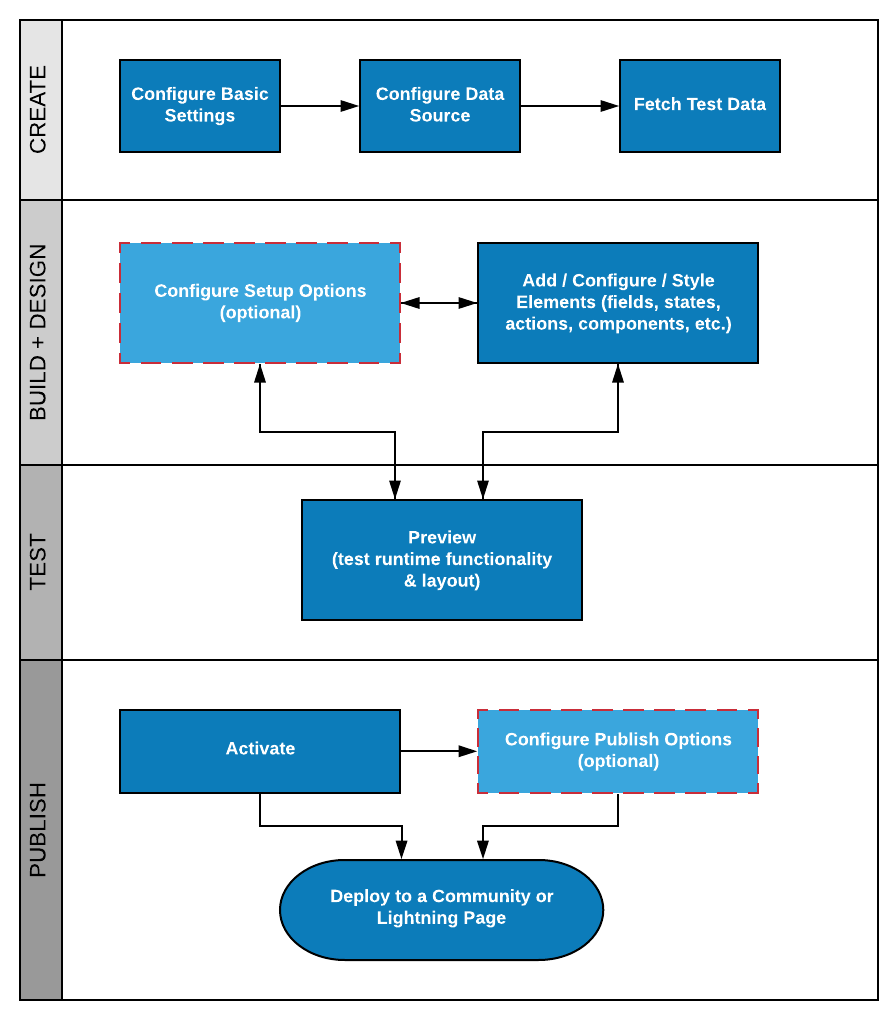
Create a New Flexcard
-
Step through a four-step configuration wizard to create a new Flexcard. See Create a Flexcard (Managed Package).
-
Configure basic settings such as title, name, author, description, and optionally enable the ability to embed the Flexcard inside another Flexcard.
-
Select and configure a data source, and where applicable, add test data to populate fields and preview the Flexcard at run time.
Configure Setup Options
Configure card-wide options, such as adding an event listener, adding session variables, disabling record looping, limiting user access, and updating data source settings, and more. See Set Up a Flexcard in the Flexcard Designer (Managed Package).
Add, Configure and Style Elements
-
Add and configure elements, such as fields, states, actions, and other components on a Flexcard. See Add Elements to a Flexcard (Managed Package).
-
Add styles for each element such as background color and image, border, padding, and margin. Set an element's height. Update the look of supported text fields by adding custom classes. Create and apply custom classes and inline styles. And more. See Style Flexcard Elements (Managed Package).
-
Enable an element's width to change when the viewport updates. See Create Responsive Elements on a Flexcard (Managed Package).
Preview Flexcard
Preview your Flexcard's appearance and functionality before publishing it to a Lightning or Experience page. See Preview a Flexcard (Managed Package).
Activate Flexcard
Activate your Flexcard to publish it to a Lightning or Experience page. See Activate a Flexcard (Managed Package).