For the managed package runtime, combine logical groups of elements in an Omniscript Step using a Block element.
 This information is for Omnistudio for Managed Packages. For Omnistudio on standard runtime, see Omnistudio Help.
Blocks help to group information to create nested JSON data. Blocks are contained within Steps and can repeat to capture an array of data. For example, street, city, state, and postal code elements can be combined into an address block.

Note You can nest Blocks within other Blocks, but Blocks don’t support the Custom LWC Element.
- Drag a Block element into the Omniscript canvas and name the element.
- In Field Label, enter a label that displays to users.
- To render a collapsed Block in the Omniscript, check Collapse.
- In the Heading Level field, enter the nesting level of the element as a number.
-
To enable users to add multiple block entries, check Enable Repeat
in Repeat Settings.
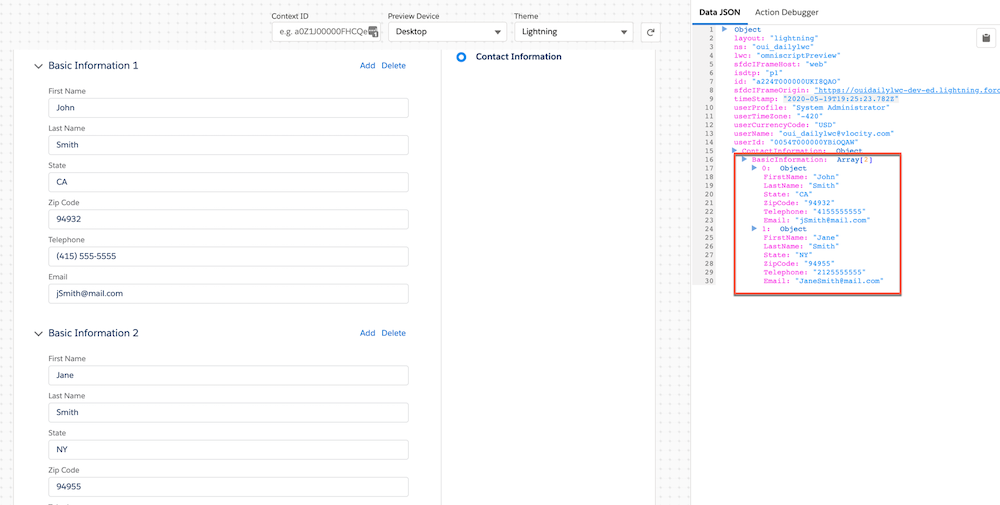
Repeatable blocks store data in an array format, where each block entry is indexed in an array under the Block's element name.
- If you plan to access data from an element in a repeatable Block, see Access to Data Within and Outside a Repeatable Block (Managed Package).
- For information about prefilling blocks, see Prefill Repeatable Blocks (Managed Package).
- To clone values when a Block is repeated, check Clone When Repeating.
- To set the number of times a Block can be repeated, enter a number in the Limit Repeat field.
- Preview the Omniscript and test the functionality.

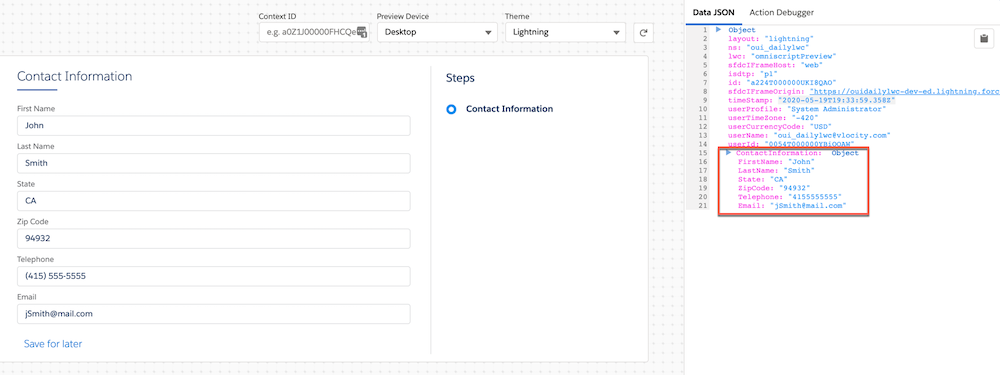
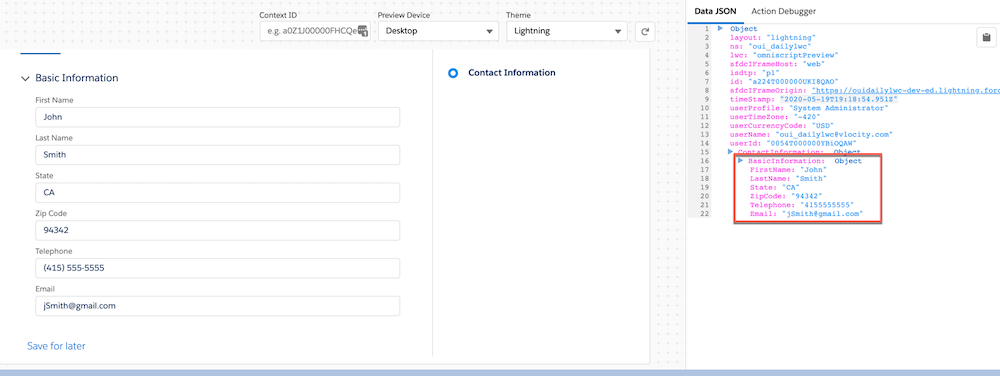
Example Data JSON output format based on your configuration to map data JSON from blocks:
- No block JSON:
- Block JSON:
- Repeatable block JSON: