
For the managed package runtime, after creating the structure of an Omniscript, drag the desired elements into the structure.
 This information is for Omnistudio for Managed Packages. For Omnistudio on standard runtime, see Omnistudio Help.
You must nest input elements in Steps or Blocks. Action elements render as a button when placed in a Step or Block, and run remotely if placed between steps. For more details on action elements, see Omniscript Action Elements Reference. To avoid performance issues, limit the number of elements in each block or step to less than 50.
To add an element to an Omniscript:
-
Drag an element from the Available Components section to
the script structure.
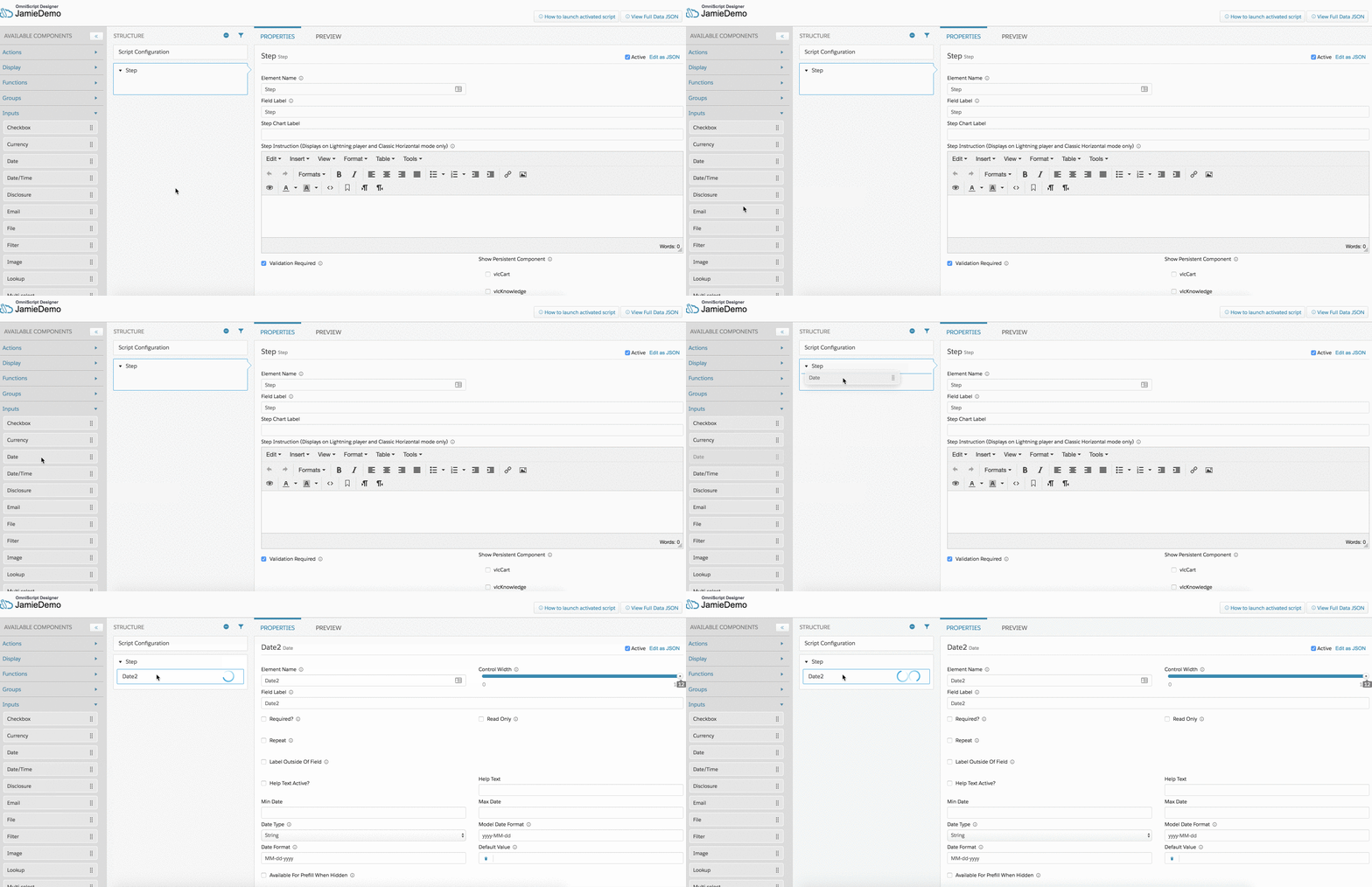
-
Edit the element properties. Properties vary depending on the element type. Refer
to Common Omniscript Element Properties Definitions for
a list of the most common properties.
 Note
NoteEach row on an Omniscript can have a total Control Width of 12. For example, three elements that reside on the same row can each have a Control Width of 4, or two elements can have a Control Width of 3 and one a Control Width of 6.