
For the managed package runtime, set conditions to determine which card state is displayed on a layout or to change appearance based on conditions. For example, on a card that displays policy information, one card state shows action links to update profile and account information for all policies, while another card state includes a renew action link if the policy is about to expire.
 This information is for Omnistudio for Managed Packages. For Omnistudio on standard runtime, see Omnistudio Help.
If a card has multiple states, it must have logical conditions that determine which state is displayed and when. For example, a card has an active state if there is data to display, and a blank or open state if there is no data and limited actions.
To add a condition to a card state:
- In your org, click the App Launcher, click Vlocity Cards, and click a version of a card to open the Card Designer.
- In the Conditions section of a card state, click + Add Condition.
-
To create basic conditions:
-
Select AND or OR from the dropdown preceding each condition:
-
Select AND if all conditions must be met.
-
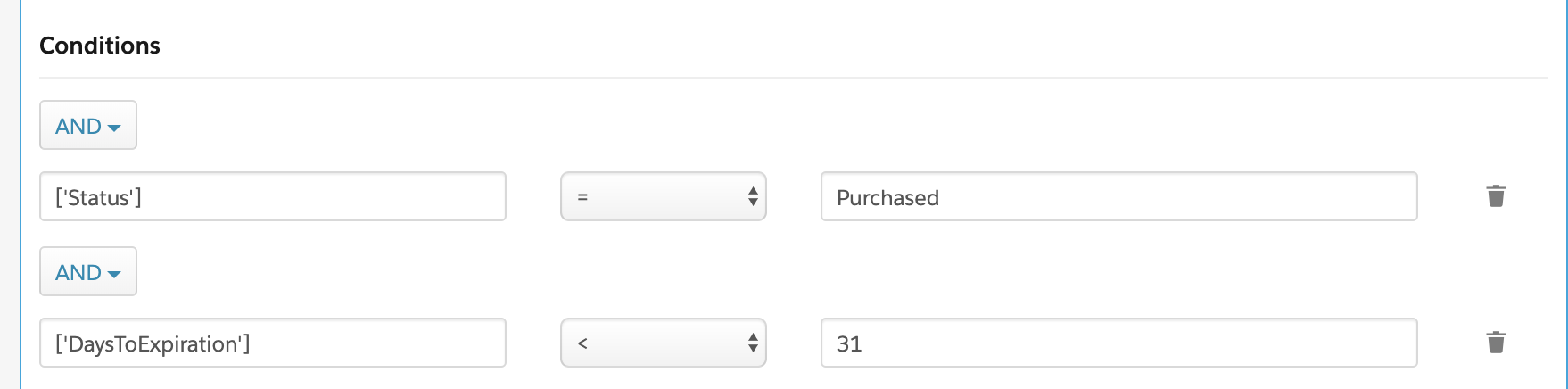
For example, the policy status is purchased AND the expiration date is less than 31 days.
 Note
NoteIf there is only one condition, that condition must be met to display cards.
-
-
Select OR if any condition can be met.
-
For example, the policy status is closed OR the expiration date is less than 31 days.
NoteIf there is only one condition, that condition does not need to be met to display cards.
-
-
-
Click into the first input field, from the list of data fields, select a data field to filter, such as ['DaysToExpiration'].
-
Select the operator from the dropdown in the middle column, such as <.
-
In the last input field, enter the value to filter, such as 31.
 Important
In an LWC enabled card, when adding
paramsand$root.vlocitycontext variables as values to check against in a condition, enclose them in double curly braces. For example, {{params.id}} and {{$root.vlocity.userAccountId}}.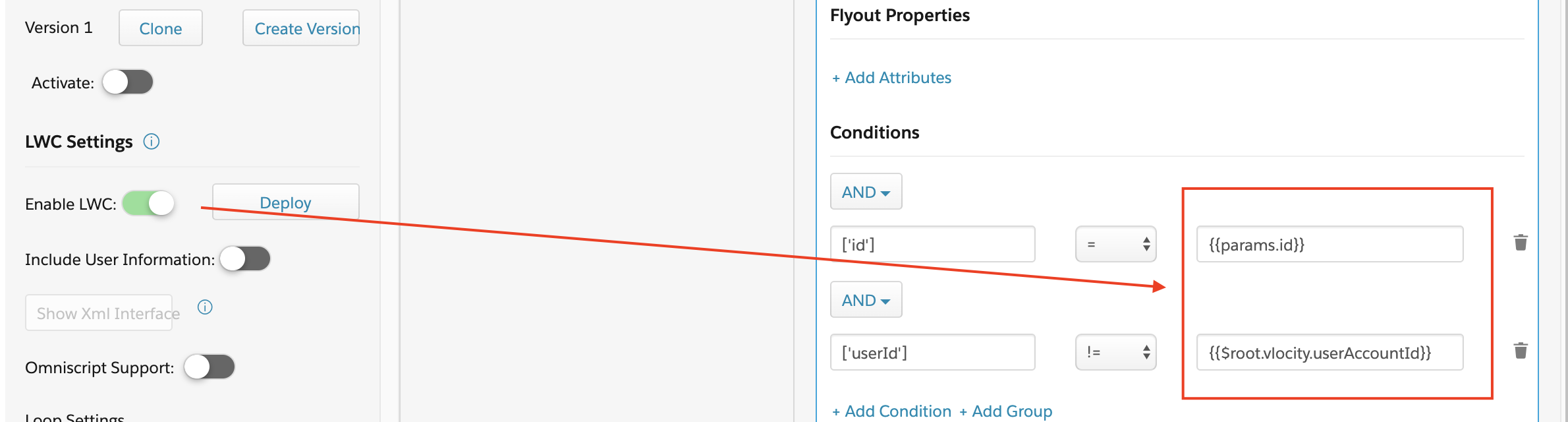
-
-
To build nested conditions:
-
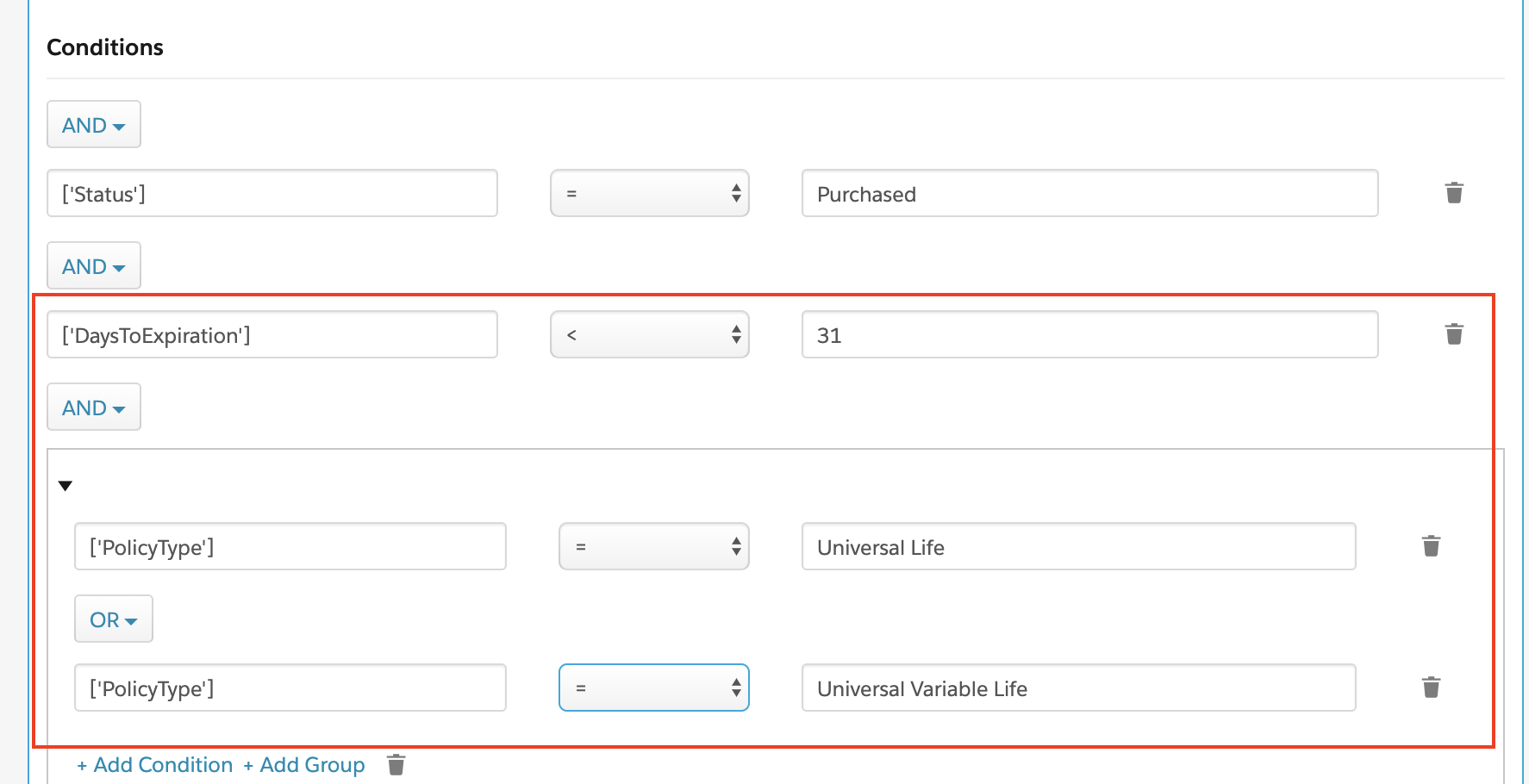
Click + Add Group after creating a condition, such as DaysToExpiration < 31.
-
Click + Add Condition and enter values for all fields for each condition. You must create at least two conditions to form a group.
-
Select AND or OR from the dropdown between conditions.
For example, use the conditions feature to build the conditional expression DaysToExpiration < 31 AND ( PolicyType = Universal Life OR PolicyType = Universal Variable Life) to filter for policies about to expire, and whose policy type is either Universal Life or Universal Variable Life.
-