
For the managed package runtime, add additional fields to a card state by adding placeholders created in the Template Designer.
 This information is for Omnistudio for Managed Packages. For Omnistudio on standard runtime, see Omnistudio Help.
To insert a placeholder into a card state:

Your card template must support placeholders. For a list of Vlocity base card state templates that support placeholders, see Base UI and Card Templates (Managed Package). To create a custom card state template that supports placeholders, see Creating a Placeholder (Managed Package).
-
Select a placeholder from the Placeholders dropdown, and
click Add.

-
Enter values for these fields:
-
Value: Enter the value of the placeholder.
 Note
NoteBy default, a list of data fields available from the card or card layout data source is visible when you click into this input field. However, any value is acceptable.
-
(Optional) Placeholder type: To update the field type, in the second input field, delete the default string, and choose from the available types in the picklist.
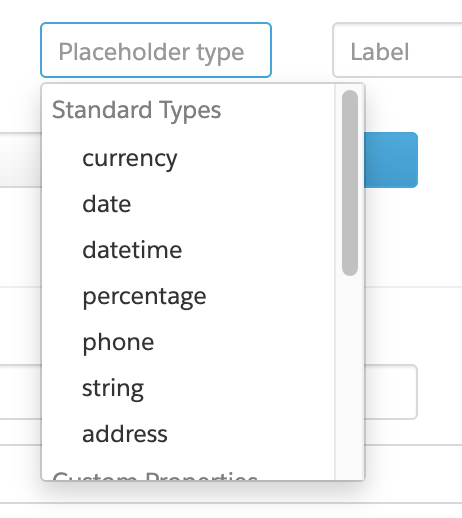
-
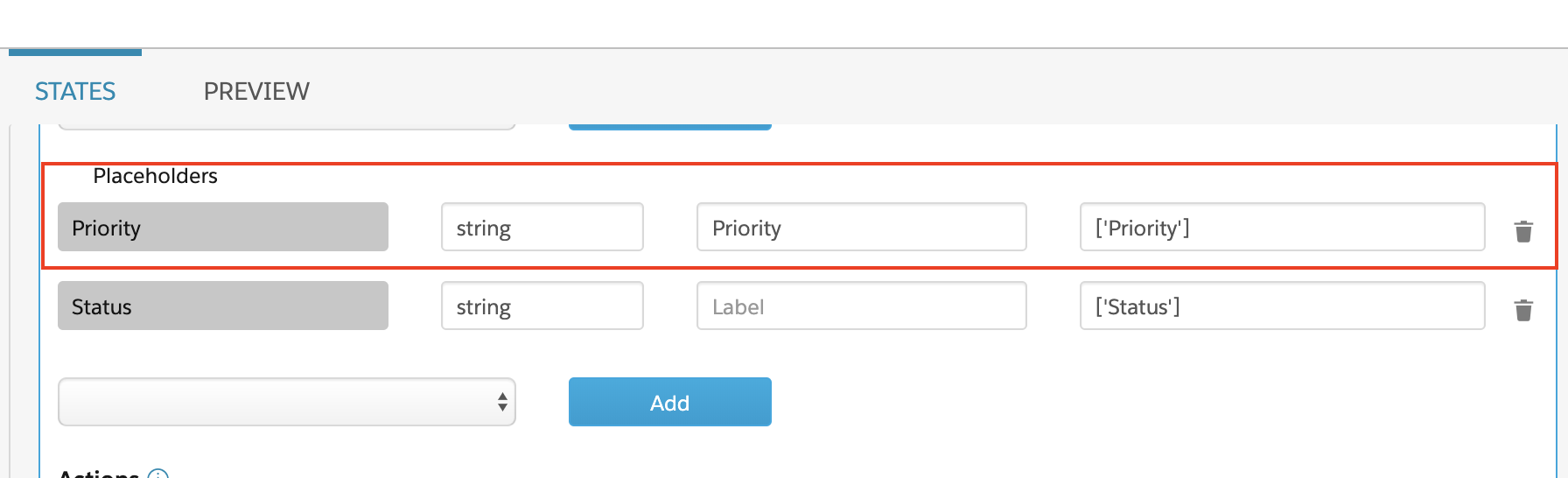
(Optional) Label: If your template displays a label, enter a label for the placeholder. For example:
NoteBy default, a list of data fields available from the card or card layout data source is visible when you click into this input field. However, any value is acceptable.
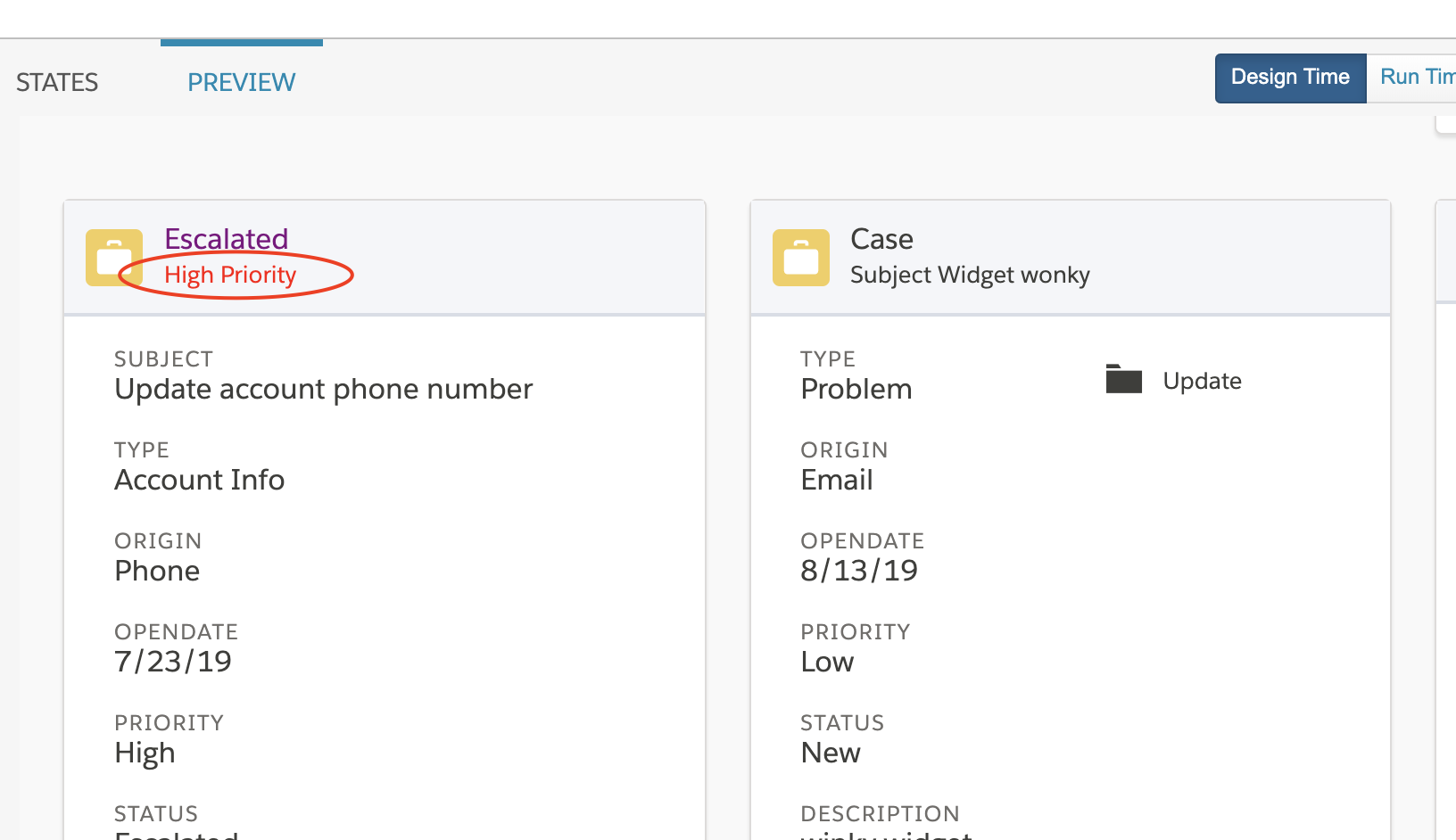
For example, display an alert for high priority cases using a card state template that displays both the placeholder label and its value in the header of a card. Enter Priority as the label of the alert, and the context variable ['Priority'] as the placeholder value.
-