
For the managed package runtime, add actions directly on a card with Custom Actions. Custom Actions perform faster than standard Vlocity Actions but have fewer configuration options. For reusable actions with additional configuration options, see Vlocity Actions.
 This information is for Omnistudio for Managed Packages. For Omnistudio on standard runtime, see Omnistudio Help.
Beginning with the Summer '19 release, Vlocity supports Salesforce's Lightning Web Components programming model with Vlocity Lightning Web Components. Vlocity Lightning Web Components include components, functionalities, and templates exclusive to LWC Cards.
In the code samples below, replace NameSpace with your org's Vlocity namespace prefix. See Viewing the Namespace and Package Version of Omnistudio for Managed Packages (Managed Package).
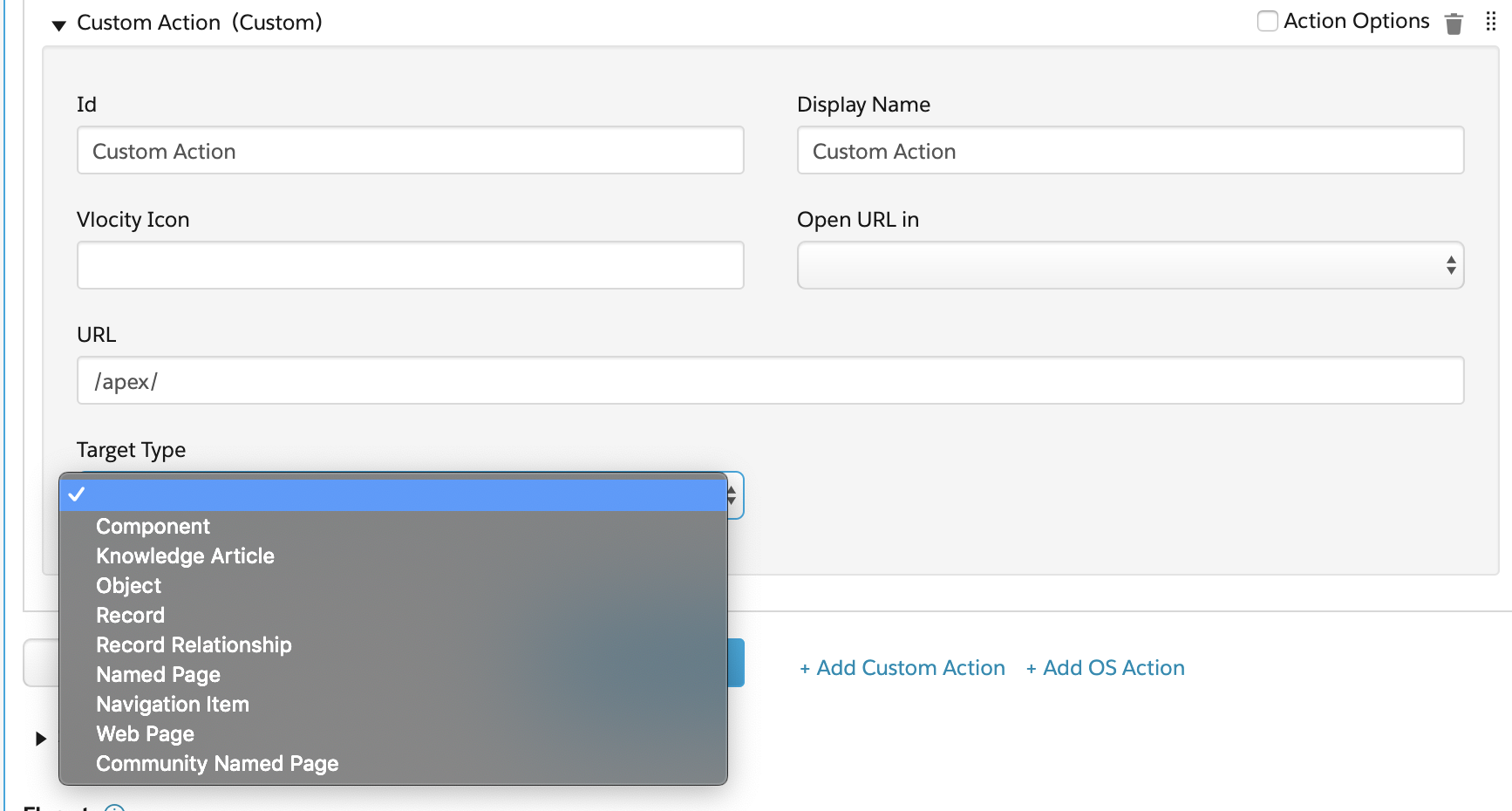
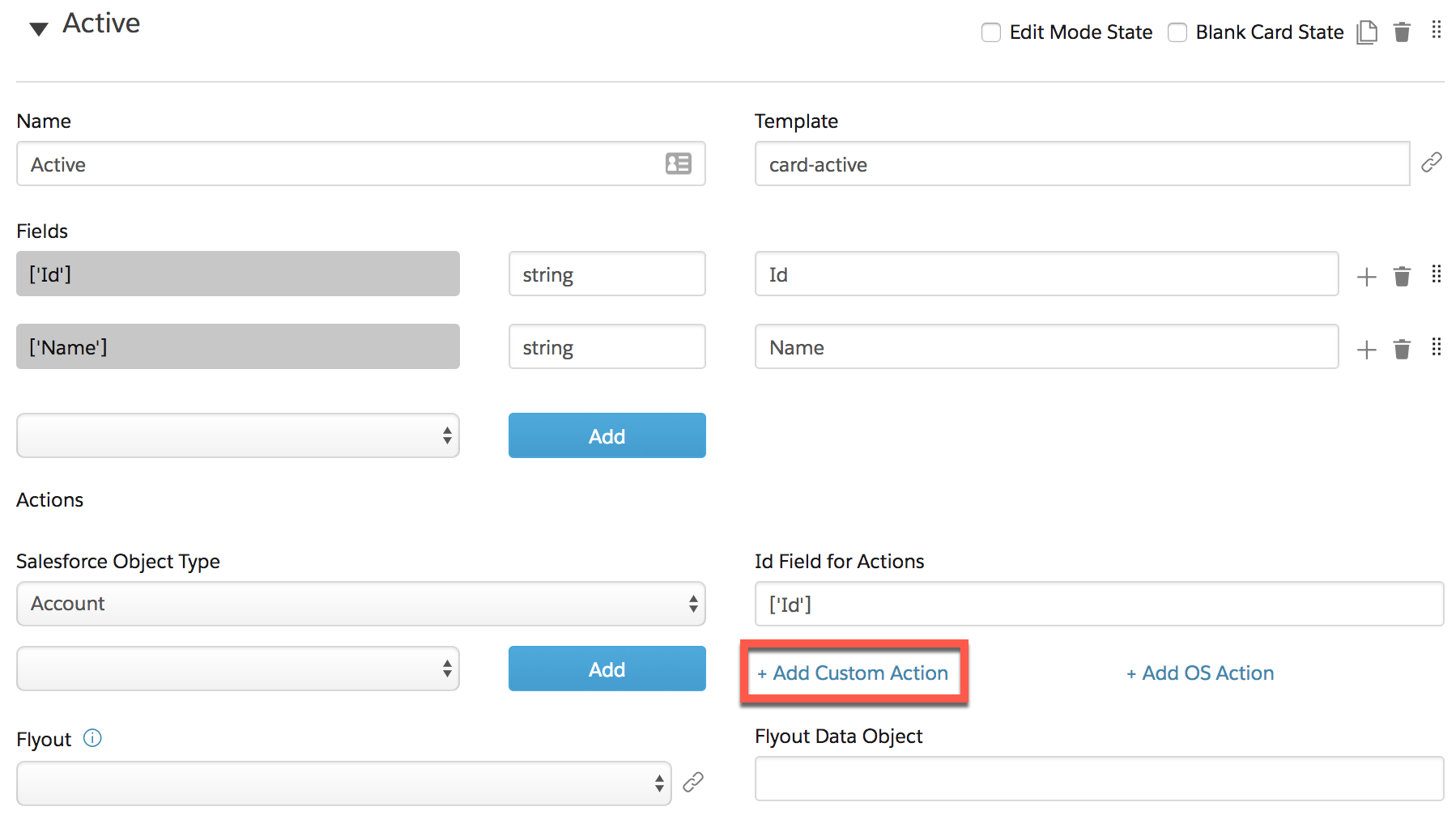
- Open a card from the Vlocity Cards tab and click Add Custom Action in the card state.
- In the Id field, to distinguish the action from other actions in the card designer, enter a unique name. For example, ActiveAccountUpdate.
- In the Display Name field, enter the name to display to the user. For example, Update Account.
- In the URL field, enter the URL to which the action links. See Target URL and URL Parameters (Managed Package).
-
Beginning with Vlocity Insurance and Health Winter '20 and Vlocity CME Winter '20,
in LWC Cards, Custom Actions support Salesforce PageReference Types that enable
navigation within Lightning Experience, within Communities, or to an external web
address. See PageReference Types.
From the Target Type drop-down, select a page reference type:
App: Navigates to a standard or custom app available from the App Launcher in an org.
Property
Description
App Target
The app that you are navigating to. Pass either the appId or appDeveloperName to the appTarget.
Type
The standard or custom app available from the App Launcher.
Action Name
Enter the name of the action.
API Name
Enter the API name of the app.
RecordId
Enter the record Id of the record to navigate to.
Login: Navigate to a page for authentication into a community.
Property
Description
Target Actions
Enter a valid action name to call.
Target Parameters
Click Add Parameters to pass contextual data as key-value pairs. See Add Query Parameters.
Component: Navigates to a Lightning component or a Lightning Web Component, such as a card or an Omniscript.
Property
Description
Component Name
Enter the component name. For example, NameSpace__vlocityLWCOmniWrapper.
Target Parameters
Click Add Parameters to pass contextual data as key-value pairs. For example, enter parameters to get a specific Omniscript and set the layout type to Newport Designing System instead. In the first key-value pair, enter NameSpace__target as the key and NameSpace:GetAccountDetails as the value. In the second key-value pair, enter layout as the key and newport as the value.
Knowledge Article: Navigates to a Knowledge Article.
Property
Description
Article URL
Enter the article's
urlName. For example, Client-Updates.Target Article Type
Enter the API name of the Knowledge Article record. For example, client_updates.
 Note
NoteIn Lightning Knowledge, standard record types replace custom article types.
Object: Navigates to a standard or custom object.
Property
Description
Object API Name
Enter the API name of the standard Salesforce object or custom object. For example, Account for a standard object, or NameSpace_Application__c for a custom object.
Target Action
Enter action names to call. Valid values are home, list and new. See PageReference Types.
Record: Navigates to a record.
Property
Description
Object API Name
Enter the API name of the object, such as Account.
Target Action
Enter a valid action name to call. Valid values are clone, view, and edit. Communities do not support clone or edit.
Target Id
Enter the record ID.
Record Relationship: Navigates to a relationship on a particular record. Only related lists are supported.
Property
Description
Object API Name
Enter the API name of the object, such as Account.
Target Action
Enter the valid action name to call. A valid value is view.
Target Id
Enter the record ID that defines the relationship, such as an account's case record Id.
Target Relationship
Enter the API name of the related object, such as Case.
Named Page: Navigates to a standard Lightning page with a unique name.
Property
Description
Page Name
Enter the name of a standard page in Lightning Experience. For example, enter NameSpace__VlocityCardHome to navigate to the Vlocity Cards tab or home to navigate to the landing page of your org.
Target Parameters
Click Add Parameters to pass contextual data as key-value pairs. See Add Query Parameters.
Navigation Item: Navigates to a Custom Tab. Visualforce tabs, web tabs, Lightning Pages, and Lightning Component tabs are supported.
Property
Description
Custom Tab Name
Enter a custom tab name, such as NameSpace_Households for a Vlocity managed tab or Console_Home for an unmanaged tab.
Target Parameters
Click Add Parameters to pass contextual data as key-value pairs. See Add Query Parameters.
Web Page: Navigates to a web address.
Property
Description
URL
Enter an external web address, such as https://vlocity.com/.
Community Named Page: Navigates to a Community page.
Property
Description
Community Page Name
Enter a community page name. For example, contactsupport directs to the community url + '/contactsupport'.
Target Parameters
Click Add Parameters to pass contextual data as key-value pairs. See Add Query Parameters.
-
(Optional) Enter values for these properties:
-
Vlocity Icon: Select a Vlocity icon or an SLDS icon to display next to the action link. For a complete list of Vlocity Icons, go to the Vlocity Actions tab, open any action, and click the Vlocity Icons header label to reveal the list of icons.
-
Open URL in: Select Current Window or New Tab/Window to indicate where to open the URL.
-
What’s next: To configure the action to invoke an Apex class, see Configuring Action Options (Managed Package).