
For the managed package runtime, add actions directly on a card with Custom Actions. Custom Actions perform faster than standard Vlocity Actions but have fewer configuration options.
 This information is for Omnistudio for Managed Packages. For Omnistudio on standard runtime, see Omnistudio Help.
For reusable actions with additional configuration options, see Vlocity Actions (Managed Package).
Beginning with the Summer '19 release, Vlocity supports Salesforce's Lightning Web Components programming model with Vlocity Lightning Web Components. Vlocity Lightning Web Components include components, functionalities, and templates exclusive to LWC Cards. See LWC Cards Considerations (Managed Package) and Configure Smart Actions on an LWC Card (Managed Package).
-
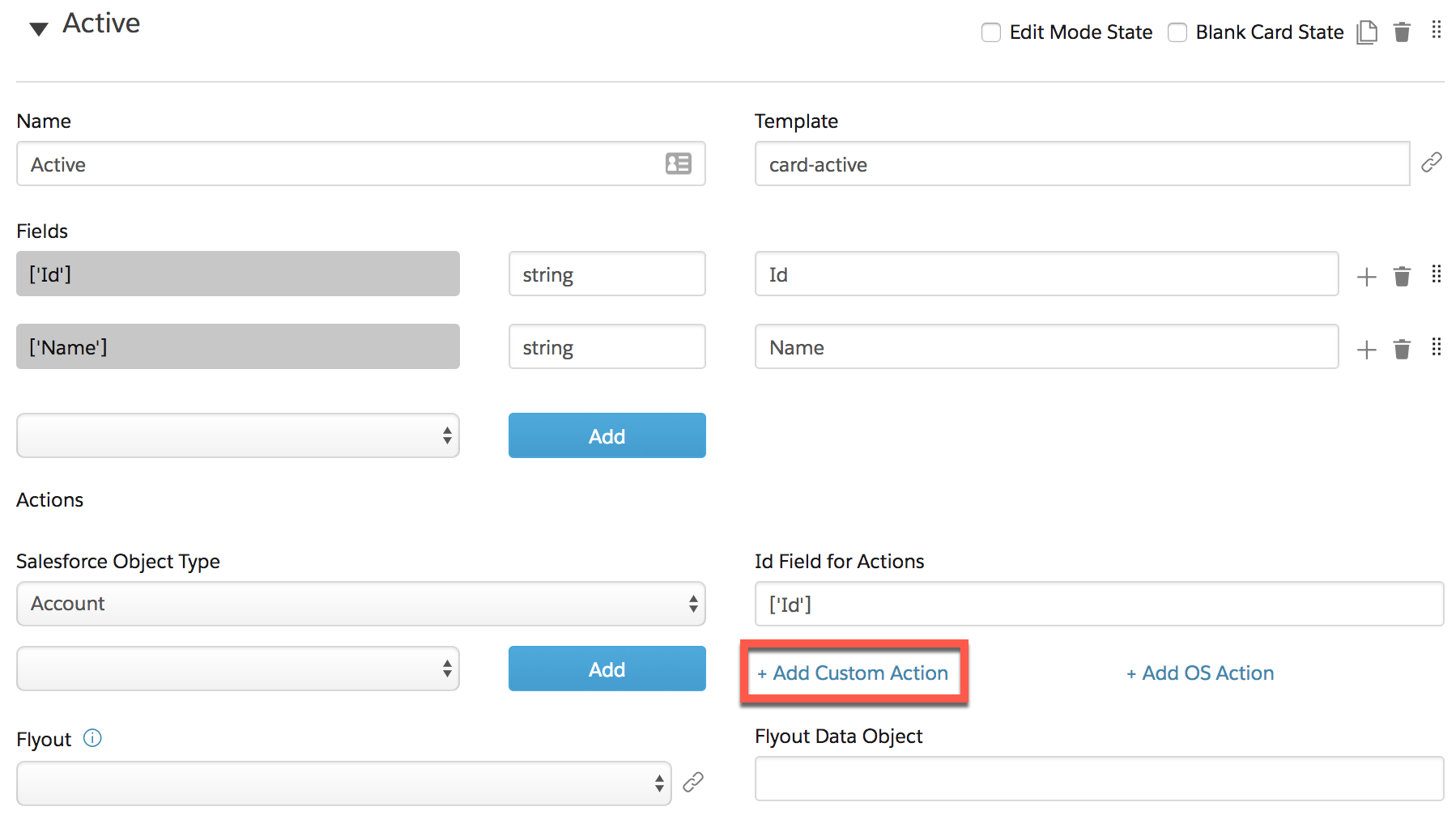
Open a card from the Vlocity Cards tab and click Add Custom
Action in the card state.
- In the Id field, to distinguish the action from other actions in the card designer, enter a unique name. For example, ActiveAccountUpdate.
- In the Display Name field, enter the name to display to the user. For example, Update Account.
- In the URL field, enter the URL to which the action links. See Target URL and URL Parameters (Managed Package).
-
(Optional) Enter values for these properties:
-
Vlocity Icon: Select a Vlocity icon or an SLDS icon to display next to the action link. For a complete list of Vlocity Icons, go to the Vlocity Actions tab, open any action, and click the Vlocity Icons header label to reveal the list of icons.
-
Open URL in: Select Current Window or New Tab/Window to indicate where to open the URL.
-
Check the Actions Options checkbox to add Custom Parameters, Conditions, and to invoke an Apex class. See Configuring Action Options (Managed Package).
-