
For the managed package runtime, to add options for Select, Multi-Select, and Radio Button elements, go to the Options section of the element properties and click + Add New Option. If no values are defined for a Select element, an Undefined Value is returned.
 This information is for Omnistudio for Managed Packages. For Omnistudio on standard runtime, see Omnistudio Help.
Each option has a Value and Label pair. The Value is the language-independent data that gets passed in and out of the Omniscript remotely, through an Omnistudio Data Mapper, a Remote action, or an HTTP (REST) action. It’s also referenced when setting up a Conditional View.
The Label is displayed in the Omniscript UI. The Value and Label can be identical or different.
For example, the ethernetlink element shown in this image has four options:
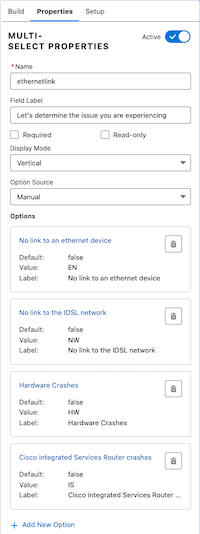
The value of one of these options is EN and its label
is No Link To An Ethernet Device. If an end user
clicks No Link To An Ethernet Device, the data returned is EN.
For Multi-Select elements, if the user selects multiple options, a semicolon-delimited list
of data is returned. For example, selecting No Link To An Ethernet
Device and Hardware Crashes returns EN;HW.

If the values change frequently, enable the Fetch Picklist Values at Script Load to ensure that the Omniscript elements contain the most up-to-date set of values. Salesforce sources include picklists and custom classes.