
For the managed package runtime, Flexcard states enable the presentation of different CRM interactions for each state. Set conditions to determine if, when, and how data displays on a Flexcard.
 This information is for Omnistudio for Managed Packages. For Omnistudio on standard runtime, see Omnistudio Help.

Example: Policy Information Flexcard
A Flexcard displays policy information for an Account. If the Policy is up to date, the default state displays data fields, and an action to update Account information. If the Policy is about to expire, the Policy has a red border, an alert notification, and an action to renew the Policy.
When arranging the order of your states on the canvas, place the states in a logical order, where the first condition is checked against the next, and so on. Typically, states with complex conditions precede states with simple ones, followed by a state with no conditions, and then a Blank Card State. The Flexcard displays the first state whose conditions evaluate to true.
For example, the order of the states for the previous example would be:
-
State 1 - Condition: DaysToExpiration < 31 && DaysToExpiration != Null (empty)
-
State 2 - No conditions
-
State 3 - Blank Card State (no records returned)

Applied conditions are visible in Preview only.
- From the Flexcards tab, click a version of a Flexcard to open the Flexcard Designer.
- Select a state, and click the pencil icon next Conditions in the Properties panel.
- Click + Add Condition.
-
To create basic conditions:
-
Click into the Data Field, from the list of data fields, select a data field to filter, such as DaysToExpiration.
-
To define the relationship between the data field and a value, select an operator from Operator dropdown, such as <.
-
In the Value field, enter the value to check against the data field, such as 31. Enter literal values. Variables are not supported.
NoteBeginning Summer '21, if your Flexcard is a child Flexcard, use the
{Parent.attributeName}to check against the value of an attribute passed to the child from the parent Flexcard. See Flexcards Context Variables (Managed Package). -
If adding another condition, click + Add Condition and select AND or OR from the dropdown between conditions:
-
Select AND if all conditions must be met.
-
For example, the policy status is purchased AND the expiration date is less than 31 days.
NoteIf there’s only one condition, that condition must be met to display cards.
-
-
Select OR if any condition can be met.
-
For example, the policy status is closed OR the expiration date is less than 31 days.
NoteIf there’s only one condition, that condition doesn’t need to be met to display cards.
-
-
-
-
To build nested conditions:
-
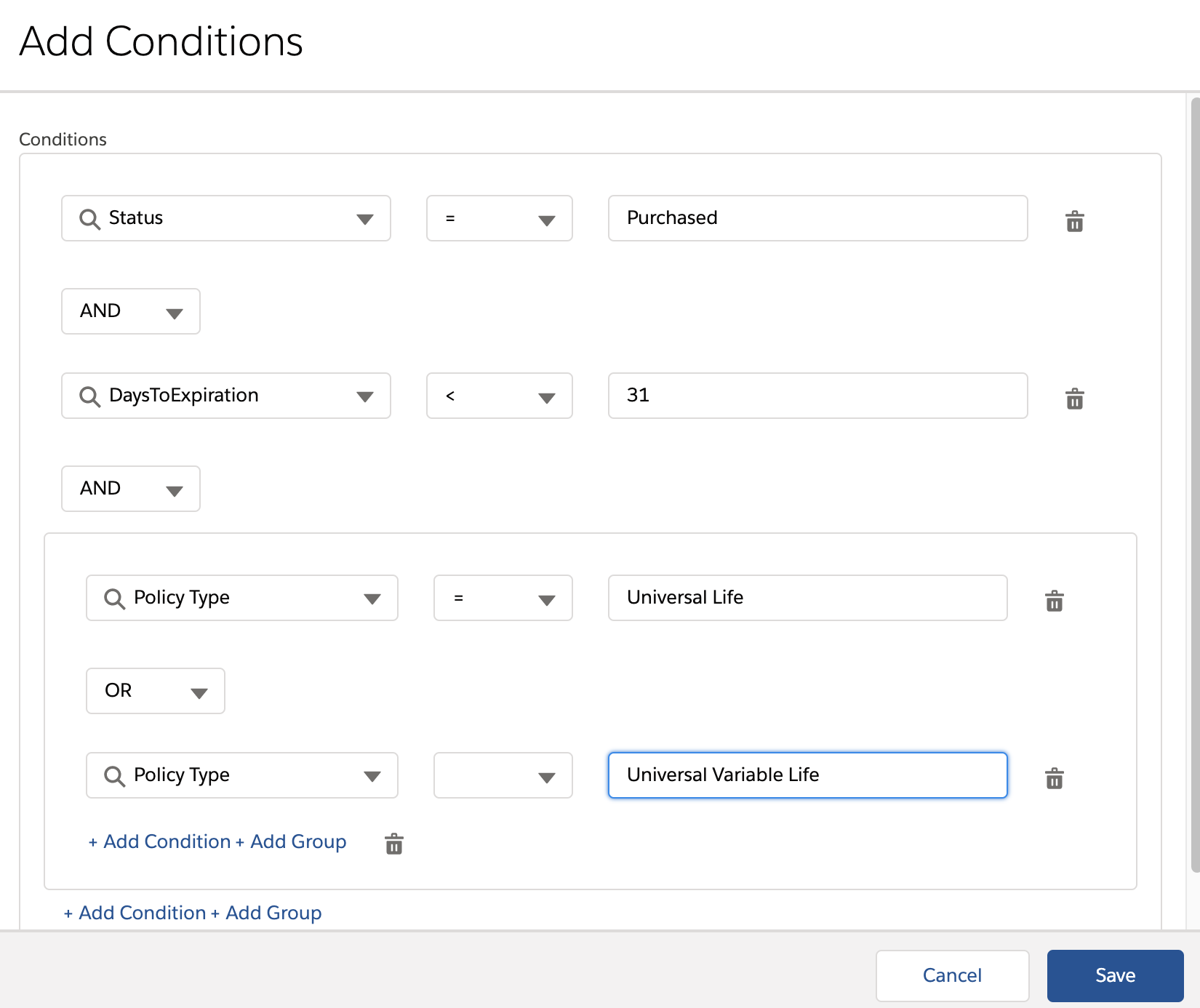
Click + Add Group after creating a condition, such as DaysToExpiration < 31.
-
Click + Add Condition and enter values for all fields for each condition.
-
Select AND or OR from the dropdown between conditions.
For example, use the conditions feature to build the conditional expression DaysToExpiration < 31 AND ( PolicyType = Universal Life OR PolicyType = Universal Variable Life) to filter for policies about to expire, and whose policy type is either Universal Life or Universal Variable Life.
-