
For the managed package runtime, download and configure an Omniscript to use it off-platform in OmniOut. Download your Omniscript LWC from the LWC Omniscript Designer, add the component folder to the OmniOut project, and configure files for HTML and CSS.
Before you begin:
 This information is for Omnistudio for Managed Packages. For Omnistudio on standard runtime, see Omnistudio Help.
- Install OmniOut's required dependencies. See Install OmniOut Dependencies (Managed Package)
- (Optional) Configure Omniscript to include nested custom Lightning web components in OmniOut. See Include Nested Custom LWCs in Your OmniOut Omniscript (Managed Package).
To add an Omniscript Lightning Web component to OmniOut:
- Open an Omniscript in your Salesforce org, and click Activate.
-
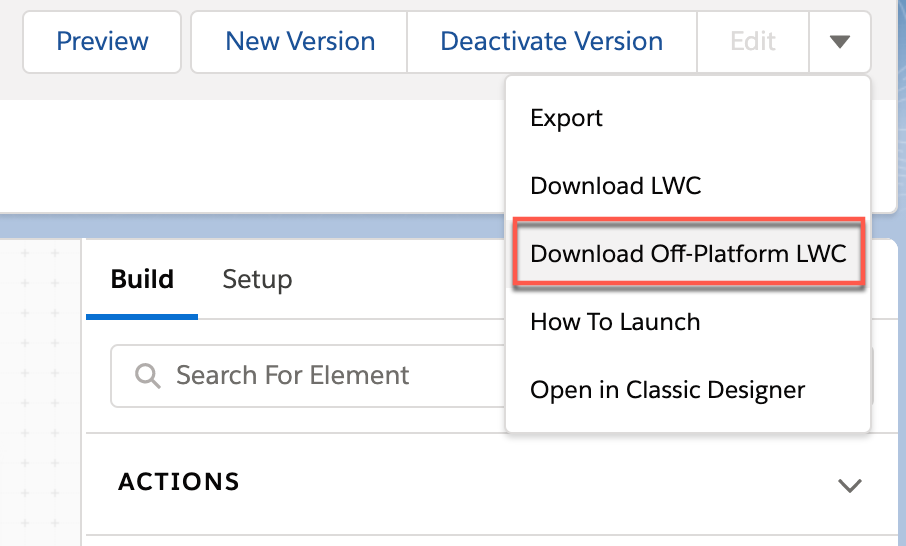
Click the Download Off Platform LWC button and uncompress
the downloaded file.
 Note
NoteIf your Omniscript includes Custom LWCs from a managed package, the Custom LWCs may not work. Custom LWCs that exist in a managed package only work if they’re off-platform compatible.
- Copy the component in the lwc folder of your downloaded component into the ./src/modules/vlocityomniscript folder of your OmniOut LWC project.
-
In an Omniscript Designer, copy the Omniscript tag using one of these options:
-
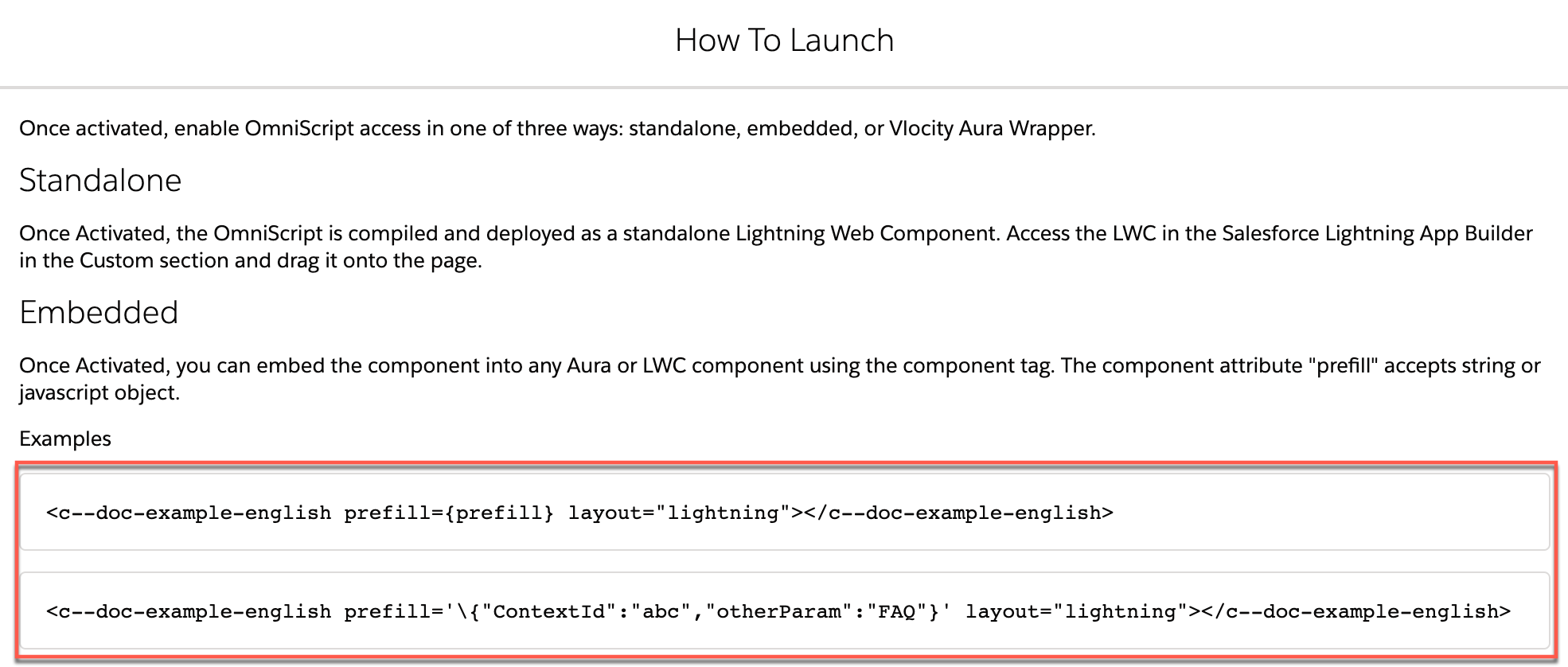
In the LWC Omniscript Designer, click the dropdown menu, click How To Launch, and copy one of the component tags.
-
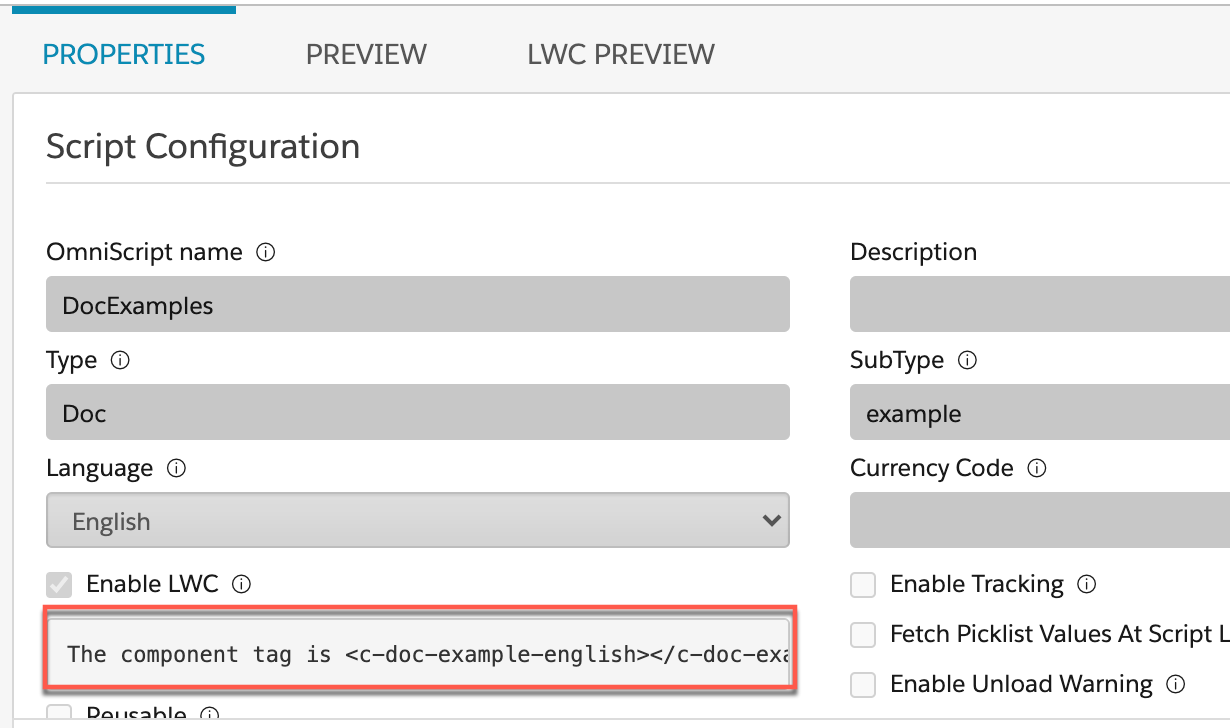
In the Classic Designer, copy the LWC Omniscript component tag from the Script Configuration properties.
-
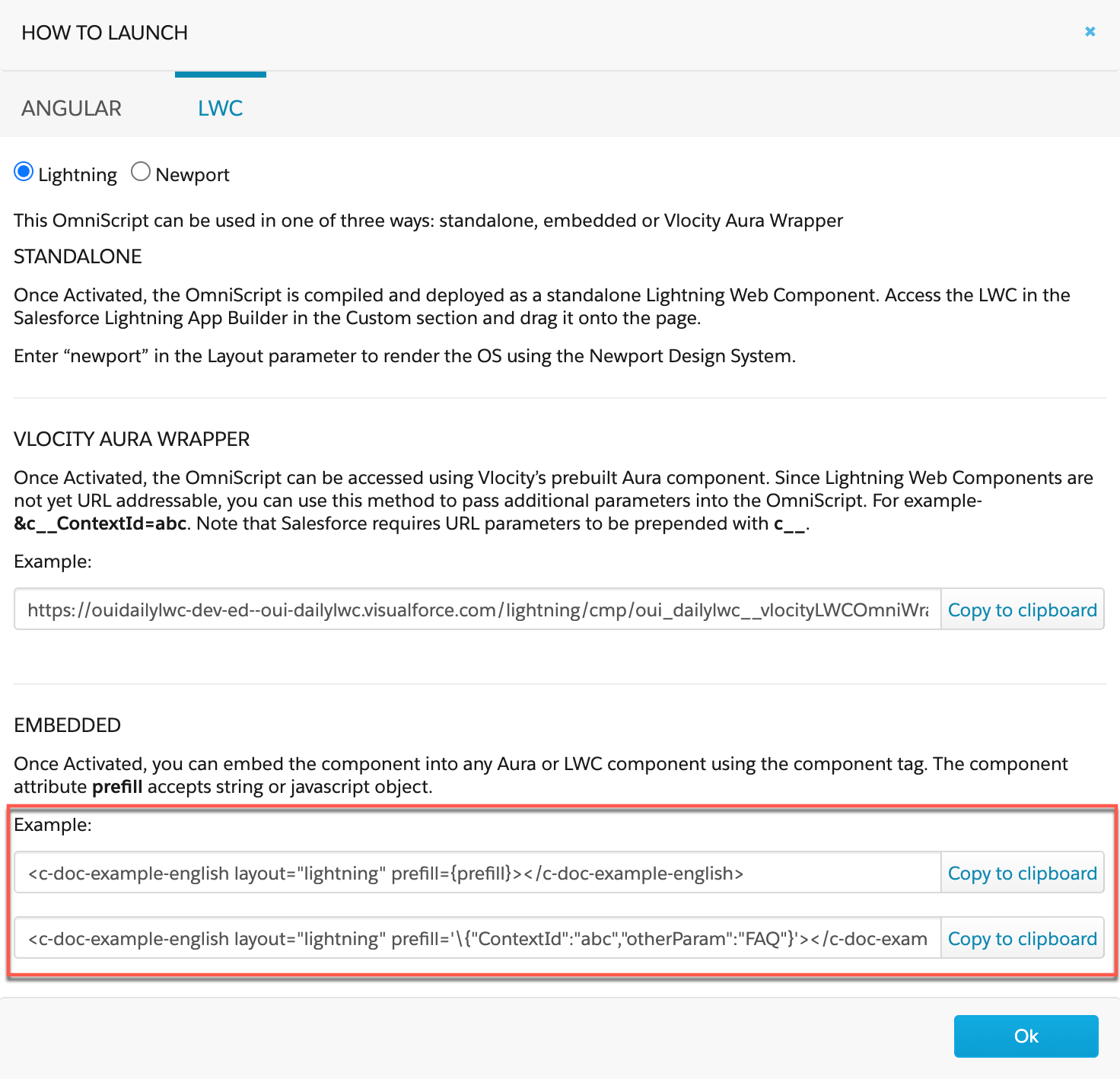
In the Classic Designer, copy the LWC Omniscript component code from one of the examples found in the How to Launch activated script section of the Omniscript.
-
- In Visual Studio Code, open the ./src/index.html file and replace the component tag with your Omniscript component tag.
-
Edit your component tag by replacing
c--withvlocityomniscript-and save the file.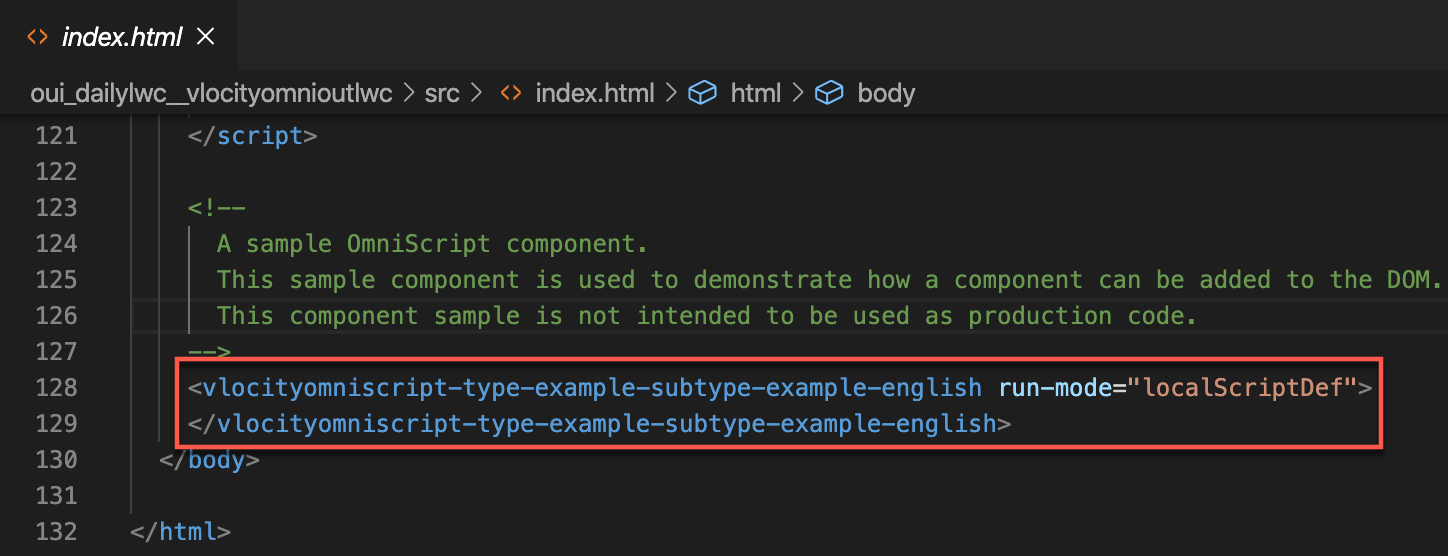
-
To import and define your component, open the
./src/index.js file and take these steps:
-
Replace the sample component import with your component's file path.
import VlocApp from 'vlocityomniscript/typeExampleSubtypeExampleEnglish';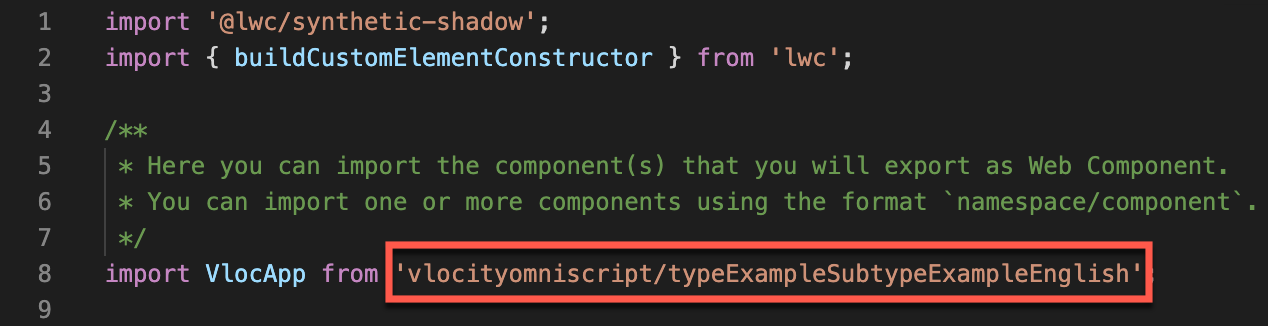
-
Replace the sample component tag with your modified component tag and remove the closing tag and angle brackets.
customElements.define('vlocityomniscript-type-example-subtype-example-english', buildCustomElementConstructor(VlocApp));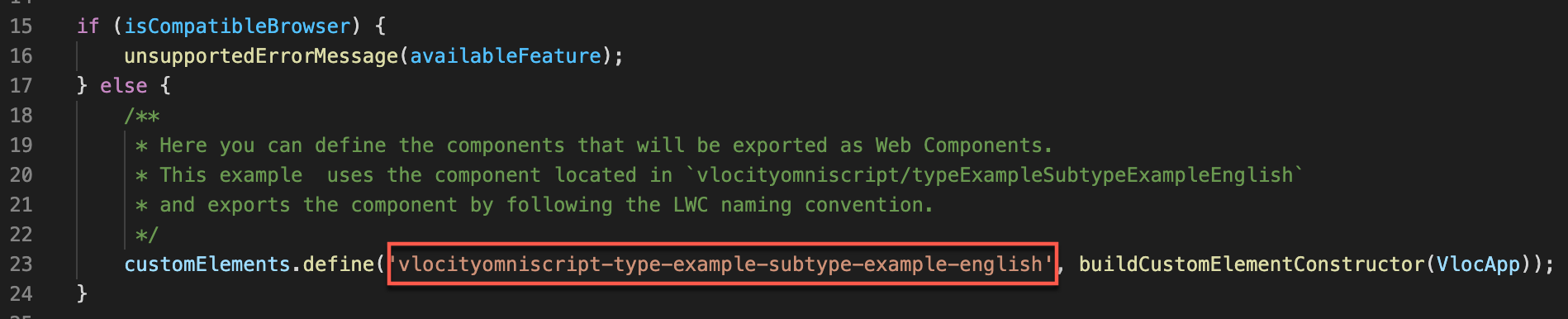
-
-
(Optional) In the Omniscript component tag, remove the
run-mode="localScriptDef"attribute to check if the Omniscript is active in Salesforce.NoteWhen running a multi-language Omniscript, the
run-mode="localScriptDef"attribute forces the Omniscript to use the locally defined custom labels. Ifrun-modeisn’t present, a connection is made to retrieve the custom labels. -
(Optional) In the Omniscript component tag, add
dir="rtl"to force the Omniscript styles to load right-to-left regardless of the Omniscript language. Without this attribute, right-to-left languages still load with right-to-left styling. Omniscript provides beta support for right-to-left styling.<vlocityomniscript-type-example-subtype-example-english run-mode="localScriptDef" dir="rtl"> </vlocityomniscript-type-example-subtype-example-english> -
(Optional) In Index.html, uncomment the Newport style
sheets to apply Newport styling.
<link rel="stylesheet" type="text/css" href="/newport/assets/styles/vlocity-newport-design-system.min.css"> -
In Index.html, uncomment the appropriate Script file for
each of these elements that exist in your Omniscript:
Element
Script File
PDF Action
<script src="/vlocityresources/javascript/VlocityPdf.js"></script>Type Ahead Block using Google Maps
Uncomment this file, and in the key parameter, enter your API key.
<script type="text/javascript" src="https://maps.googleapis.com/maps/api/js?key={YOUR_API_KEY_HERE}&libraries=places"> </script> -
In Index.html, include the SLDS styles even when using
Newport styles, if these elements exist in your Omniscript:
Element
Style Sheets
Note
File
<!-- SLDS styles -->
<link rel="stylesheet" type="text/css" href="/slds/assets/styles/salesforce-lightning-design-system.css">
<link rel="stylesheet" type="text/css" href="/vlocityresources/slds/styles/OmniLwcUtilsCss.css">
LWC OmniOut supports file uploads up to 30 MB.
Image
<!-- SLDS styles -->
<link rel="stylesheet" type="text/css" href="/slds/assets/styles/salesforce-lightning-design-system.css">
<link rel="stylesheet" type="text/css" href="/vlocityresources/slds/styles/OmniLwcUtilsCss.css">
LWC OmniOut supports image uploads up to 30 MB.
- Save your file.
-
To restart the server and view your Omniscript, run the command
npm run watchin your terminal console.
What’s next: Create a Connected App for OmniOut (Managed Package).