
For the managed package runtime, display data on a Flexcard as a chart with the Chart element. Select from bar, pie, donut, line, and radar chart types.
 This information is for Omnistudio for Managed Packages. For Omnistudio on standard runtime, see Omnistudio Help.
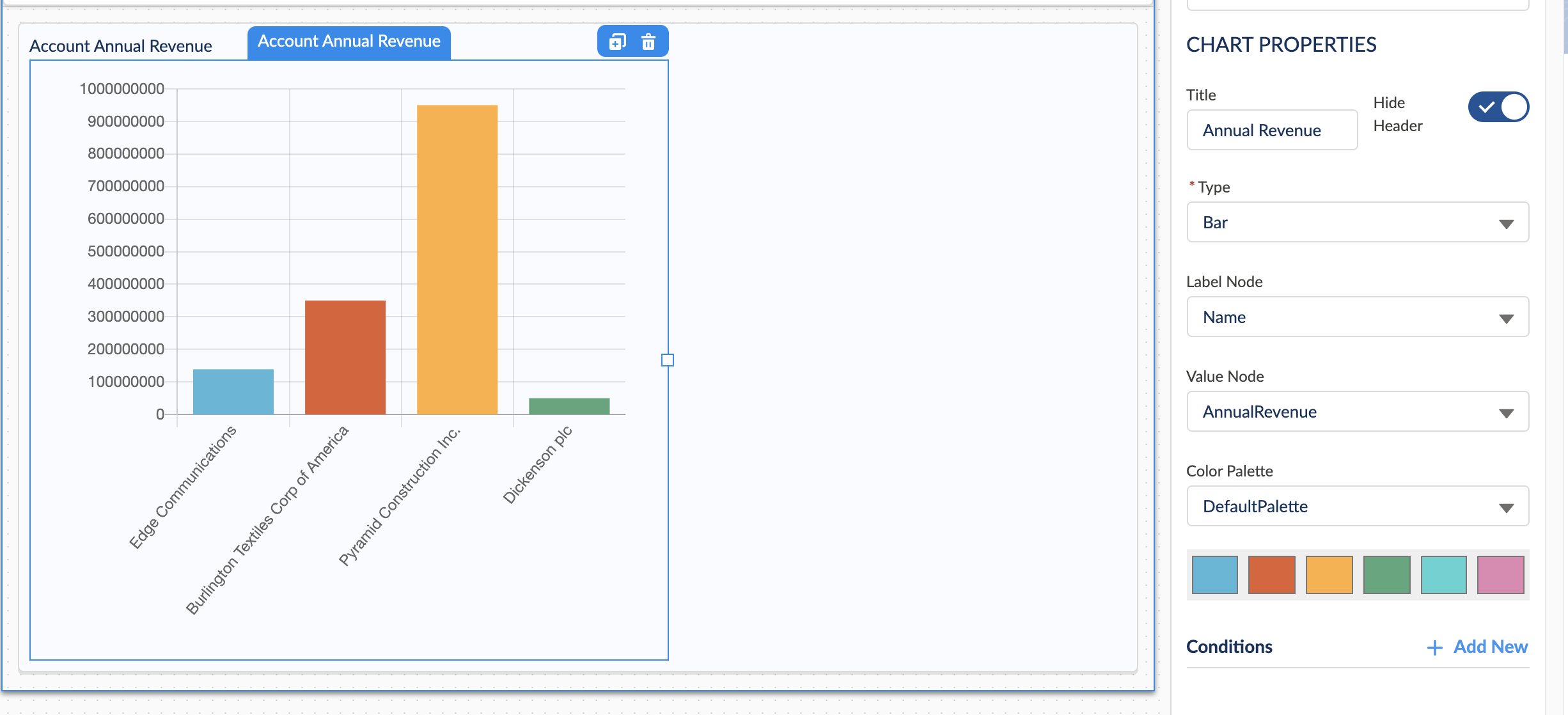
- From the Flexcards tab, click a version of a Flexcard to open the Flexcard Designer.
- Drag a Chart element from the Build panel into a state on the canvas.
- (Optional) From the Properties panel, update the element name in the Element Name field.
- (Optional) To display a title at the top of the chart, which is hidden by default, update these properties:
- From the Type dropdown, select the type of chart to display.
- (Optional) To adjust your chart's proportions, update the Aspect Ratio. See Flexcard Chart Element Aspect Ratio (Managed Package).
-
(Optional) To manually set the height, overriding the Aspect
Ratio, enter a number in the Chart Height
field. The height is in pixels, such as 300px. You can enter
just the number without the 'px' suffix, such as 300.
 Note
NoteThis feature is visible when the Maintain Aspect Ratio feature is disabled.
- From the Label Node dropdown, select the field whose values are used to categorize the data, such as Name to display Account names.
-
From the Value Node dropdown, select the field whose values
are used to populate the chart, such as AnnualRevenue.
 Important
The values must be numbers and have the same count as the field selected in Label Node.
-
Select the color scheme for your chart from the Color
Palette dropdown.
Note
Each color palette has up to 6 unique colors. If there are more than 6 values in your chart, the colors repeat from the beginning.
- (Optional) To add conditions that must be met for the element to display, see Add Conditions to a Flexcard Element (Managed Package).
- (Optional) To style your element, click Style to open the Style panel, and see Style Flexcard Elements (Managed Package).
What’s next: Preview your Flexcard. See Preview a Flexcard (Managed Package).
- Flexcard Chart Element Aspect Ratio (Managed Package)
For the managed package runtime, you can adjust the proportions of a Chart element with the Aspect Ratio, Maintain Aspect Ratio, and Chart Height features in the Flexcard Designer. Set the Aspect Ratio to adjust height relative to the width. Set fixed proportions. Or, override the aspect ratio and set a fixed height. - Flexcards Chart Properties (Managed Package)
For the managed package runtime, chart element properties are configurable in the Property Panel when you select a Chart element in the Flexcard Designer. With the Chart element, display data as a chart and enable users to perform actions within the chart.