
You can assign permission set or assign a custom profile to enable user permissions.
Required Editions
| Setup for Enhanced Mobile Security available in: Lightning Experience |
| Setup for Enhanced Mobile Security available in: Production Orgs and Sandbox |
| User Permissions Needed | |
|---|---|
| To create and modify Enhanced Mobile App Security settings: |
Manage Enhanced Mobile App Security AND Modify Metadata |
| To create permission sets: | Manage Profiles and Permission Sets |
| To assign permission sets: | Assign Permission Sets |
Assign Custom Profile
- From Setup, enter Profiles in the Quick Find box, then select Profiles.
- Find the Standard User profile and click Clone.
- Set the Profile Name MobileSecurity.
- On the MobileSecurity detail page, click Edit.
- Check the Enforce Enhanced Mobile App Security and New Salesforce Mobile App boxes.
- Click Save.
Assign Permission Set
- From Setup, enter Permission in the Quick Find box, then select Permission Sets.
- To create a permission set, click New.
- Set the fields:
- Label: Mobile_Security
- API Label: Mobile_Security
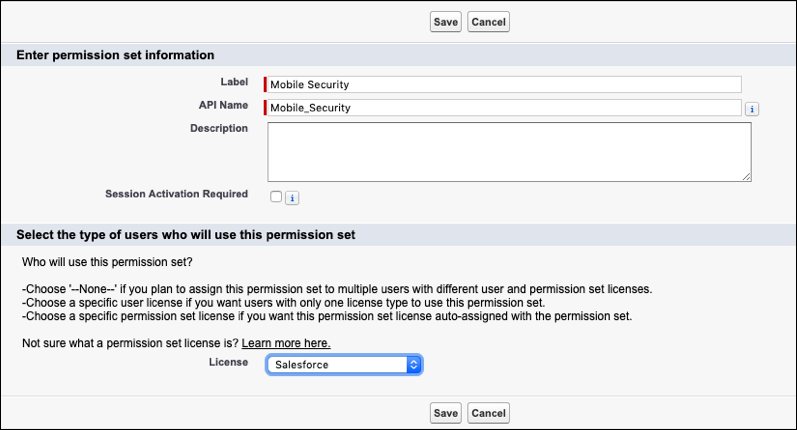
- Set the License to Salesforce.
- Click Save.
- Scroll down to System and click System Permissions.
- Click Edit.
- Check the Enforce Enhanced Mobile App Security checkbox.
- Click Save.
- Go back to the Mobile Security Permission Set Overview page and click Assigned Connected Apps.
- Assign the Android and iOS connected apps to the permission set.
- Go back to the Mobile Security Permission Set Overview page and click Manage Assignments.
- Click Add Assignments.
- Select the users you want to have this permission set and click Assign.