
Metadata is the information that describes the configuration of your org.
Required Editions
| Setup for Enhanced Mobile Security available in: Lightning Experience |
| Setup for Enhanced Mobile Security available in: Production Orgs and Sandbox |
| User Permissions Needed | |
|---|---|
| To create and modify Enhanced Mobile App Security settings: |
Manage Enhanced Mobile App Security AND Modify Metadata |

Important Workbench (https://workbench.developerforce.com) is an open-source tool for
interacting with your org. However, because Salesforce doesn’t maintain Workbench, we can’t
address issues or bugs related to using it in Spring ‘24. For more information, see Replace
Workbench With Salesforce Developer Tools
- Go to your email and verify your account.
- In a new browser tab, go to Workbench (https://workbench.developerforce.com/login.php).
- Review the terms of service and check the I agree to the terms of service box.
- Click Login with Salesforce and log in with your credentials.
- Click Allow for the Workbench Connected app.
- From the header dropdown menu, go to Migration | Deploy.
- Download the zip file located here.
-
Check Rollback On Error and Single
Package.
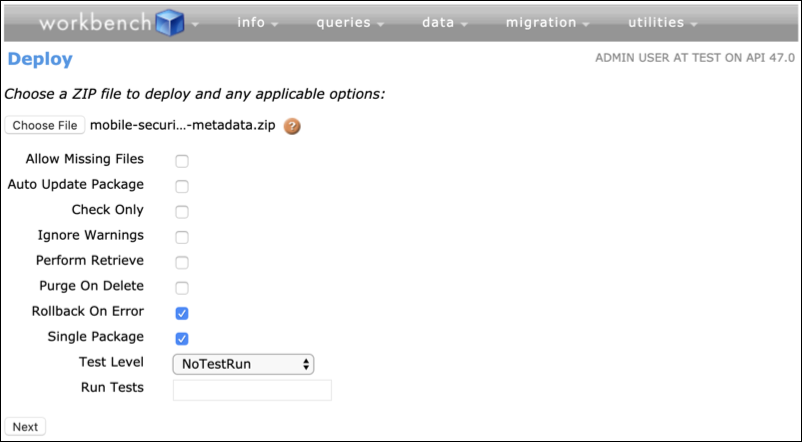
- Click Next then Deploy.
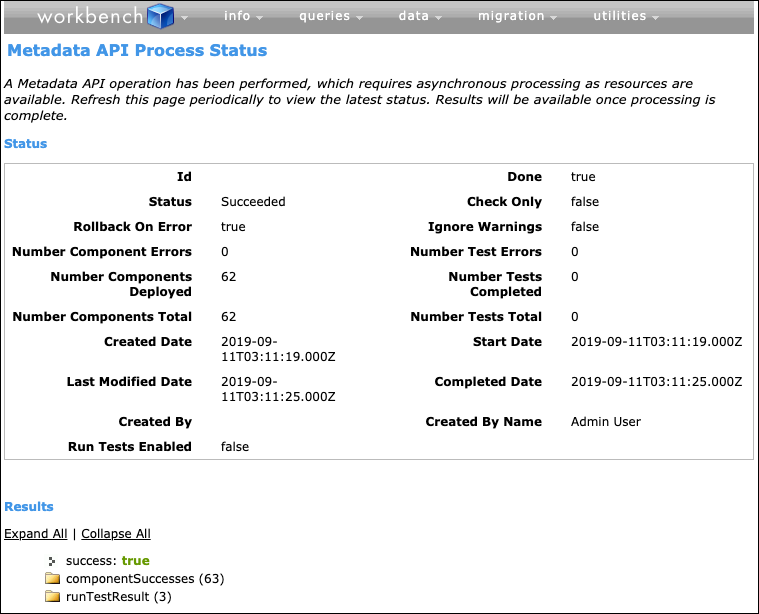
Upon completion, your Workbench Metadata API Process Status should look like this image.
Verify the Deployment
- Log in to your org as the Admin and go to Setup.
- From Setup enter Apex Triggers in the Quick Find box, then select Apex Triggers.
- Verify the four new Apex triggers.
- From Setup enter Object Manager in the Quick Find box, then select Object Manager.
- Verify the four new objects.
- From Setup enter Tabs in the Quick Find box, then select Tabs.
- Verify the four new tabs.
To avoid test failures, remove any metadata deployed from the step if your license expires.