
To protect your account against cyberthreats, logins now require multi-factor authentication (MFA) in addition to your username and password. To finish logging in, register a verification method that proves your identity. A Salesforce admin can temporarily disable MFA if users need more time to get ready.


Register an Identity Verification Method for MFA
Pick one of these verification methods, then follow the on-screen registration steps. Not sure which option to use and can’t log in because of it? Talk to your Salesforce admin.
| Salesforce Authenticator | Built-In Authenticator | Security Key (U2F or WebAuthn) | Third-Party Authenticator |
|---|---|---|---|
|
|
|
|
The registration process starts differently depending on your org. You see either a list of verification methods or you start with the option to connect Salesforce Authenticator.
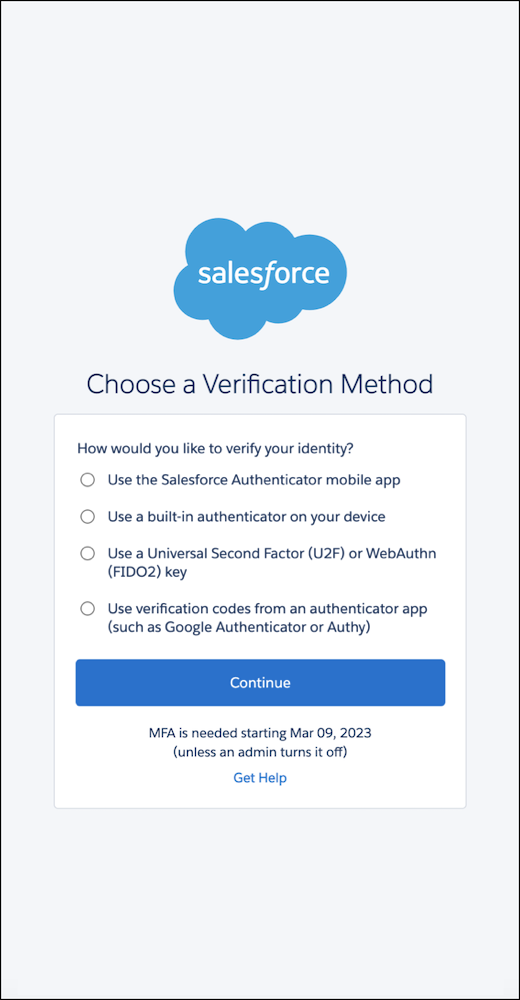
|
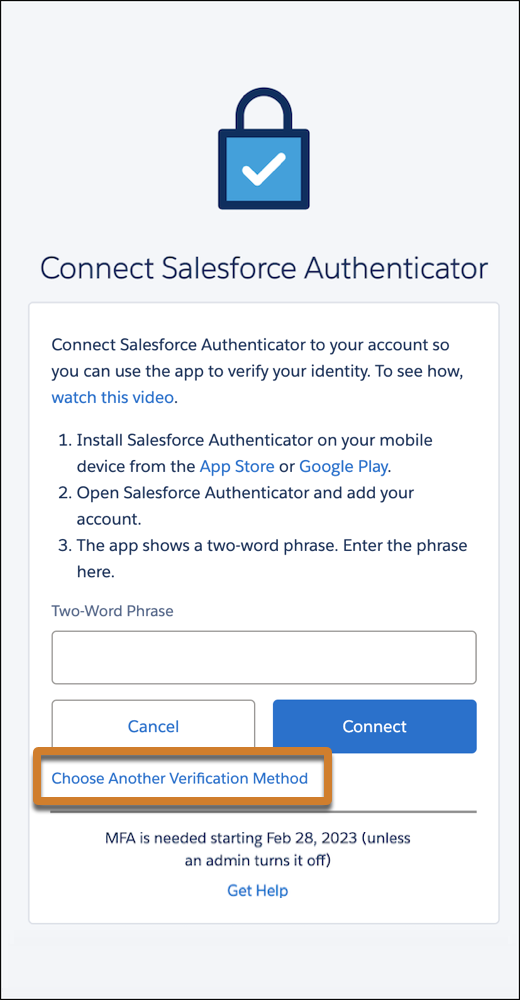
|
|
|
Not seeing the last two options in the list? Ask your Salesforce admin to add them. |
Don’t want to use Salesforce Authenticator? Select the highlighted link. |

Not Ready for MFA Yet? Salesforce Admins Can Temporarily Disable It
If you’re a Salesforce admin and your users need more time to get ready for MFA, you can temporarily disable it for your org. From Setup, in the Quick Find box, enter Identity, and then select Identity Verification. Deselect Require multi-factor authentication (MFA) for all direct UI logins to your Salesforce org, then save your changes.
Turning off MFA means you’re no longer complying with the contractual requirement to use it. Re-enable it as soon as possible. All admins for the org receive periodic in-app warnings until MFA is turned on again. For full details about the MFA requirement, see the Salesforce Multi-Factor Authentication FAQ.