---
schema_version: "1"
id: 9731d4bef72a3538e4c4fbba8aa472c6e837896a219fa4fdb40bacfaa1fdc3f5
title: Register for Multi-Factor Authentication (or Get a Little More Time If You Need It)
collection: admin
version: current
locale: en-us
portal_url: https://docs.salesforce.com/admin/current/en-us/xcloud/264-0-0/mfa_registration_grace_period.md
canonical_url: https://help.salesforce.com/s/articleView?id=xcloud.mfa_registration_grace_period.htm&release=264.0.0&type=5
source_site: help.salesforce.com
content_type: documentation
content_hash: 4c8aac38abfbd44f143852847f5347f7ee3a59e78c3cf6a486b95bda616f60af
description: To protect your account against cyberthreats, logins now require multi-factor authentication (MFA) in addition to your username and password. To finish logging in, register a verification method that proves your identity. Not ready for MFA? You can skip it during a small grace period. After that, MFA is required for every login unless a Salesforce admin turns it off temporarily.
products:
  - Salesforce Platform
  - Cross Cloud
release: "264"
---
# Register for Multi-Factor Authentication (or Get a Little More Time If You Need It)

To protect your account against cyberthreats, logins now require multi-factor authentication (MFA) in addition to your username and password. To finish logging in, register a verification method that proves your identity. Not ready for MFA? You can skip it during a small grace period. After that, MFA is required for every login unless a Salesforce admin turns it off temporarily.

![Note](https://sf-zdocs-cdn-prod.zoominsoftware.com/tdta-xcloud-basics-264-0-0-production-enus/d8bf6981-f8ef-4f16-bfbd-c42ed32044eb/images/icon_note.png)

Note Not familiar with MFA? Check out this [video tutorial](https://salesforce.vidyard.com/watch/Zs9r7CyxF6Wu9rfNmMnmFf).

## Register an Identity Verification Method for MFA

Pick one of these verification methods, then follow the on-screen registration steps. Not sure which option to use? Talk to your Salesforce admin.

<table class="slds-table slds-table_bordered slds-max-medium-table_stacked slds-m-bottom_small ">
        <colgroup>
          <col style="width:25%">
          <col style="width:25%">
          <col style="width:25%">
          <col style="width:25%">
        </colgroup>
        <thead class="slds-text-title_caps ">
          <tr class="">
            <th scope="col" class="slds-cell-wrap" style="text-align:center;vertical-align:middle;" id="d3341e54">Salesforce Authenticator</th>
            <th scope="col" class="slds-cell-wrap" style="text-align:center;vertical-align:middle;" id="d3341e57">Built-In Authenticator</th>
            <th scope="col" class="slds-cell-wrap" style="text-align:center;vertical-align:middle;" id="d3341e60">Security Key (U2F or WebAuthn)</th>
            <th scope="col" class="slds-cell-wrap" style="text-align:center;vertical-align:middle;" id="d3341e63">Third-Party Authenticator</th>
          </tr>
        </thead>
        <tbody>
          <tr class="">
            <td data-label="Salesforce Authenticator" class="slds-cell-wrap" style="text-align:left;vertical-align:top;" headers="d3341e54 ">
              <ul>
                <li>A free mobile app from Salesforce</li>

                <li>Download on the <a href="https://itunes.apple.com/us/app/salesforce-authenticator/id782057975" target="_blank">App
                    Store</a> or <a href="https://play.google.com/store/apps/details?id=com.salesforce.authenticator" target="_blank">Google Play</a></li>

              </ul>
            </td>

            <td data-label="Built-In Authenticator" class="slds-cell-wrap" style="text-align:left;vertical-align:top;" headers="d3341e57 ">
              <ul>
                <li>OS-level authentication with biometrics, via services such as Windows Hello or
                  Touch ID</li>

                <li>Must be configured on your computer or mobile device before you can register
                  this option</li>

              </ul>
            </td>

            <td data-label="Security Key (U2F or WebAuthn)" class="slds-cell-wrap" style="text-align:left;vertical-align:top;" headers="d3341e60 ">
              <ul>
                <li>A physical device such as a YubiKey or Titan Security key</li>

                <li>Plugs into your computer — no mobile device needed</li>

              </ul>
            </td>

            <td data-label="Third-Party Authenticator" class="slds-cell-wrap" style="text-align:left;vertical-align:top;" headers="d3341e63 ">
              <ul>
                <li>Apps that generate unique one-time codes, such as Google Authenticator or
                  Microsoft Authenticator</li>

                <li>Mobile, desktop, and browser extension apps are available</li>

              </ul>
            </td>

          </tr>
          <tr class="">
            <td data-label="Salesforce Authenticator" class="slds-cell-wrap" style="text-align:center;vertical-align:top;" headers="d3341e54 ">
              <p>
                <a href="https://help.salesforce.com/s/articleView?id=xcloud.salesforce_authenticator_overview.htm&amp;release=264.0.0&amp;type=5" title="Welcome to the Salesforce Authenticator mobile app. Salesforce Authenticator is the fastest and easiest way to complete multi-factor authentication (MFA) and other types of identity verification. Verify your identity with the tap of a finger while using any Salesforce product that requires MFA. You can also use the app with other online accounts that support time-based one-time password (TOTP) authenticator apps.">Learn
                  More</a>
              </p>
              <p style="margin-bottom:0;">
                <a href="https://help.salesforce.com/s/articleView?id=xcloud.salesforce_authenticator_add_account.htm&amp;release=264.0.0&amp;type=5" title="Connect your Salesforce account to the Salesforce Authenticator app so that you can easily log in with multi-factor authentication (MFA). Then, every time you log in to Salesforce, the app sends a notification to your mobile device to verify it’s you. The process for connecting your account depends on whether you’re logged in to Salesforce when MFA is enabled.">Registration
                  Help</a>
              </p>
            </td>

            <td data-label="Built-In Authenticator" class="slds-cell-wrap" style="text-align:center;vertical-align:top;" headers="d3341e57 ">
              <p>
                <a href="https://help.salesforce.com/s/articleView?id=xcloud.mfa_supported_verification_methods_bia.htm&amp;language=en_US" target="_blank">Learn
                  More</a>
              </p>
              <p style="margin-bottom:0;">
                <a href="https://help.salesforce.com/s/articleView?id=xcloud.register_built_in_authenticator.htm&amp;release=264.0.0&amp;type=5" title="For a secure, fast, and easy login with multi-factor authentication (MFA), create a passkey, also known as a built-in authenticator. With passkeys, you have multiple ways to log in: fingerprint or facial scanners on your device, physical security keys, a device PIN or password, or password managers. Some passkeys work only on the device where you set them up. If you set up a device-bound passkey on your laptop, you can’t use it to log in from your phone. If you log in to Salesforce from multiple devices, set up your passkeys so that you can access your account anywhere.">Registration Help</a>
              </p>
            </td>

            <td data-label="Security Key (U2F or WebAuthn)" class="slds-cell-wrap" style="text-align:center;vertical-align:top;" headers="d3341e60 ">
              <p>
                <a href="https://help.salesforce.com/s/articleView?id=xcloud.mfa_supported_verification_methods_securitykey.htm&amp;language=en_US" target="_blank">Learn
                  More</a>
              </p>
              <p style="margin-bottom:0;">
                <a href="https://help.salesforce.com/s/articleView?id=xcloud.security_u2f_register_security_key.htm&amp;release=264.0.0&amp;type=5" title="Register a physical security key so you can use it to verify your identity when logging in with multi-factor authentication (MFA) or if you receive a device activation challenge. You can use security keys that support the WebAuthn (FIDO2) or Universal Second Factor (U2F) standards. The registration process sets up your security key as a personal verification by creating a connection between your Salesforce account and the key. If you don’t see this option, talk to your Salesforce admin about enabling it.">Registration Help</a>
              </p>
            </td>

            <td data-label="Third-Party Authenticator" class="slds-cell-wrap" style="text-align:center;vertical-align:top;" headers="d3341e63 ">
              <p>
                <a href="https://help.salesforce.com/s/articleView?id=xcloud.mfa_supported_verification_methods_totp.htm&amp;language=en_US" target="_blank">Learn
                  More</a>
              </p>
              <p style="margin-bottom:0;">
                <a href="https://help.salesforce.com/s/articleView?id=xcloud.add_time-based_token.htm&amp;release=264.0.0&amp;type=5" title="Register a third-party authenticator app so you can use it to verify your identity when logging in with multi-factor authentication (MFA) or if you receive a device activation challenge. Authenticator apps, such as Google Authenticator, Microsoft Authenticator, or Authy, generate verification codes that you enter in Salesforce to verify your identity. There are mobile apps, browser extensions, and desktop options such as most password managers. You can use any third-party product that generates time-based one-time password (TOTP) codes. The registration process sets up your authenticator app as a personal verification method by creating a connection between your Salesforce account and the app.">Registration Help</a>
              </p>
            </td>

          </tr>
        </tbody>
      </table>

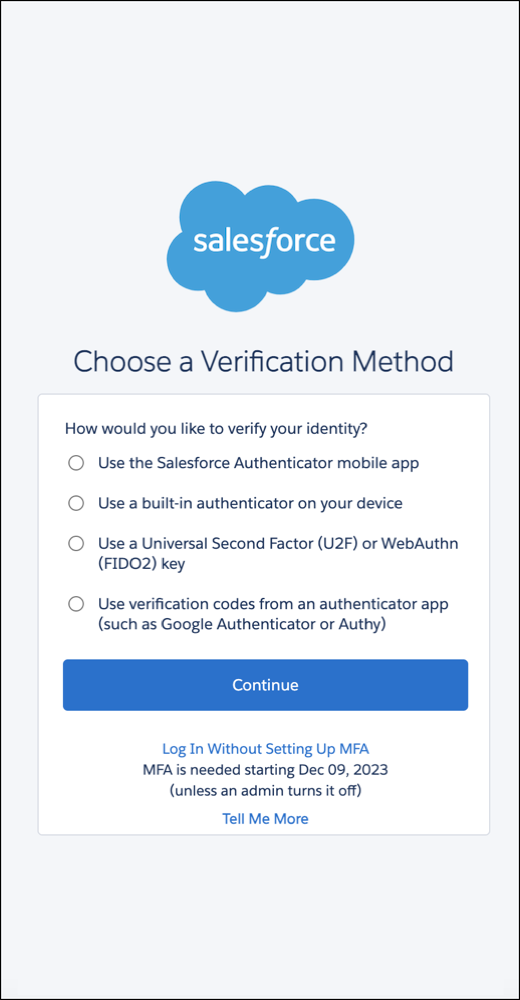
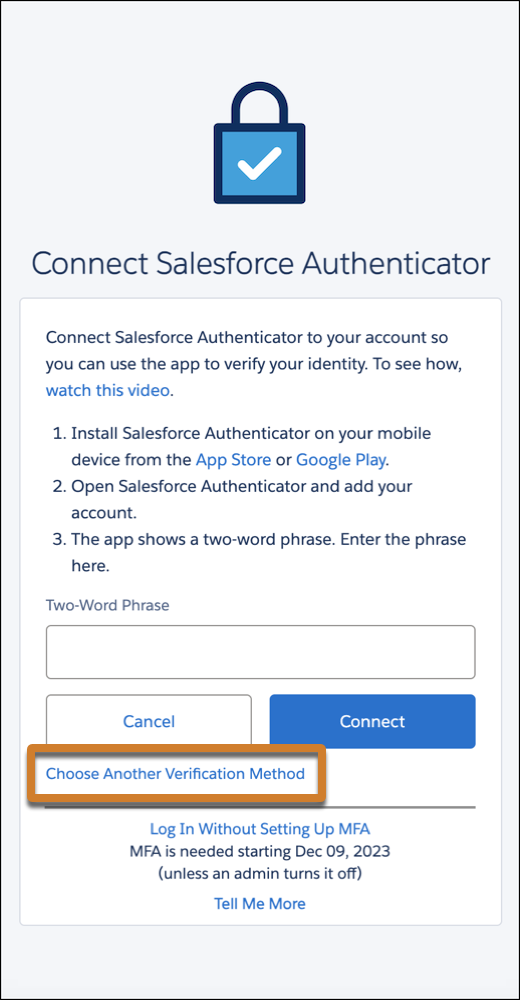
The registration process starts differently depending on your org. You see either a list of verification methods or you start with the option to connect Salesforce Authenticator.

<table class="slds-table slds-table_bordered slds-max-medium-table_stacked slds-m-bottom_small ">
        <colgroup>
          <col style="width:33.33333333333333%">
          <col style="width:33.33333333333333%">
          <col style="width:33.33333333333333%">
        </colgroup>
        <tbody>
          <tr class="">
            <td class="slds-cell-wrap" style="text-align:center;vertical-align:top;">
              <span style="vertical-align:text-bottom;display:inline-block;"><img style="width:320px;margin-bottom:0;" src="https://sf-zdocs-cdn-prod.zoominsoftware.com/tdta-xcloud-basics-264-0-0-production-enus/d8bf6981-f8ef-4f16-bfbd-c42ed32044eb/basics/images/mfa-verifier-list-grace-period.png" alt="Screenshot of the Choose a Verification Method screen for MFA registration"></span>
            </td>

            <td class="slds-cell-wrap" style="text-align:center;vertical-align:top;">
              <span style="vertical-align:text-bottom;display:inline-block;"><img style="width:320px;margin-bottom:0;" src="https://sf-zdocs-cdn-prod.zoominsoftware.com/tdta-xcloud-basics-264-0-0-production-enus/d8bf6981-f8ef-4f16-bfbd-c42ed32044eb/basics/images/mfa-registration-prompt-highlighted-grace-period.png" alt="Screenshot of the Connect Salesforce Authenticator screen for MFA registration with a highlight on the link for picking a different method"></span>
            </td>

            <td class="slds-cell-wrap" style="vertical-align:top;">&nbsp;</td>

          </tr>
          <tr class="">
            <td class="slds-cell-wrap" style="text-align:center;vertical-align:top;">
              <p style="margin-bottom:0;">Not seeing the last two options in the list? Ask your Salesforce admin to add
                them.</p>
            </td>

            <td class="slds-cell-wrap" style="text-align:center;vertical-align:top;">
              <p style="margin-bottom:0;">Don’t want to use Salesforce Authenticator? Select the highlighted link.</p>
            </td>

            <td class="slds-cell-wrap" style="vertical-align:top;">&nbsp;</td>

          </tr>
        </tbody>
      </table>

## Skip MFA If You’re Not Ready for It

Your org has a 30-day grace period where you can log in without MFA. Select **Log In Without Setting Up MFA** at the bottom of the registration screen.

It’s possible your org’s grace period started before you logged in. A timer at the bottom of the registration page shows how many days are remaining.

![Important](https://sf-zdocs-cdn-prod.zoominsoftware.com/tdta-xcloud-basics-264-0-0-production-enus/d8bf6981-f8ef-4f16-bfbd-c42ed32044eb/images/icon_important.png)

Important After the grace period ends, you must register a verification method before you can log in.

## 30 Days Not Enough? Salesforce Admins Can Temporarily Disable MFA

If you’re a Salesforce admin and your users aren’t ready for MFA after the 30-day grace period ends, you can temporarily disable MFA for your org. From Setup, in the Quick Find box, enter Identity, and then select **Identity Verification**. Deselect **Require multi-factor authentication (MFA) for all direct UI logins to your Salesforce org**, then save your changes.

Turning off MFA means you’re no longer complying with the contractual requirement to use it. Re-enable it as soon as possible. All admins for the org receive periodic in-app warnings until MFA is turned on again. For full details about the MFA requirement, see the [Salesforce Multi-Factor Authentication FAQ](https://help.salesforce.com/apex/HTViewSolution?urlname=Salesforce-Multi-Factor-Authentication-FAQ).