
Learn how data flows through the configurations when you manage vaccine communications with Marketing Cloud Engagement.
SMS Workflow
Provide your customers with outbound messages and assistance with their vaccine appointment questions and issues. A customer receives a personal interaction from an agent by sending keywords such as HELP, and then the agent updates the customer’s account as needed for future engagement.
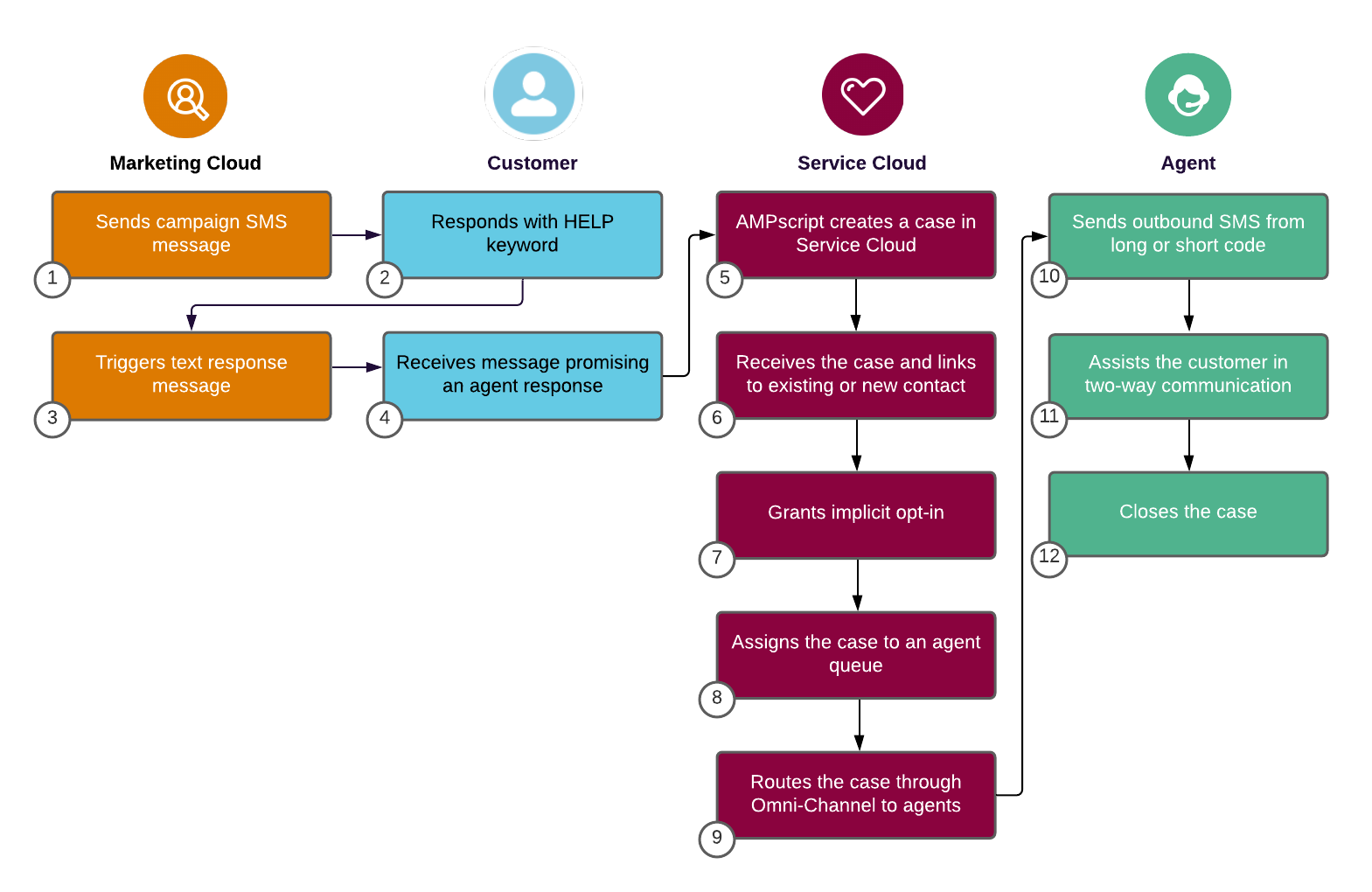
This diagram illustrates the SMS workflow for managing vaccine communications with Engagement.
- The marketer sends a campaign SMS Message. (1)
- A customer responds with the HELP keyword. (2)
- The Text response message triggers. (3)
- A customer receives a message to expect a text from an agent within 24 hours from a different number. (4)
- The AMPscript creates a case in Service Cloud. (5)
- Service Cloud receives the case and links to an existing customer contact or creates a contact. (6)
- Service Cloud grants implicit opt-in. (7)
- Service Cloud assigns the case to an agent queue. (8)
- Service Cloud routes the case through Omni-Channel to available agents.(9)
- An agent sends an outbound SMS from a long or short code configured in Digital Engagement. (10)
- The agent assists the customer in two-way conversation. (11)
- The agent closes the case. (12)
Email Workflow
Send bulk email campaigns to distribute information, appointment reminders, second appointment prompts, and invitations.
- To bring raw Health Cloud data into Engagement, synchronize data extensions.
- Create a bulk audience in Engagement from the synchronized data extension.
- Use Automation Studio or bulk injection into journeys.
Use near real-time messaging to provide alerts when vaccine appointments are available. After the shot has been administered, send information on possible side effects. Use Journey Builder Sales Cloud entry sources to listen for object record changes.
Send real-time messaging to provide instant messages on appointment confirmations, appointment reminders, and appointment cancellations. Use the Transactional API.
Use APEX Code in the Health Cloud Process Builder to directly call the Transactional API for the Engagement app.
- Make an API call to Engagement using the ContactID for the patient receiving the communication.
- If needed, use web hooks to retrieve tracking data.
Related Content

|
Take the next steps in this implementation. |