
Loyalty program managers can visualize all promotions of a loyalty program on the promotion calendar. The promotion calendar lists events, so program managers can check whether promotions are planned during company and social events. On the calendar, program managers can select a date range and view the active and inactive promotions available during the period. Program managers can view promotions in groups or filter promotions to easily find the promotions that they’re looking for. The promotion calendar helps program managers easily find white spaces where new promotions can be added. And, view the details of multiple promotions in a single view helping you identify duplicates.
Required Editions
| Available in: Lightning Experience |
| Available in: Enterprise, Performance, Unlimited, and Developer Editions with Loyalty Management - Growth or Loyalty Management - Advanced |
How to Make the Calendar Work for You?
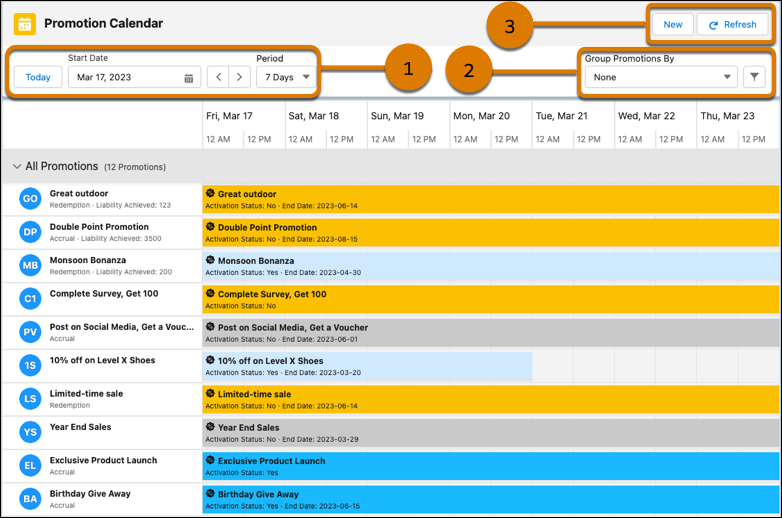
You can visualize promotions on the Promotion Calendar in multiple ways. Choose the options available on the calendar to view the promotions or dates that you’re looking for:
| Callout | Component | What It Does | How to Make it Work for You |
|---|---|---|---|
| 1 | Today | Click Today to view the calendar from the current date. | If you are on a viewing period in the future or in the past, click Today to view the promotions and events for the current date. |
| Start Date | Select the start date that you want to view the calendar from. | To view the promotions for a period that has passed a while back or for a period that’s not in the near future, select the period’s start date to view the promotions for the period. | |
| Period | Select the date range of the calendar. Use  to
change the dates on the calendar. to
change the dates on the calendar. |
To view the promotions and events that are running for a month from the start date, select Month. | |
| 2 | Group Promotions By |
Select how you want the promotions grouped by:
|
To view the promotions that are applied for member accruals, group the promotions by transaction type. |
| Filter | Select whether you want to also view events on the calendar and filter the promotions that you want to view. |
To view events on the calendar along with the promotions, turn on the visibility of events. To view only the promotions applicable for member accruals after you have grouped promotions by transaction type, filter promotions where the Transaction Journal Type is Accrual. |
|
| 3 | New | Create promotions or events. | If you see a white space where a promotion can be added, create the promotion without moving away from the calendar. |
| Refresh | Refresh the calendar after you create a promotion or event to see it on the calendar. Refresh the calendar to view the latest promotions and events available in the org. | If you can’t find a promotion that a colleague created while you’re viewing the calendar, refresh the calendar to view the new promotion. |
How to Find Promotion Details on the Calendar?
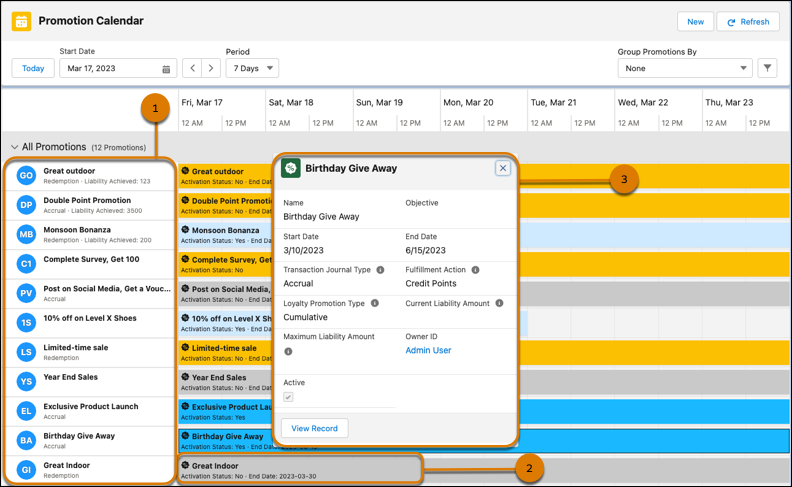
| Callout | Component | What It Does |
|---|---|---|
| 1 | Promotion List |
Promotions are grouped by the grouping that you select. In each group, view:
|
| 2 | Promotion | Know whether the promotion is active and know the promotion’s end date if it has one. |
| 3 | Promotion Card | Click the promotion to view its details. To view the promotion’s related records or edit the promotion, click View Record. |
On the calendar, you can get an overview of the promotion, check the promotion details, and go to the promotion’s record.
How to Identify Promotions?
Promotions are color-coded to help you easily identify their date range and status.
- Dark Blue—Indicates that the promotion is active and the end date of the promotion is within or after the date range that you used to filter the promotions.
- Yellow—Indicates that the promotion is inactive and the end date of the promotion is within or after the date range for which you’re viewing the promotion.
- Light Blue—Indicates that the promotion is active and the end date of the promotion is before the current date.
- Gray—Indicates that the promotion is inactive and the end date of the promotion is before the current date.
Which Events Are Shown on the Promotion Calendar?
The calendar shows events that are associated with the loyalty program that you’re viewing the calendar for. To view an event on a promotion calendar, make sure you relate the event to the loyalty program that you are viewing the calendar for.
Limitations of the Promotion Calendar
The promotion calendar has these limitations:
- The calendar doesn’t support right-to-left (RTL) languages and the calendar doesn’t read or visualize from right-to-left in RTL languages.
- The header of the Events List always shows 1 as the event count even when there’s more
than one event for the selected date range.
Though the count is one, all events for the date range are visible on the calendar.
- The calendar can take a few additional seconds to show promotions when you vertically scroll if events are shown on the calendar and the org has more than 100 events.
- Open the Promotion Calendar
Use the promotion calendar to view all your promotions in one place. You can also view all your events in the promotion calendar.