Narrow the records you want to focus on by searching and filtering a kanban view, and
view records by record type. Update records by dragging, or edit a card without leaving the kanban
view. If your Salesforce admin has set up key fields and guidance, you see them in the details
panel. If you’re viewing opportunities, alerts help you move deals ahead.
Required Editions
| Available in: Lightning Experience |
| Available in: Essentials, Group, Professional, Enterprise,
Performance, Unlimited, and Developer Editions
|
| User Permissions Needed |
| To create kanban views: |
Read on the type of record included in the view
AND
Create and Customize List
Views
|
| To create, edit, or delete public list views: |
Manage Public List Views |
-
In a list view, click
 and select Kanban
 .
.
Toggle between a kanban view and the corresponding list view any time.
-
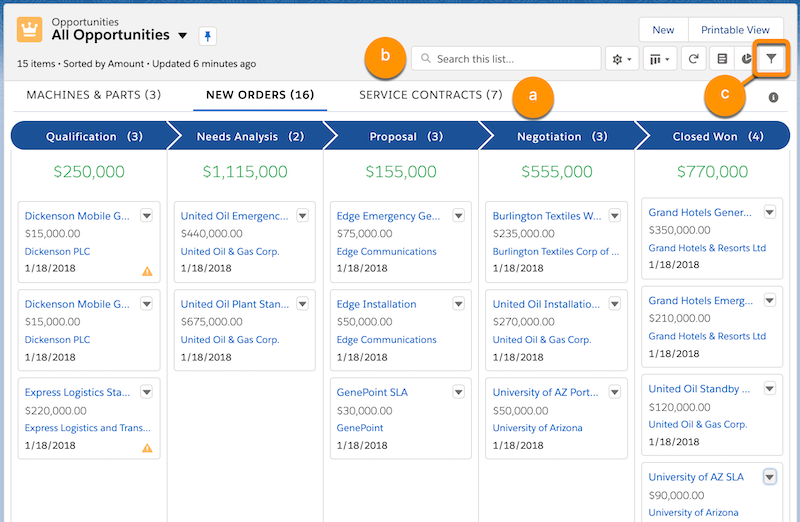
Zero in on the records you want to track.
-
If your records are assigned to two or more record types, click to view each type.
-
To narrow the view by keyword, search the list.
-
To narrow the view by field or record owner, click
 and set the filters you
want.
and set the filters you
want.
-
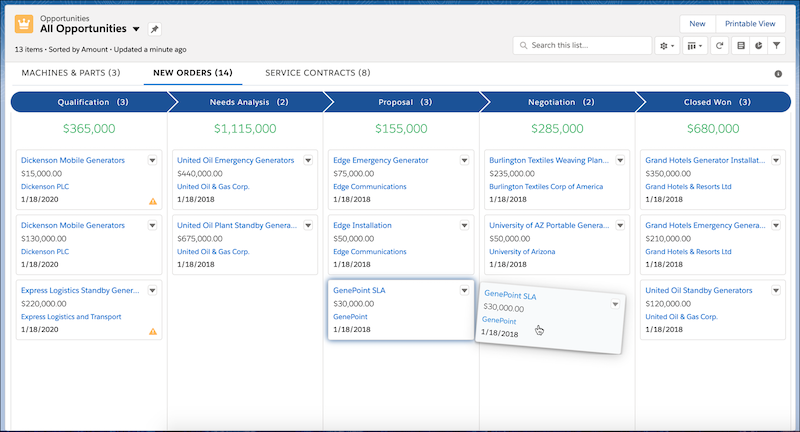
Move a record to the next column by dragging the card.
-
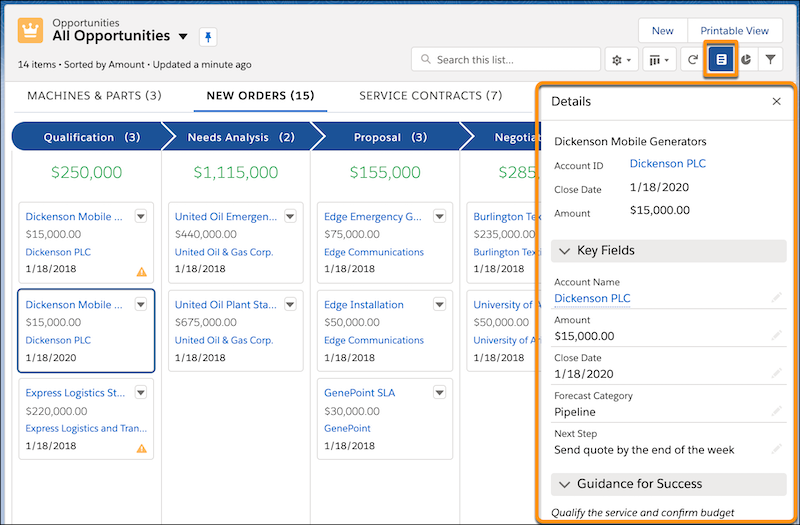
Show or hide the details panel by clicking
 . You can edit key fields inline, without
leaving the kanban view. If your Salesforce admin has configured key fields and guidance for
the step, the panel includes that information.
. You can edit key fields inline, without
leaving the kanban view. If your Salesforce admin has configured key fields and guidance for
the step, the panel includes that information.
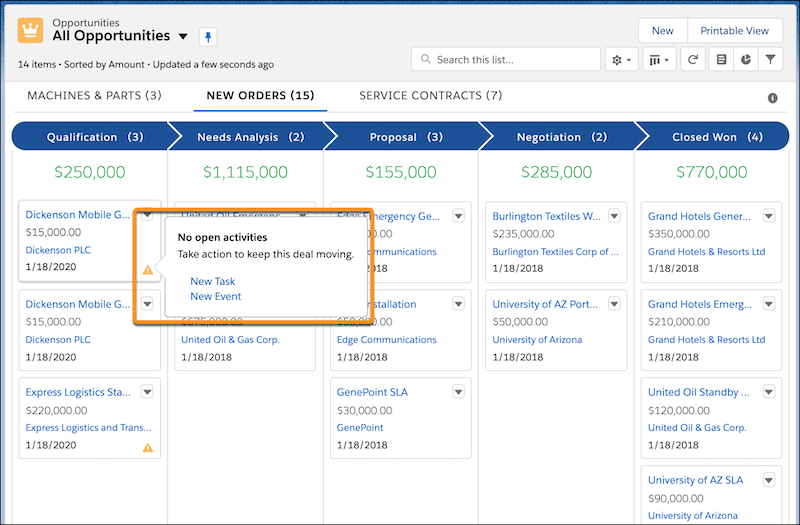
In a kanban view of opportunities, hover over an alert for a tip on moving the deal ahead,
such as creating a task.