Arrange a kanban view to show a graphical view of records in a list view. Each kanban
view is based on a list view, and kanban view settings are applied separately for each list
view.
Required Editions
| Available in: Lightning Experience |
| Available in: Essentials, Group,
Professional, Enterprise, Performance,
Unlimited, and Developer Editions
|
| User
Permissions Needed |
| To create list views: |
Read on the type of record included in the list AND Create and
Customize List Views |
| To create, edit, or delete public list views: |
Manage Public List Views |
| To edit Kanban settings: |
Edit on the associated list view |
-
In a kanban view, click
 , and then select Kanban
Settings.
, and then select Kanban
Settings.
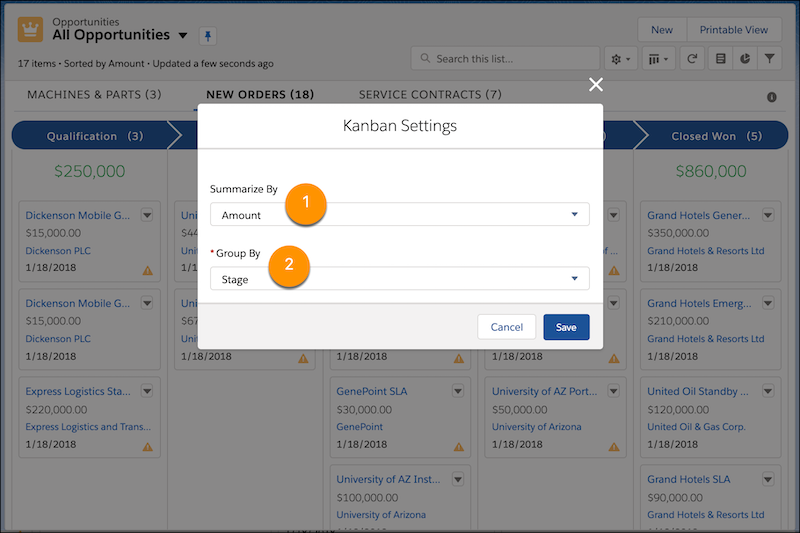
Kanban settings control the amount or number total in each column heading (1)
and the column groupings (2).
-
Summarize each column by a key number or amount, such as opportunity amount or
expected revenue.
In Summarize By, select a numeric or currency field, or omit column summaries
by selecting None.
-
Group your records into columns representing the progress you want to
track.
In Group By, select a field such as Stage or Opportunity Owner.
Kanban views don’t show records without a value in the selected Group By
field.
-
Click Save.
