---
schema_version: "1"
id: 68a3ab20bbdcc9f0f4a5f9164e7cb414197a136e70e6aedefdeac0ad1b1157a9
title: Enable Passwordless Login with Passkeys
collection: admin
version: current
locale: en-us
portal_url: https://docs.salesforce.com/admin/current/en-us/xcloud/264-0-0/identity_passkey_login_enable.md
canonical_url: https://help.salesforce.com/s/articleView?id=xcloud.identity_passkey_login_enable.htm&release=264.0.0&type=5
source_site: help.salesforce.com
content_type: documentation
content_hash: 0edc2ad77914cecd88c47184969c822967aa597212e220d65b9db80b49bcfbd2
description: Set up passwordless login with passkeys so that your employees can log in by using a registered built-in authenticator or security key.
products:
- Security
release: "264"
---
# Enable Passwordless Login with Passkeys
Set up passwordless login with passkeys so that your employees can log in by using a registered built-in authenticator or security key.
### Required Editions
Available in: both Salesforce Classic and Lightning Experience
Available in: all editions
User Permissions Needed
To enable passwordless login with passkeys:
Customize Application AND Manage Users
1. Enable built-in authenticators or security keys as verification methods in your org.
- [Enable Passkeys for Identity Verification in Salesforce Orgs](https://help.salesforce.com/s/articleView?id=xcloud.security_enable_builtin_authenticator.htm&release=264.0.0&type=5 "With passkeys, users can log in and complete multi-factor authentication (MFA) with Touch ID or Face ID, Windows Hello, a device password, or password managers. With MFA enforcement, Salesforce automatically enables passkeys (also known as built-in authenticators) as an available verification method for all employee users. When MFA is enforced in your org, you can't turn off this setting. If MFA isn't enforced yet in your org, turn on passkeys to test them. Passkeys satisfy the phishing-resistant MFA requirement for privileged users. Users can also use security keys to complete other identity verification challenges, such as device activation.")
- [Enable Security Keys for Identity Verification in Salesforce Orgs](https://help.salesforce.com/s/articleView?id=xcloud.security_u2f_enable.htm&release=264.0.0&type=5 "Security keys are small physical devices, such as YubiKeys or Titan keys, that users can use to set up passkeys for secure multi-factor authentication (MFA). With MFA enforcement, Salesforce automatically enables security keys as an available verification method for all employee users. When MFA is enforced in your org, you can't turn off this setting. If MFA isn't enforced yet in your org, turn on security keys to test them. Security keys satisfy the phishing-resistant MFA requirement for users with privileged permissions. Users can also use security keys to complete other identity verification challenges, such as device activation.")
2. Depending on your org settings, users aren't always prompted to register these methods after you make them available. To make sure that users register built-in authenticators or security keys, direct them to these articles.
- [Register a Built-In Authenticator as an Identity Verification Method for Salesforce Orgs](https://help.salesforce.com/s/articleView?id=xcloud.register_built_in_authenticator.htm&language=en_US)
- [Register a Security Key as an Identity Verification Method for Salesforce Orgs](https://help.salesforce.com/s/articleView?id=xcloud.security_u2f_register_security_key.htm&language=en_US)
3. Enable passwordless login with passkeys.
1. From [Setup](https://help.salesforce.com/s/articleView?id=xcloud.basics_nav_setup.htm&type=5&language=en_US), use the Quick Find box to find and select **Identity Verification**.
2. Under General, select **Allow passwordless login with passkeys**.
3. Save the change.
4. Direct users to save their username by logging in and selecting "Remember me" on the login page.
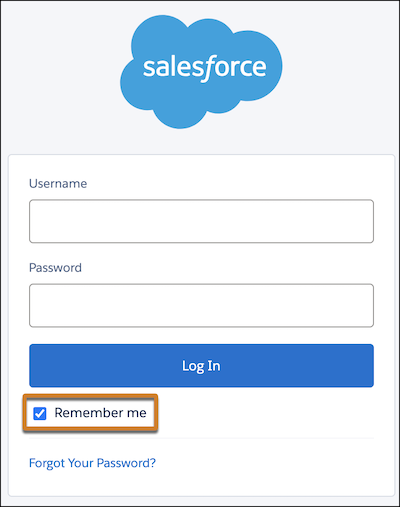
Now, if a user with a registered built-in authenticator or security key clicks on their saved username, they're prompted to log in with their passkey.
You can track passkey usage in your org's Login History and Identity Verification History.