---
schema_version: "1"
id: 9b4996f4624909e279c91814bfb9b4b6006e4415d71442834e778b4ee7ace9bc
title: "Step 3: Enable Embedded Login on a Web Page"
collection: admin
version: current
locale: en-us
portal_url: https://docs.salesforce.com/admin/current/en-us/xcloud/264-0-0/external_identity_login_step_3.md
canonical_url: https://help.salesforce.com/s/articleView?id=xcloud.external_identity_login_step_3.htm&release=264.0.0&type=5
source_site: help.salesforce.com
content_type: documentation
content_hash: 59060c065c60cbc76a6f45df1b3d2c5a52d0559be38436dc367fddc58f724f0b
description: On the web page where you want to add login capabilities, enter Embedded Login meta tags inside the HTML element at the top of the page.
products:
- Security
- Cross Cloud
release: "264"
---
# Step 3: Enable Embedded Login on a Web Page
On the web page where you want to add login capabilities, enter Embedded Login meta tags inside the `` HTML element at the top of the page.

Warning In Summer ’24, Salesforce made Embedded Login disabled by default. We recommend that you use the [web server flow](https://help.salesforce.com/s/articleView?id=xcloud.remoteaccess_oauth_web_server_flow.htm&type=5&language=en_US), the [user-agent flow](https://help.salesforce.com/s/articleView?id=xcloud.remoteaccess_oauth_user_agent_flow.htm&type=5&language=en_US), or another redirect-based OAuth 2.0 flow instead of Embedded Login.
Embedded Login relies on third-party cookies, which are blocked or restricted in most browsers. And Embedded Login works only on Google Chrome and only as long as third-party cookies are allowed there by default.
Here’s what you see when you inspect the web page.
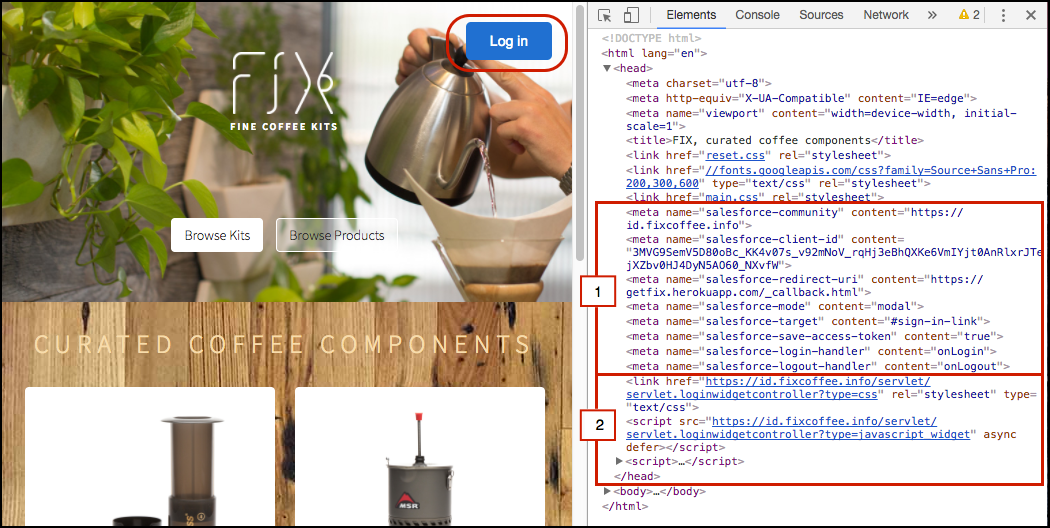
The top (1) contains a set of meta tags that specify how to display the login form. The bottom (2) contains a link to your CSS resources and a script to invoke Embedded Login on the server.
Let’s take a closer look at the code.
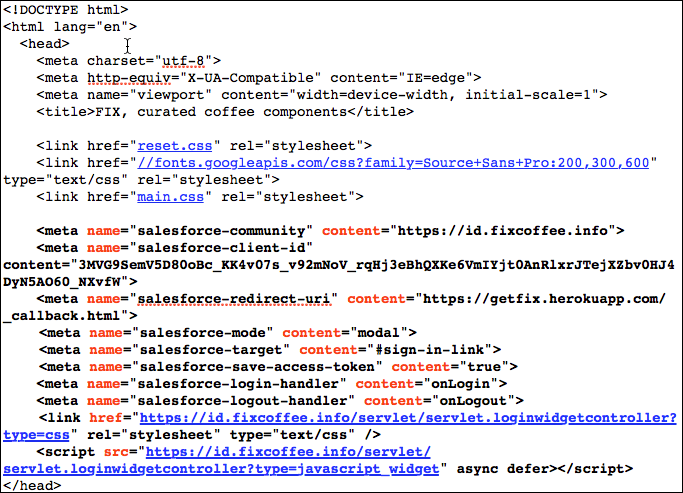
The CSS and servlet URLs reside on static endpoints hosted by your site. You replace https://embeddedlogin-dev-ed.my.site.com/demo/ with the path to your site.
```html
```
Next, let’s see how to implement Embedded Login by populating the web page `` element.
- **[Add Embedded Login Meta Tags to Your Web Page](https://help.salesforce.com/s/articleView?id=xcloud.external_identity_login_webpage_metadata.htm&release=264.0.0&type=5)**
You enter meta tags on your web page where you want to add login capabilities with Embedded Login. You specify the Salesforce site URL, what the login form looks like, and the location of the CSS style sheet.
- **[Replace the Embedded Login CSS with Your Own](https://help.salesforce.com/s/articleView?id=xcloud.external_identity_login_replace_css.htm&release=264.0.0&type=5)**
Embedded Login comes with a default style sheet, which styles the login button and login form. If you want to replace the default CSS with your own, you have a few options.
- **[Change How to Invoke Embedded Login on the Server](https://help.salesforce.com/s/articleView?id=xcloud.external_identity_login_invoke_servlet.htm&release=264.0.0&type=5)**
You can change the default behavior of Embedded Login on the server by modifying the `