
When creating custom code for your login page, it’s often helpful to start out with an existing example for guidance. Salesforce Identity provides a Github custom login page project that you can modify. The project includes custom Visualforce pages and Apex controllers.
Required Editions
| Available in: Salesforce Classic and Lightning Experience |
| Available in: Enterprise, Performance, Unlimited, and Developer Editions |
| User Permissions Needed | |
|---|---|
| To create and edit Visualforce pages: | Customize Application |
| To edit Apex classes: |
Author Apex AND Customize Application |

Note Only LWR sites configured with a Visualforce login page before Summer ’23 and Aura sites
can use a custom Visualforce login page.
-
On Github, locate the Salesforce Identity custom login page project.
- Download the project to your computer.
- Upload the zipped _include directory from the project to Salesforce as a static resource called include with Cache Control set to Public.
- Create a field set named Registration to contain the user information for your site members, such as the user’s name, company name, and email.
- If you want to set up an Auth. provider for social sign-on, create a custom URL field on the User object.
- Install the Apex controllers and Visualforce pages from the Github project to your org according to the project’s README.
-
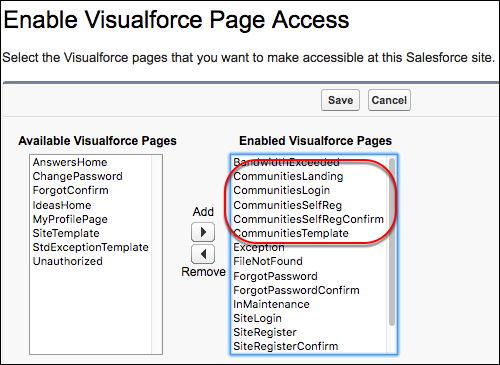
Make your Visualforce pages available publicly.
- From Experience Workspaces, select Administration, select Pages, and then click Go to Force.com.
- Click Public Access Settings.
- Under Enabled Visualforce Page Access, click Edit.
-
Select the Visualforce pages you created, add them to Enabled
Visualforce Pages, and save your changes.
-
Replace the site’s default pages with your new Visualforce pages.
- From Experience Workspaces, select Administration, and then select Login & Registration.
-
Under Login, select Visualforce for the page type, enter the
name of your Visualforce page in the search field, and click
 .
.
- In the search results window, click the name of your page to select it, and click Save.
To revert to the default page, select Default Page.
- View your custom login page from a browser in private mode.
- Make it your own.