
Our process builder recipe can automate your communication with a contact or customer from whom you won an opportunity. After winning an opportunity, you often have a reason to reach out to the contact or customer. For example, you want to thank them. Or you want to send them a survey to rate customer satisfaction. Maybe that follow-up is even an opportunity to cross-sell.
Start with creating a process.
- Open Setup.
- Type Process Builder into the Quick Find box, and open it.
- Click New.
- Name your process Opportunity Task Creation.
-
In the Process Starts When dropdown menu, select A record
changes.
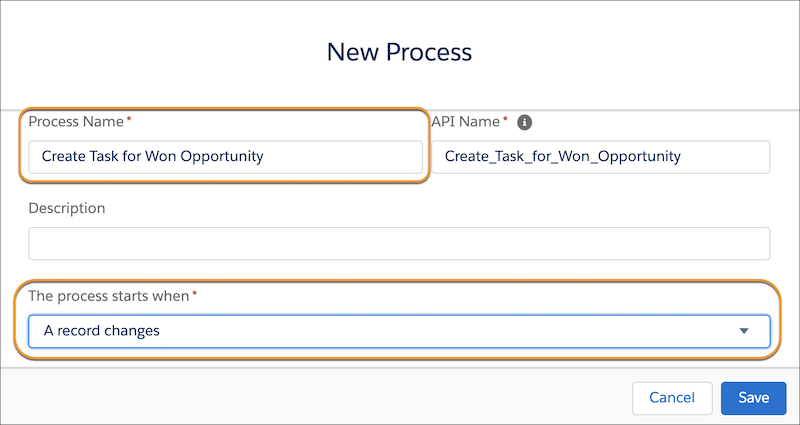
- Save your changes.
Base the Process on an Opportunity Being Edited
- On the Process map, click + Add Object.
- From the Object dropdown, select Opportunity.
-
Select to start the process when a record is created or
edited.
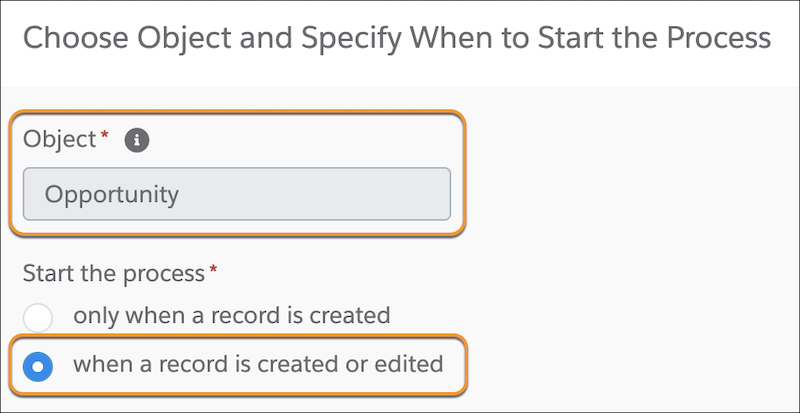
- Save your changes.
Tell the Process What Criteria Causes it to Run
- Name your criteria Oppportunity Closed as Won.
- Under Criteria for Execution Actions, select Conditions are met.
- Under Set Conditions, choose Stage > Equals > Picklist > Closed Won.
-
Under Conditions, choose All of the conditions are met
(AND).
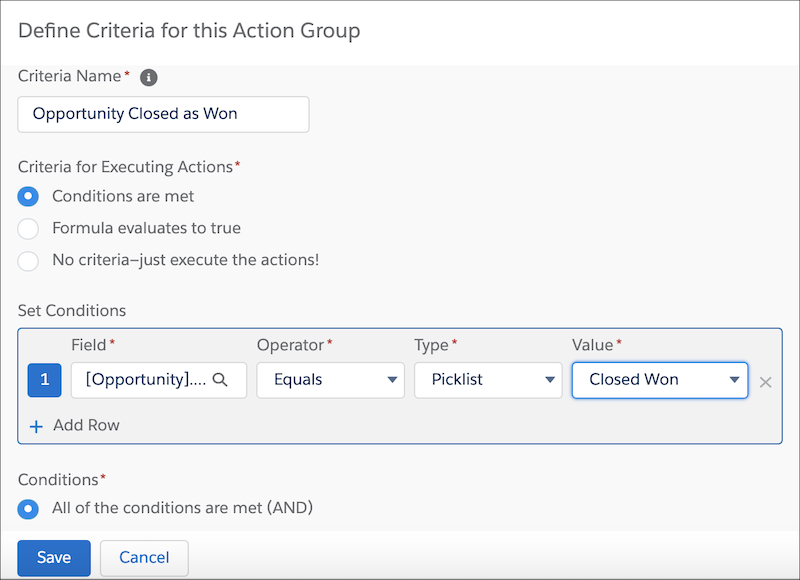
- Save your changes.
Tell the Process What To Do When Criteria are Met
- Click Add Action on the process map.
- Choose Create a Record from the Action Type dropdown.
- Name your action Create Task.
- Select Task as the record type.
- Under Set Field Values, select Assigned to ID > Field Reference > Owner ID.
- In the next row, set Priority > Picklist > High.
- Next, select Status > Picklist > In Progress.
- Click +Add Row, choose Subject > String , and then enter a subject line for your task.
-
Click +Add Row, and choose Related To ID
> Field Reference > Opportunity ID.
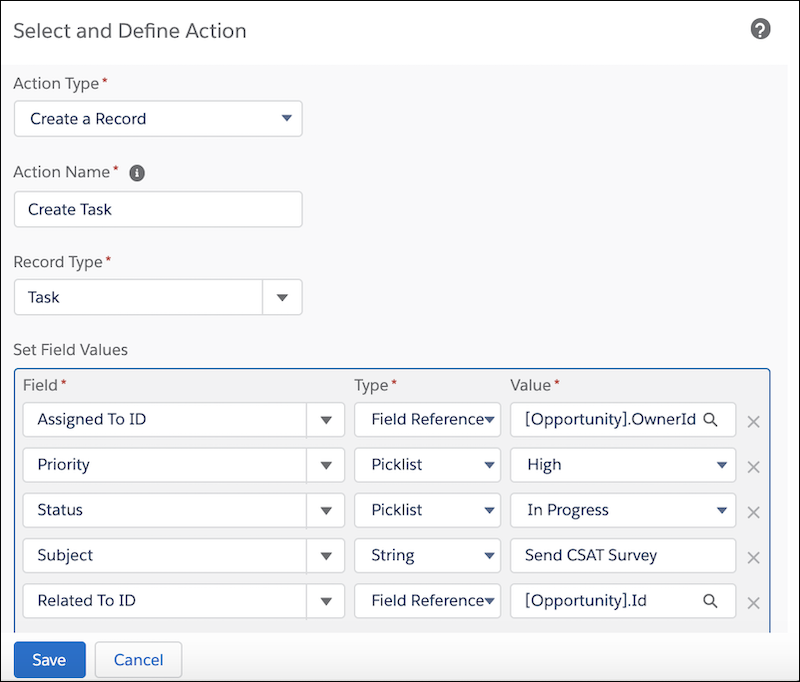
- Save your changes.
- Activate your process. It now runs whenever criteria are met.