---
schema_version: "1"
id: 4010a08bf1e5a73ace9437fccc333173d6ceb24d3b1c29575dce767213cd65c3
title: Enable Preference Manager Permissions
collection: admin
version: current
locale: en-us
portal_url: https://docs.salesforce.com/admin/current/en-us/xcloud/264-0-0/enable_preference_center.md
canonical_url: https://help.salesforce.com/s/articleView?id=xcloud.enable_preference_center.htm&release=264.0.0&type=5
source_site: help.salesforce.com
content_type: documentation
content_hash: 013f867a9c411ce11d99aa25ac0e4675662d31e934a510b1c36959ae8e7fa9d9
description: To give new users access to Preference Manager in the App Launcher, enable Preference Manager permissions. You can assign Preference Manager permissions from Profiles or Permission Sets in Setup.
products:
- Security
- Cross Cloud
release: "264"
---
# Enable Preference Manager Permissions
To give new users access to Preference Manager in the App Launcher, enable Preference Manager permissions. You can assign Preference Manager permissions from Profiles or Permission Sets in Setup.
### Required Editions
Available in: Lightning Experience and Salesforce Classic in Developer, Enterprise, Performance, and Unlimited Editions
User Permissions Needed
To use Preference Manager:
ManagePreferenceManager
When you enable Preference Manager, you gain access to the Preference Manager dashboard. From the dashboard, you can navigate to the Consent Templates, Preference Forms, and Access Tokens features. You can also publish, unpublish, edit, delete, and create multiple versions of your forms. And you can quickly gather information on which forms are published, when they were last edited, who modified them, and more.
To enable the Preference Manager app in your Privacy Center configuration:
1. From Setup, click any Profile or Permission Set.
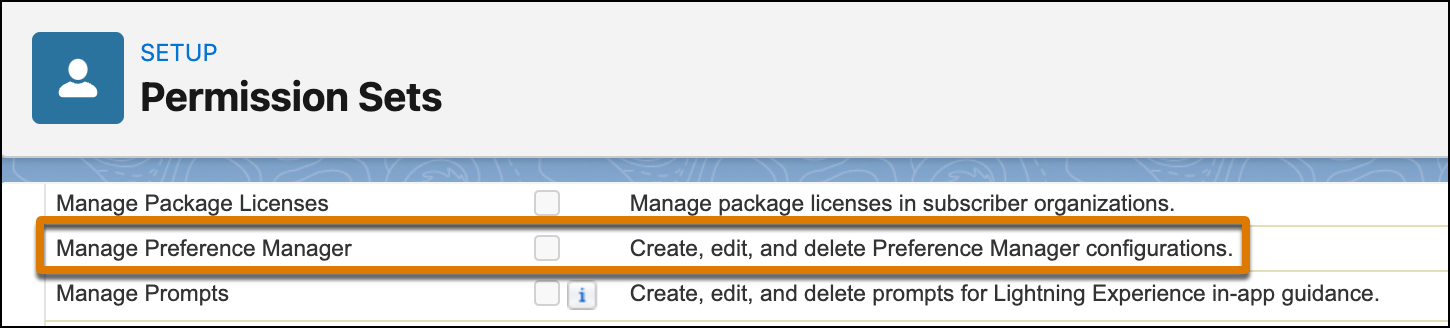
2. Under System Permissions, look for Manage Preference Manager. If you don’t see the permission, contact your account representative to enable the Privacy Center license.
3. Click **Edit**.
4. Select **Manage Preference Manager**, and save your changes.
To assign Permission Sets to users, add an assignment from Manage Assignments.