---
schema_version: "1"
id: 69b9b01e2984e3e97295a3d693a80ab853076dbd592687007cea3e7dea944ab8
title: Create a DKIM Key
collection: admin
version: current
locale: en-us
portal_url: https://docs.salesforce.com/admin/current/en-us/xcloud/264-0-0/emailadmin_create_secure_dkim.md
canonical_url: https://help.salesforce.com/s/articleView?id=xcloud.emailadmin_create_secure_dkim.htm&release=264.0.0&type=5
source_site: help.salesforce.com
content_type: documentation
content_hash: 504aa704bc9f290bb8751303561a2a80b071ce2407a3e92aea5f487920bebf38
description: DomainKeys Identified Mail (DKIM) is a security standard that attaches a digital signature to your emails to prove that they came from you. With this signature, the receiving server can verify that the message content wasn’t altered or faked during transit. DKIM builds trust with email providers, so your messages are more likely to land in the inbox instead of the spam folder. An active DKIM key verifies your domain ownership so that Salesforce can send email for your users.
products:
- Security
release: "264"
---
# Create a DKIM Key
DomainKeys Identified Mail (DKIM) is a security standard that attaches a digital signature to your emails to prove that they came from you. With this signature, the receiving server can verify that the message content wasn’t altered or faked during transit. DKIM builds trust with email providers, so your messages are more likely to land in the inbox instead of the spam folder. An active DKIM key verifies your domain ownership so that Salesforce can send email for your users.
### Required Editions
Available in: Salesforce Classic and Lightning Experience
Available in: all editions except Database.com
User Permissions
Needed
Manage DKIM keys:
Customize Application
When you sign your emails digitally with a DomainKeys Identified Mail (DKIM), the key proves that the message came from your domain. For more information, see [Considerations for DKIM Keys](https://help.salesforce.com/s/articleView?id=xcloud.emailadmin_considerations_dkim.htm&release=264.0.0&type=5 "Before you create DKIM keys, understand their purpose and how DKIM key rotation and domain matching work.").

Important Before Salesforce can send email on behalf of your users, domain-level and user-level verification is required. An active DKIM key fulfills the requirement for domain-level verification only when the domain name of the DKIM key matches the entire domain shown in the 'From' address. To send and sign email from Salesforce, create a separate DKIM key for each domain and subdomain. See [Requirements to Send Email from Salesforce](https://help.salesforce.com/s/articleView?id=xcloud.security_email_verification_requirements.htm&release=264.0.0&type=5 "To protect your org and brand, Salesforce requires domain-level and user-level email verification. To send email from Salesforce with your email domain, verify ownership of your email-sending domains.").
This video discusses the three main components of email trust and antispoofing: DKIM, SPF (sender policy framework) and DMARC (domain-based message authentication, reporting and conformance). It demonstrates setting up a DKIM key.
Or [launch this video](https://play.vidyard.com/1bLVtrW33iLmVMaWQyzBtc).
## Add a DKIM Key in Setup
1. From [Setup](https://help.salesforce.com/s/articleView?id=xcloud.basics_nav_setup.htm&type=5&language=en_US), use the Quick Find box to find and select **DKIM Keys**.
2. Click **Create New Key**.
The new DKIM key pair defaults to the Inactive state.
3. Select the RSA key size.
Select **2048-bit** unless a specific application requires smaller keys.
4. For Selector, enter a unique string of up to 62 letters, digits, and hyphens to identify this key. Start with a letter or number. For example, example-sf-a.
5. For Alternate Selector, enter another unique string of up to 62 letters, digits, and hyphens. Start with a letter or number. For example, example-sf-b.
Salesforce uses the alternate selector to auto-rotate your keys. See [Considerations for DKIM Keys](https://help.salesforce.com/s/articleView?id=xcloud.emailadmin_considerations_dkim.htm&release=264.0.0&type=5 "Before you create DKIM keys, understand their purpose and how DKIM key rotation and domain matching work.").
6. Enter the domain name used to send email from Salesforce.
After you save a DKIM key, you can’t edit the domain name.
7. For domain match pattern, enter a comma-separated list of domain patterns that the domain name must match before Salesforce signs an email with this DKIM key.
Here are two examples of a recommended domain match pattern value.
- Domain: example.com and Domain Match Pattern: example.com
- Domain: mail.example.com and Domain Match Pattern: mail.example.com

Important
To send and sign emails for a subdomain that you own, such as mail.example.com, create a separate DKIM key for each subdomain.
Don’t use wildcards in the domain match pattern list for DKIM keys for domains that you own. Although wildcards are permitted in this field, we no longer recommend that option.
8. Save your changes.
Salesforce publishes two DKIM public keys to DNS TXT (text) records for a Salesforce-owned domain: a primary and alternate key. The alternate key is used during key rotation.
Salesforce also generates corresponding canonical domain name (CNAME) records for your domain, which become the second half of the DKIM key pair. This process usually finishes within 15 minutes.
## Update DNS
Add the CNAME and Alternate CNAME records to your domain’s DNS record.
1. From [Setup](https://help.salesforce.com/s/articleView?id=xcloud.basics_nav_setup.htm&type=5&language=en_US), use the Quick Find box to find and select **DKIM Keys**.
2. To view the key details, click the selector of the key.
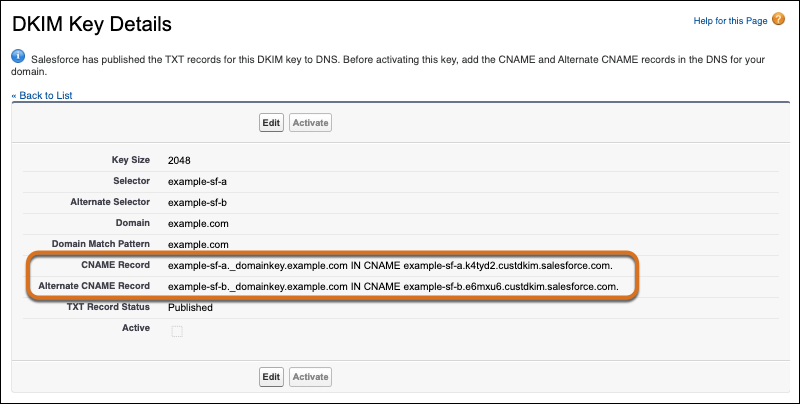
When Salesforce has finished publishing the TXT records for the private key, the CNAME Record and Alternate CNAME Record fields are shown.
If the TXT Record Status is “Publishing in progress”, wait a few minutes and try again. Refresh the page in your browser, or reload the DKIM key list in Setup and click the selector again.
3. Add the CNAME and Alternate CNAME records to DNS for your domain.

Note
Work with your DNS provider to complete this step.
If you enter this information via your DNS provider’s website, check their documentation for their expected formats. Some DNS providers require the domain name when you enter the name value, and some omit it. In our example, the .example.com string is the domain name.
Here’s an example of DNS CNAME records for a DKIM Key with a domain of example.com and selectors example-sf-a and example-sf-b.
```
NAME TTL CLASS TYPE VALUE
--------------------------------------------------------------------------------------------------------
example-sf-a._domainkey.example.com. 3600 IN CNAME example-sf-a.k4tyd2.custdkim.salesforce.com.
example-sf-b._domainkey.example.com. 3600 IN CNAME example-sf-b.e6mxu6.custdkim.salesforce.com.
```
This example is a raw CNAME record. The trailing dot in example-sf-a.\_domainkey.example.com. and example-sf-a.\_domainkey.example.com. tells the DNS server that the names are absolute, stopping the provider from appending anything to the domain names. Usually your DNS provider adds that dot to your domain name for you. Check with your DNS provider to determine how to enter the name in their system to get this result.
Wait for the DNS changes to propogate, then [activate the DKIM key](https://help.salesforce.com/s/articleView?id=xcloud.security_email_dkim_activate.htm&release=264.0.0&type=5 "After you add a DomainKeys Identified Mail (DKIM) key in Setup and update your domain’s DNS records, wait for the DNS changes to apply across the internet before you activate the key.").

Note DNS changes can take up to 72 hours to propagate.
#### See Also
- [DomainKeys Identified Mail (DKIM) Keys](https://help.salesforce.com/s/articleView?id=xcloud.emailadmin_setup_dkim_key.htm&release=264.0.0&type=5 "Use the DKIM key feature so Salesforce can sign outbound email sent on your company’s behalf. These signatures give recipients confidence that the email was handled in a way that’s consistent with your company. An active DKIM key also verifies your domain ownership so that Salesforce can send email for your users.")
- [Determine How to Verify Your Email-Sending Domains](https://help.salesforce.com/s/articleView?id=xcloud.security_user_email_verification_domain_auth.htm&release=264.0.0&type=5 "To send email from Salesforce on domains that you own, verification is required for each of your email-sending domains. Determine the best method to verify your email domains: DomainKeys Identified Mail (DKIM), authorized email domains, or both options.")
- [Activate a DKIM Key](https://help.salesforce.com/s/articleView?id=xcloud.security_email_dkim_activate.htm&release=264.0.0&type=5 "After you add a DomainKeys Identified Mail (DKIM) key in Setup and update your domain’s DNS records, wait for the DNS changes to apply across the internet before you activate the key.")
- [Improve Deliverability of Emails Sent from Salesforce](https://help.salesforce.com/s/articleView?id=sales.emailadmin_send_from_salesforce_improve_deliverability.htm&type=5&language=en_US)
- [Enabling Compliance BCC Emails](https://help.salesforce.com/s/articleView?id=sales.admin_compliancebcc.htm&type=5&language=en_US)