---
schema_version: "1"
id: 7f2801a8c706641e5b4fa6c909dcbec26619c39265f70dfa419d8ed6fe899d0c
title: Allow Data Analysis with Einstein Data Exploration Consent
collection: admin
version: current
locale: en-us
portal_url: https://docs.salesforce.com/admin/current/en-us/xcloud/264-0-0/einstein_data_exploration_consent.md
canonical_url: https://help.salesforce.com/s/articleView?id=xcloud.einstein_data_exploration_consent.htm&release=264.0.0&type=5
source_site: help.salesforce.com
content_type: documentation
content_hash: d19af6947c474ac4ef46f656d2432778ac509e7bfdb4400c7279dd49536a0e7f
description: Use Einstein Data Exploration Consent to manage project and object permissions for Salesforce data scientists. With this access, Salesforce can develop and improve your Einstein features. For example, you can see the content that your customers pay attention to and find patterns to best advertise your products or services.
products:
- Security
- Cross Cloud
release: "264"
---
# Allow Data Analysis with Einstein Data Exploration Consent
Use Einstein Data Exploration Consent to manage project and object permissions for Salesforce data scientists. With this access, Salesforce can develop and improve your Einstein features. For example, you can see the content that your customers pay attention to and find patterns to best advertise your products or services.
### Required Editions
Available in: Lightning Experience in Professional, Enterprise, Performance, Unlimited, and Developer Editions.
User Permissions Needed
To grant access to apps and objects in Einstein Data Exploration Consent:
Data Exploration
To grant project and object permissions in Salesforce requires a pilot program agreement with Salesforce. To participate in a pilot program, contact your Salesforce Account Executive.
To grant access to projects and objects:
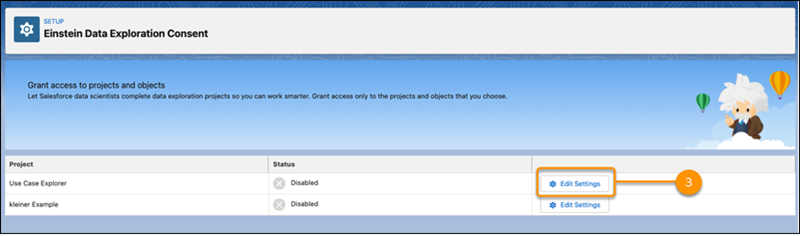
1. From Setup, in the Quick Find box, enter **Einstein Data Exploration Consent**, and then select **Einstein Data Exploration Consent**.
2. Find the project that you want Salesforce data scientists to access. In this example, the project is Use Case Explorer.
3. Select **Edit Settings**.
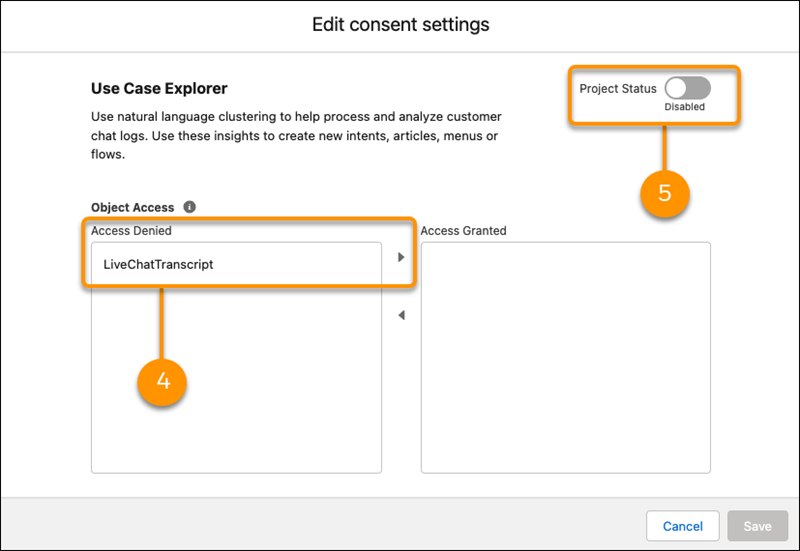
4. Under Access Denied, select the objects that you want to grant access to and use the arrow to move them to the **Access Granted** column.
5. Enable **Project Status**.
6. **Save** your changes.
7. Tell your Salesforce pilot program contact that you granted project and object permissions.