You can view the aggregate results of completed scans and see a breakdown of the results
by object and field. Results also include data classification assignments, which help you better
understand your organization’s data governance posture. See which fields aren’t categorized and
add or adjust a field’s category based on the data detected. Data classifications are useful for
reporting as well as creating Transaction Security and Shield Platform Encryption
policies.
Required Editions
| Available in: Lightning Experience |
|
Available in: Enterprise, Performance, Unlimited, and
Developer Editions.
Requires the Salesforce Shield add-on subscription or
the Data Detect add-on license.
|
| User
Permissions Needed |
| To use Data Detect: |
Modify All Data
AND
API Enabled
AND
System
Administrator
|
-
In the Data Detect managed package app, select the Results
tab.
- Find the scan you want to see the results for. From the action menu, select
View.
The Scan Results page opens with a dashboard showing the aggregated results of all
objects and fields included in the policy.
- To see aggregated results of all objects scanned, select Aggregate Usage Report
.
The Usage Report dashboard shows how many objects, fields, and records were included in
the policy’s last scan. It also displays breakdowns of the patterns detected and how many
fields have assigned compliance categories and field owners. Categories are based on
Data Classification metadata values previously
assigned to those fields.
- To view results for each object, select an object from the panel.
- Select a field from the panel.
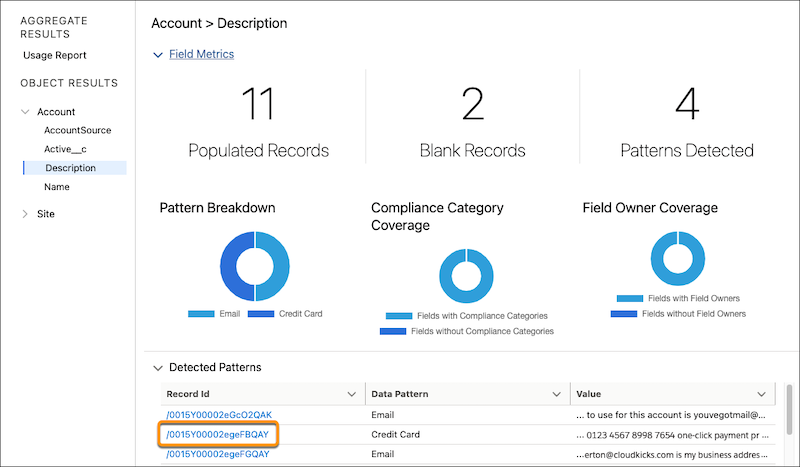
A dashboard opens with field metrics, a list of detected patterns, and data
classification sections.
If patterns are detected, the top 50 results are listed in the Data
Patterns section. The record ID appears along with the pattern type that was found in the
selected field. The table shows a portion of the sensitive value found along with the
surrounding characters for context.
- To view the record detail page for records, click the record ID.
A new tab opens, displaying information you can use to act on the sensitive
data.
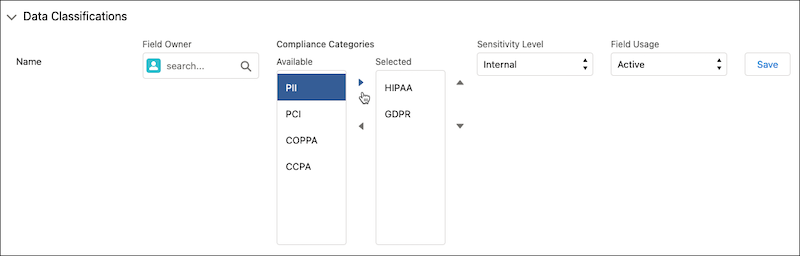
- Expand the Data Classification section.
If the field has existing data classification assignments, those assignments appear.
You can edit data classification assignments in this section, including assigning a field owner
or changing compliance categories or sensitivity levels.