
After you deploy a My Domain change that updates your My Domain or site login URL, OpenID Connect single sign-on (SSO) authentication stops working. OpenID Connect SSO options include Authentication Providers. To allow your users to use this SSO method again, work with your identity provider (IdP) to update your configuration.
Required Editions
| Available in: both Salesforce Classic and Lightning Experience |
| Available in: Group, Essentials, Professional, Enterprise, Performance, Unlimited, and Developer Editions |

After you deploy the change that updates your My Domain login URL, work with your identity provider to update your IdP configuration with the new authentication values.
These steps also apply after your Experience Cloud site URL or Salesforce Site URL changes, but only if you use the system-managed site URL to authenticate. System-managed site URLs end in *.my.site.com for Experience Cloud sites and *.my.salesforce-sites.com for Salesforce Sites. If you authenticate via a custom domain, such as https://www.example.com, that serves your Experience Cloud site or Salesforce Site, then your SSO configuration isn’t affected.
- In the Quick Find box, enter Auth. Providers, and then select Auth. Providers.
- View the details for each Auth. Provider record.
The updated values are shown in the Salesforce Configuration section.
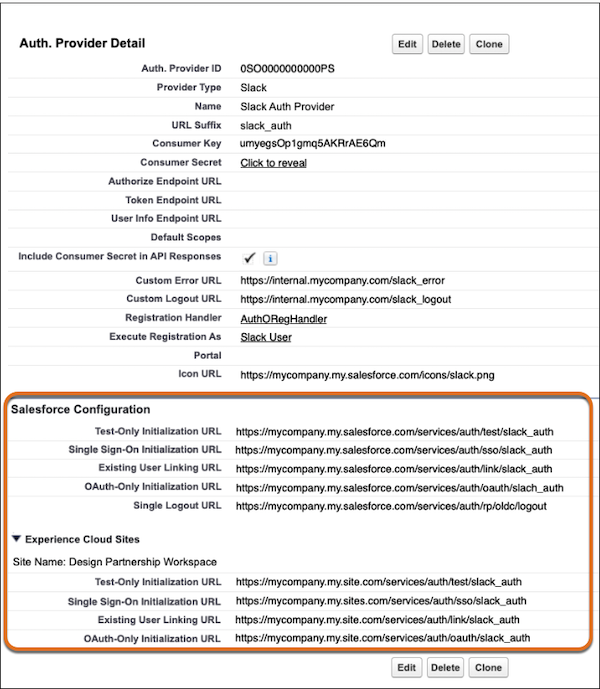
- Share the values in these fields with your identity provider.
- Test-Only Initialization URL
- Single Sign-On Initialization URL
- Existing User Linking URL
- OAuth-Only Initialization URL
- Callback URL
 Note Some identity provider configurations don’t use every field.
 - After your identity provider updates the settings, verify your updated endpoints with the
/.well-known/auth-configuration URL path.
For example, if your login URL is https://mycompany.my.salesforce.com, visit https://mycompany.my.salesforce.com/.well-known/auth-configuration.Note If your identity provider updated the values but the changes aren’t reflected in Salesforce, disable the authentication provider in the Authentication Configuration section of the My Domain screen, then enable it again. For more information, see Add Identity Providers to the My Domain Login Page.
- Before you test your new authentication configuration, verify that the value in the
Authentication Service field on the My Domain Setup page matches the authentication service
record.
If needed, edit your Authentication Configuration settings on the My Domain Setup page. Then in the Authentication Service field, select the correct record and save your changes.
- Verify the authentication method from your login page. If necessary, add authentication
providers to your login page again.
- For your org's My Domain login page, see Add an Authentication Provider to Your Org’s Login Page.
- For you Experience Cloud site's login page: Add an Authentication Provider to Your Experience Cloud Site’s Login Page.