Only one Salesforce Authenticator mobile app can be connected to a user’s account at
a time. If a user loses or replaces the mobile device where Salesforce Authenticator was
installed, you can disconnect the app from their account. If a user’s app stops working,
reset it by disconnecting the app; then ask the user to restore the app’s connection to
their account by re-registering it. It’s also a good security practice to disconnect all of
a user’s verification methods if they leave your company.
Required Editions
| Available in: both Salesforce Classic and Lightning Experience |
| Available in: all editions |
| User
Permissions Needed |
| To disconnect a user’s Salesforce Authenticator app: |
Manage Multi-Factor Authentication in User Interface or the
System Administrator profile |
-
From Setup, use the Quick Find box to find and select
Users.
-
Click on the user’s name.
Don't click Edit next to the user's name. Make sure that you click directly on their
name. How the name displays depends on your list view settings, but you can click on any
name field that identifies the user, such as Full Name, First Name, or Last Name.
-
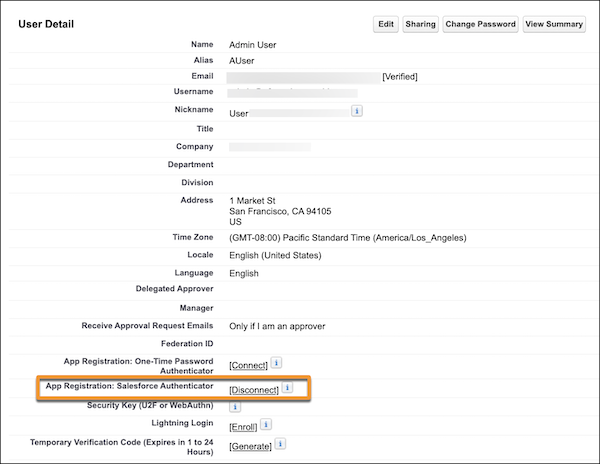
On the user’s detail page, next to the App Registration: Salesforce
Authenticator field, select Disconnect.
If you use Essentials edition and you don't see the option to disconnect Salesforce
Authenticator, switch to Salesforce Classic.