
Learn how to create a policy in Policy Center.
Required Editions
| Available in: Enterprise, Performance, Unlimited, and Developer Editions |
To create a policy, make sure that you have access to Policy Center by assigning the View All Policy Center Policies and Modify All Policy Center Policies permissions to your users. You can assign user permissions via permission sets or custom profiles.

Important If you deploy the Standard System Administrator
profile from a Winter '25 source org to a Spring '25 org, you might
encounter a metadata deployment error. This error occurs because of
a change to the default status of the "Modify All Policy Center
Policies" and "View All Policy Center Policies" user permissions. To
avoid this error, exclude the Standard System Administrator profile
from your deployment package.
- From the App Launcher, find and select Policy Center.
- Click Create a Policy. Or click the Policies tab, and then Create.
- Select a policy type, and then click Next. The available policy types reflect the features enabled for your org.
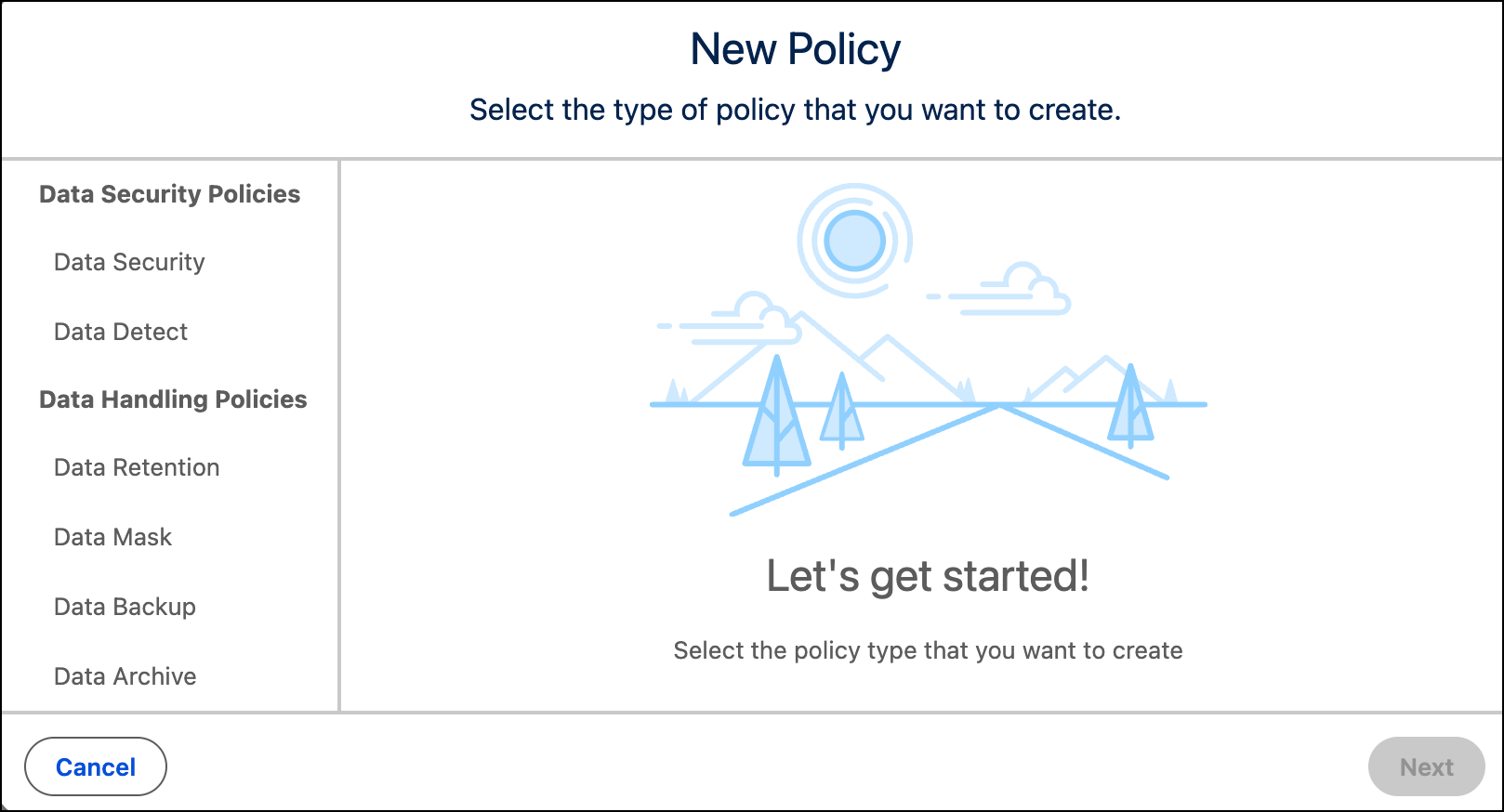
- To create a Data Security policy with Data 360, see About Salesforce Data Cloud.
- To create a Data Detect policy with Data Detect, see Create a Data Detect Policy.
- To create a Data Management policy with Privacy Center, see Create a Data Management Policy.
- To create a Data Mask policy with Salesforce Data Mask, see Create or Edit a Data Mask Configuration.
- To create a Data Backup policy with Salesforce Backup, see Back Up Data with Salesforce Backup.
- To create a Data Archive policy with Salesforce Archive, see How to Configure Archive Policies.
From the Policies tab, you can see the name and status of your policies. Click the name of a policy to edit, publish, activate, deactivate, and immediately run your policy.