If your org uses third-party apps, such as those installed from the AppExchange, you can set security policies to control what data the third-party app can access from your org. You can also define who can use the third-party app. In addition to setting security policies to manage third-party apps, you can uninstall, and—when necessary—block these apps from the Salesforce org.
Required Editions
| Available in: both Salesforce Classic and Lightning Experience |
|
Connected Apps can be created in: Group, Essentials, Professional, Enterprise, Performance, Unlimited, and Developer Editions Connected Apps can be installed in: All editions |
| User Permissions Needed | |
|---|---|
| To read, create, update, or delete connected apps: |
Customize Application AND either Modify All Data OR Manage Connected Apps |
| To update all fields except Profiles, Permission Sets, and Service Provider SAML Attributes: |
Customize Application AND either Modify All Data OR Manage Connected Apps |
| To update Profiles, Permission Sets, and Service Provider SAML Attributes: | Customize Application AND Modify All Data AND Manage Profiles and Permission Sets |
| To rotate the consumer key and consumer secret: | Allow consumer key and secret rotation |
| To install and uninstall connected apps: |
Customize Application AND either Modify All Data OR Manage Connected Apps |
| To install and uninstall packaged connected apps: |
Download AppExchange Packages AND Customize Application AND either Modify All Data OR Manage Connected Apps |

See New connected apps can no longer be created in Spring ‘26 for more details.
As a third-party connected app consumer, you’re org installed the app from the AppExchange Marketplace or as a managed package from Salesforce or a third-party vendor’s website. You can only edit the app’s access policies, such as determining who can use the app and whether the app can access data from a remote location.

Connected Apps Installed by Salesforce
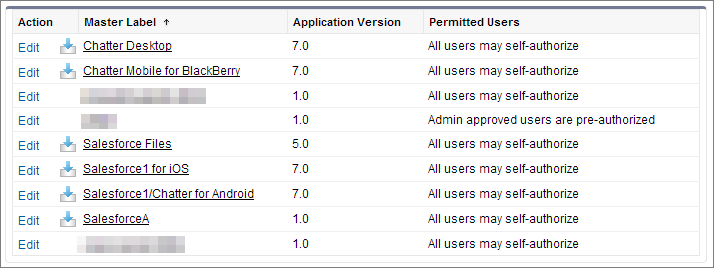
Some Salesforce client apps, such as the Salesforce mobile app and Salesforce for Outlook, are implemented as connected apps. Salesforce automatically installs them in your org.
Salesforce distributes these client-type connected apps in two managed packages: The connected apps included in the package change with each release. Salesforce installs the package the first time a user accesses one of the apps.
- Salesforce for Android and Salesforce for iOS
- Salesforce for other mobile apps
Salesforce packages appear in Setup under the Installed Packages List. See Installed Packages.
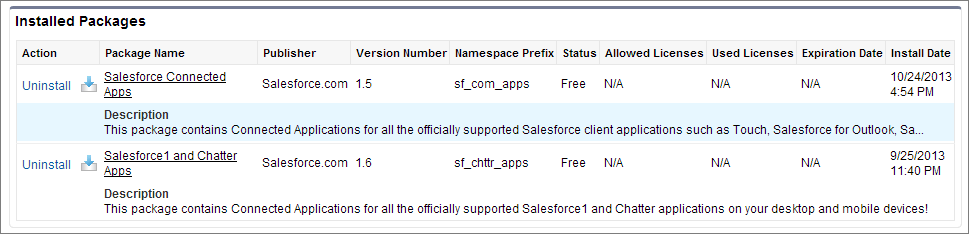
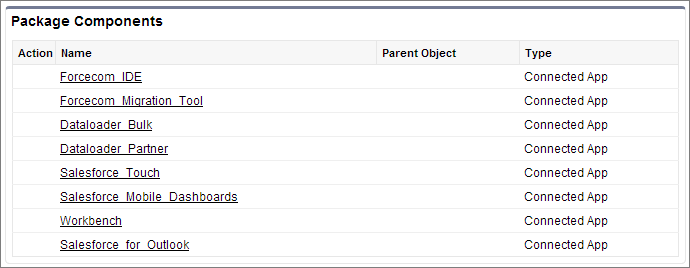
Click a package name to see the list of components. The following are some components in the Salesforce Connected Apps package.
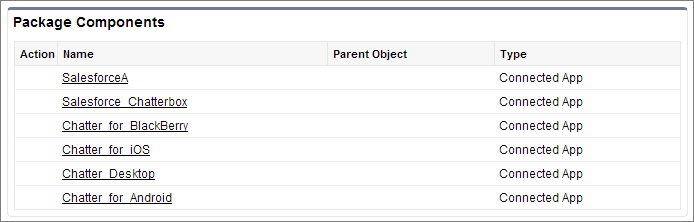
The following are examples of components for the Salesforce mobile app and Chatter app packages.
To install or reinstall the Salesforce mobile app package for connected apps, you can install it from App Exchange.
You can manage installed connected apps from the Connected Apps page. The connected apps that Salesforce installs appear in the list as installed by a managed package. They appear along with your other installed connected apps.