
Make finding CMS content easier for your users. Configure search within all your channels, including Experience Cloud sites, Commerce Cloud, Marketing Cloud Engagement, Heroku, LEX apps, and more.
Required Editions
| Available in: Lightning Experience |
| Available in: Enterprise, Performance, Unlimited, and Developer Editions |
| User Permissions Needed | |
|---|---|
| To create a channel in the Digital Experiences app: |
Modify All Data OR Create CMS Workspaces and Channels |
| To manage channel settings: | A CMS workspace contributor role of content admin |
Enable search for your Salesforce org’s channels in the CMS Channels tab and get your users to the CMS content they need.
- From Setup, open the relevant user profile and click Edit. In the
Tab Settings section, set CMS Channels to Default On.
If the profile uses the Enhanced Profile User Interface, open the user profile and click Object Settings | Tab Settings.
- Save your changes, log out of your org, and then log back in to access your changes.
- To enable search for your channels in your org, open the CMS Channels tab in Salesforce
CMS. Select
 | Edit beside a channel and click the Search toggle.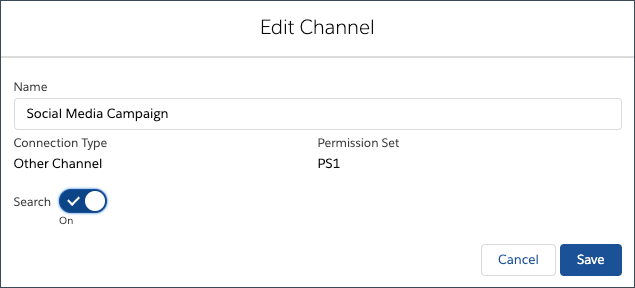
-
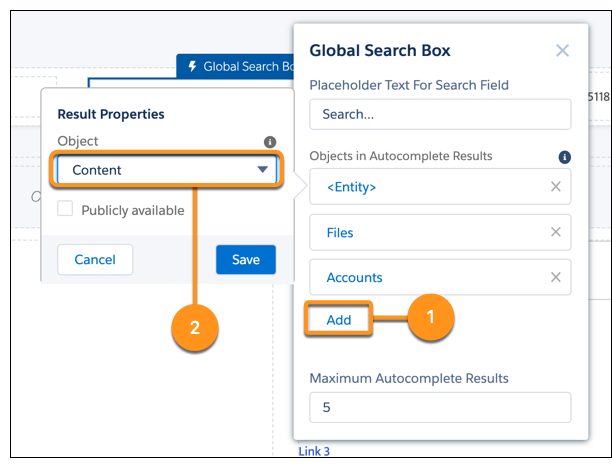
Open your site in Experience Builder and click the Global Search Box.
 Note If you use Experience Builder to create the site where your content appears, you must also configure the Global Search Box component after you enable search for a channel.
 - Add the Content object to the Global Search Box component by clicking
Add(1) and changing the object property to
Content(2) from the dropdown.
- Save your changes. After you enable search for a channel, users can then search for all
published CMS content types within that channel.
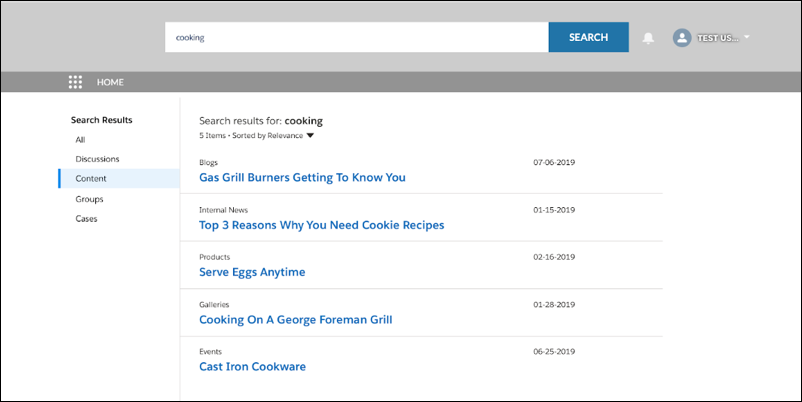 Set up a content detail page for your custom content type so users can search for it in the site.Connect REST API supports searching managed content.