
As your business grows and changes, so does your content. To keep your CMS workspace tidy, delete content. Deleting a content item removes all versions and variants of the item from your workspace. The procedure to delete content from an enhanced CMS workspace differs from the procedure to delete content from a CMS workspace.
Required Editions
| Available in: Lightning Experience |
| Available in: Enterprise, Performance, Unlimited, and Developer Editions |
| User Permissions Needed | |
|---|---|
| To create, edit, or clone content: | Any CMS workspace contributor role |
| To publish or unpublish content: | A CMS workspace contributor role of content admin or content manager |
| To tag or untag content: |
View Content Taxonomy AND any CMS workspace contributor role |
Delete Content from an Enhanced CMS Workspace
In an enhanced CMS workspace, delete one or more content items and folders from the workspace’s content list. Delete both draft and published content items, and delete folders that contain content.
You can also delete a single content item from its detail page.
- In the Digital Experiences app, open an enhanced CMS workspace.
- Select items such as draft content, published content, or folders.
-
Click Manage | Delete and confirm the bulk action.
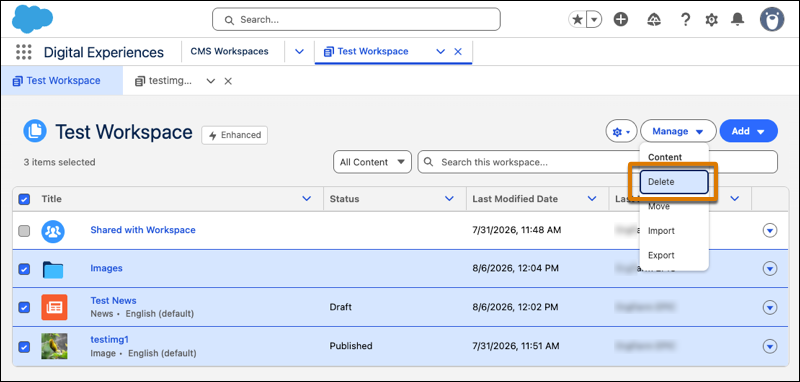
Depending on the number of items you’re deleting, Salesforce handles the operation differently.
- When you delete fewer than 25 content items, they’re deleted immediately.
- When you delete 25 or more content items or at least one folder, Salesforce creates a deletion job, and the process can take a few minutes. You get an email when the deletion completes, or you can see the deletion progress on the Job Statuses page.
Delete Content from a CMS Workspace
In a CMS workspace, delete a content item from its content detail page.
- In the Digital Experiences app, open a CMS workspace.
- Click the title of the content item to open its detail page.
- Click Delete.
To restore any deleted content item to any CMS workspace, go to the Salesforce Recycle Bin within 15 days after deleting the content. After 15 days, Salesforce permanently deletes the content.