---
schema_version: "1"
id: 87d3fc2b44874072804349347632d7139a916a415e101bf80909ab96bb49c879
title: Follow Records
collection: admin
version: current
locale: en-us
portal_url: https://docs.salesforce.com/admin/current/en-us/xcloud/264-0-0/collab_following_records.md
canonical_url: https://help.salesforce.com/s/articleView?id=xcloud.collab_following_records.htm&release=264.0.0&type=5
source_site: help.salesforce.com
content_type: documentation
content_hash: 0c1e35d66d8a3966f71172e7f955477fa3c93eb516efd34876fe83360fba5c7e
description: Follow records to see updates in your feed, including field changes, posts, tasks, and comments.
products:
- Salesforce Platform
- Cross Cloud
release: "264"
---
# Follow Records
Follow records to see updates in your feed, including field changes, posts, tasks, and comments.
### Required Editions
Available in: Salesforce Classic and Lightning Experience
Available in: Essentials, Group, Professional, Enterprise, Performance, Unlimited, Contact Manager, and Developer Editions
User Permissions
Needed
To view a record:
Read on the record
The field changes that you see in your feed depend on the fields that your administrator has configured for feed tracking. Updates to encrypted custom fields don't appear in feeds.
To follow a record, click **Follow** on the record page. If the **Follow** button has a  in front of it, you have more options. Click the button to see options for following the record and for adding it to a new or existing stream. To follow the record from the menu, click **What I Follow**.
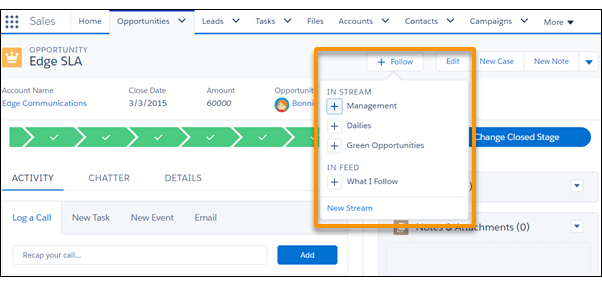

Note You can find streams in Lightning Experience on the Chatter page.
To automatically follow the records that you create, here’s what you do:
1. Click your profile avatar at the top of the page, and select **Settings**.
2. Enter My Feeds in the Quick Find box, and select **My Feeds**.
3. Select **Automatically follow records I create**.
You can auto-follow the records that you create, but you can’t auto-follow tasks, events, or dashboards.
When you follow a record, you see updates to the record in your feed. When you create a child record, the owner of the parent record becomes the owner of the child record by default. But, despite your **Automatically follow** setting, you don’t automatically follow the child record. Follow the child record explicitly, even when you’re the owner of the parent record.
You can follow a maximum combined total of 500 people, topics, and records. To see how many items you’re following, view the Following list on your profile. In Lightning Experience, only the people who you follow and who are following you appear on your profile.
To stop following a record on the record page, mouse over the **Following** label. In Salesforce Classic, click . In Lightning Experience, what you see depends on whether streams are enabled. If streams are enabled, click **Following** and deselect **What I Follow**. If streams aren’t enabled, when you mouse over Following, you see **Unfollow**. Click **Unfollow**.