
Export and import statuses are visible to multiple users of your enhanced CMS workspace from the Job Statuses tab.
Required Editions
| Available in: Lightning Experience |
| Available in: Enterprise, Performance, Unlimited, and Developer Editions |
| User Permissions Needed | |
|---|---|
| To export and import content in a CMS workspace: | A CMS workspace contributor role of content admin or content manager |
| To export and import content with taxonomy tags in an enhanced CMS workspace: |
A CMS workspace contributor role of content admin or content manager AND View Content Taxonomy |
Multiple content admins and content managers can see who initiated an export and import, and when. They can also download files for exported content, details about export and import status, and success and error output. The Job Statuses tab captures content and translation export and import statuses. In non-enhanced CMS workspaces, single users receive error, success, and detail logs through a link in an email.
- From the enhanced CMS workspace settings menu, click
 (1), and then click Job Statuses (2).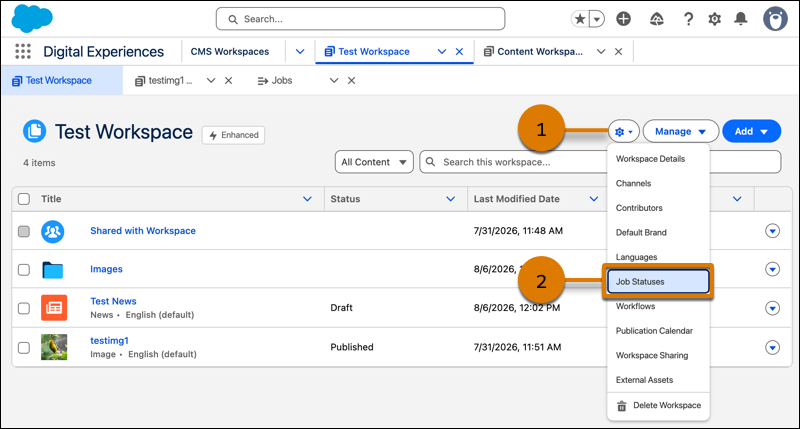
- To sort the Export & Import status information by type, from the dropdown, select
Content Export & Import or Translation Export
& Import. To see all job statuses at one time, including export, import,
and deletion jobs, select All Jobs.
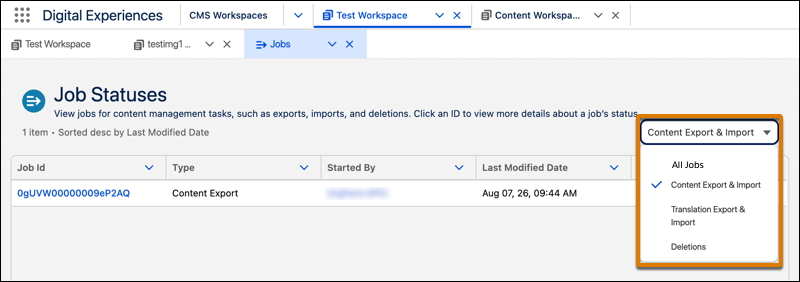
- To access the detailed files, click a Job ID for an export or import and download the available files.