Use extensions to add productivity tools to the content editor in an enhanced CMS workspace. Streamline your content workflow with generative AI tools, spell checkers, and translation services. Developers can build extensions for specific CMS content types.
Required Editions
| Available in: Lightning Experience |
| Available in: Enterprise, Performance, Unlimited, and Developer Editions |
| User Permissions Needed | |
|---|---|
| To create, edit, or clone content: | Any CMS workspace contributor role |
| To publish or unpublish content: | A CMS workspace contributor role of content admin or content manager |
| To tag or untag content: |
View Content Taxonomy AND any CMS workspace contributor role |
Developers who can create and deploy Lightning web components can build extensions and add them to the CMS content editor. To learn how to build an extension, see Extensions in CMS. Salesforce partners can create extensions and share them on AppExchange.
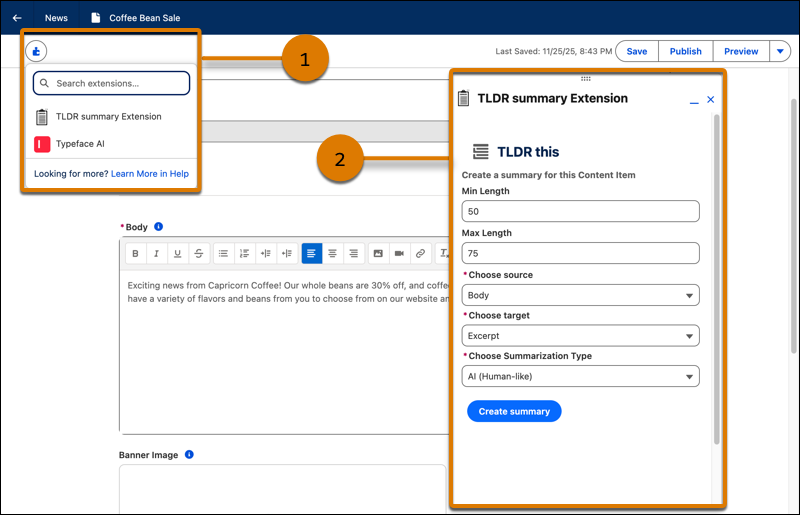
To use an extension in the content editor, find the extensions button in the top left of the content editor. Content creators can move the floating extension panel around the editor as they work. Extensions have read and write access to content item properties, so content creators can see updates in the draft as they work.
- In Lightning Experience, from the App Launcher, open the Digital Experiences app.
- Open an enhanced CMS workspace, and then open a content item from the workspace.
- Click Edit.
-
In the CMS content editor, click
 , and then select the extension that you want to use (1).
Only installed extensions that are compatible with the content type that you're editing appear in the extensions menu.
, and then select the extension that you want to use (1).
Only installed extensions that are compatible with the content type that you're editing appear in the extensions menu. -
Complete the task in the extension and apply any changes to your content (2).