Create manual collections that provide a curated, static grouping of up to 50 items of a
single content type in enhanced CMS workspaces. To add new content to the static collection,
edit the collection. You can publish, unpublish, and delete manual collections.
Required Editions
| Available in: Lightning Experience |
| Available in: Enterprise, Performance, Unlimited, and
Developer Editions
|
| User Permissions
Needed |
| To create, edit, and delete manual collections in a CMS workspace: |
Any CMS workspace contributor role |
- In the Digital Experiences app, open an enhanced CMS workspace.
- Click Add and select Collection.
- Click Manual Collection.
- Enter a title and a collection description, and select the content type.
- To create the collection, add at least one content item.
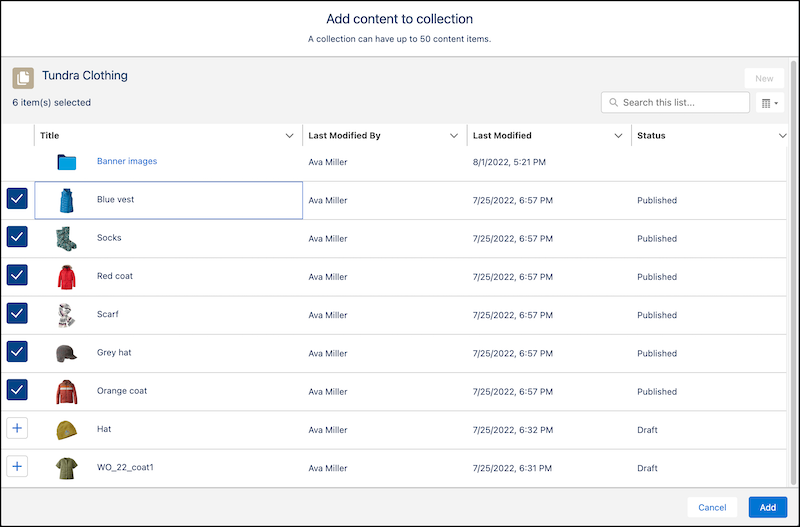
- Click Add content to collection.
The content picker displays the content that you can add to the collection. You
can add up to 50 content items that match the collection’s content type and reside in the
same CMS workspace. A tally of your selected items displays at the top of the
list.
- Click the + next to the items that you want to add, and click
Add.
- Reorder the content items in the list as needed by using the action menu in each row,
and then save your changes.
- To edit the title, description, or to change a content item, select the collection from
the workspace, click Edit, and then save your changes.
- To publish, unpublish, or delete a collection, open the collection for edit.
- To make the collection available in your channels, click
Publish.
- You can unpublish a collection that isn’t being used by other records. To make the
collection unavailable in your channels, click
Unpublish.
- To delete an unpublished collection but not the content items within the
collection, click Delete.