---
schema_version: "1"
id: ea420564d7a6e53ba438d0cb8339f65b45cbb9698cc5819b286204c10ec67c89
title: Deploy and Set Up the CMS Base Data Kit
collection: admin
version: current
locale: en-us
portal_url: https://docs.salesforce.com/admin/current/en-us/xcloud/264-0-0/cms_base_data_kit_setup.md
canonical_url: https://help.salesforce.com/s/articleView?id=xcloud.cms_base_data_kit_setup.htm&release=264.0.0&type=5
source_site: help.salesforce.com
content_type: documentation
content_hash: 90fb802983c00dc63d2fe4f569f5a631b7a7ed990595740abe26095de0b897ea
description: Deploy and configure the CMS Base data kit to support semantic and AI-powered search. Deploy the data kit in a specific data space, and then configure settings such as transform frequency and search indexes. Data 360 ingests content metadata from Salesforce CMS to power these AI-driven search experiences.
products:
- Salesforce CMS
- Cross Cloud
release: "264"
---
# Deploy and Set Up the CMS Base Data Kit
Deploy and configure the CMS Base data kit to support semantic and AI-powered search. Deploy the data kit in a specific data space, and then configure settings such as transform frequency and search indexes. Data 360 ingests content metadata from Salesforce CMS to power these AI-driven search experiences.
### Required Editions
Before you deploy the data kit, make sure that Data 360 is set up for your org. See [Get Started Using Data 360](https://help.salesforce.com/s/articleView?id=data.c360_a_product_considerations.htm&language=en_US) and [Set Up a CRM Salesforce Org Connection](https://help.salesforce.com/s/articleView?id=data.c360_a_set_up_crm_connection.htm&language=en_US).
Keep these considerations in mind.
- Only content metadata, such as the title, description, or image alt text, is ingested into Data 360.
- You can’t deploy the CMS Base data kit in a [companion org](https://help.salesforce.com/s/articleView?id=data.c360_a_data_cloud_one_app.htm&language=en_US).
- To ingest content metadata into Data 360 from third-party CMS or a digital asset management (DAM) system, use a [Data 360 connector](https://developer.salesforce.com/docs/data/data-cloud-int/guide/c360-a-data-cloud-integrations.html).
## Deploy the CMS Base Data Kit
When you deploy the CMS Base data kit, Data 360 immediately starts to ingest your CMS content.
When you deploy the data kit in a data space for the first time, the 2.0 version gets deployed. If the 1.0 data kit is deployed, deploy again to get the 2.0 version.

Note If your org has Marketing Cloud Next and the Marketing Setup Objects data kit, you can get duplicate data when you deploy the CMS Base data kit. Both data kits ingest some of the same data model objects and use the same data streams.
1. From Setup, in the Quick Find box, enter CMS and select **CMS Base Data Kit.**
2. Select a data space.
3. In the Deploy section, review CMS Content Bundle details. As part of this bundle, the user permission Salesforce CMS Integration gets added to the Data Cloud Salesforce Connector permission set.
4. To enable search indexing for content taxonomy after deployment, which improves semantic search, include the Content Taxonomy bundle.
When you include this bundle in the 2.0 data kit,
- The user permission View Content Taxonomy gets added to the Data Cloud Salesforce Connector permission set.
- The bundle includes the transform sfm\_ContentTaxonomyTermExpandedTransform.
- When you enable search indexes after deployment, Salesforce builds a search index of CMS content taxonomy terms.
5. Click **Deploy**.
Deploying the CMS Base data kit can take at least 40 minutes. Start a deployment of the data kit in only one data space at a time.
After deployment, return to the CMS Base Data Kit setup page to configure more settings.
## Configure Data Transform Frequency and Other Settings
After deployment, when a user creates, updates, deletes, or publishes content in CMS, these updates sync with Data 360 based on the data transform schedule. Create a search index and configure other settings such as data lake object (DLO) filters depending on your org’s needs.

Note When you schedule transforms, to keep records and search indexes up to date, schedule the transforms to run more frequently. We recommend that you run them hourly. If you prefer not to schedule transforms, run them manually.
The cost for data transforms depends on the number of records processed during each transform. For more information about costs, see [Billing Considerations for Data Transforms](https://help.salesforce.com/s/articleView?id=data.c360_a_billing_considerations_for_data_transforms.htm&language=en_US).
1. Select a simple transform frequency that applies to all the transforms related to the CMS Base data kit (1). Those transforms are:
- sfm\_ManagedContentRelationshipTransform
- sfm\_ManagedContentVariantDeliveryTransform
- sfm\_ManagedContentDeliveryTransform
- sfm\_ManagedContentVariantTransform
- sfm\_ManagedContentTransform
- sfm\_ContentTaxonomyTermExpandedTransform (data kit version 2.0 only)
2. (Optional) To configure a custom schedule for a transform, go to Data 360 Data Transforms. For more information, see [Schedule a Batch Data Transform](https://help.salesforce.com/s/articleView?id=data.c360_a_batch_transform_schedule.htm&language=en_US).
3. To support semantic search and other AI-powered features, turn on Search Indexes (2).
For more information about Data 360 search indexes, see [Create a Hybrid Search Index with Advanced Setup.](https://help.salesforce.com/s/articleView?id=data.c360_a_hybridsearch_index_create.htm&language=en_US)
4. (Required for orgs with Marketing Cloud Next) Add business unit filters for data lake objects (DLOs).
1. Click **Go to Business Units Setup**.
2. On the Marketing Cloud Basic Settings page, under Business Units, select a business unit from the menu.
3. In the Business Unit Data Alignment section, click **Add DLO Filters**.
4. Open the **By Data Space ID** tab. Click **Add Filters**.
5. Save your changes (3).
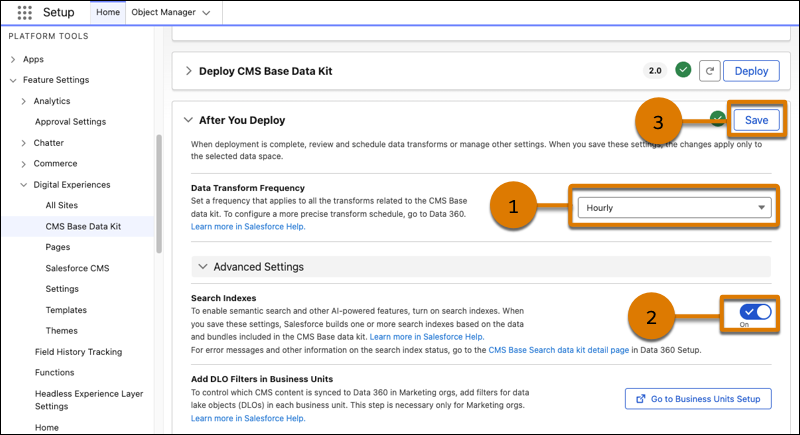
After you save these settings with search indexes enabled, Salesforce deploys the CMS Base Search data kit and builds one or more search indexes.
- Salesforce builds a search index of electronic media content because the CMS Content Bundle is included in the deployment by default
- If you included the Content Taxonomy Bundle in the deployment, Salesforce builds a search index of CMS content taxonomy terms, which can improve semantic search results.
To uninstall the CMS Base data kit from any data space, go to Data 360 Setup. First uninstall the CMS Base Search data kit, and then uninstall the CMS Base data kit. If you deployed the CMS Base data kit in multiple data spaces, uninstalling it from one data space removes data transforms from all data spaces.
#### See Also
- [Batch Data Transforms](https://help.salesforce.com/s/articleView?id=data.c360_a_batch_transform_overview.htm&language=en_US)
- [Uninstall a Deployed Data Kit in Data 360](https://help.salesforce.com/s/articleView?id=data.c360_uninstall_data_kit.htm&language=en_US)
- [_Data 360 DMO and Mapping Guide_: CMS Base Data Bundle](https://developer.salesforce.com/docs/data/data-cloud-dmo-mapping/guide/CmsBase.html)
- [_Data 360 DMO and Mapping Guide_: Standard DMOs](https://developer.salesforce.com/docs/data/data-cloud-dmo-mapping/guide/c360dm-si-entity-interface-dmos-introduction.html)