---
schema_version: "1"
id: b6fd0fce6333cf5248a6ce0e81a82dce293c33cb710a1d3700f107f5e0c7e9a6
title: Remove a Contributor from a CMS Workspace
collection: admin
version: current
locale: en-us
portal_url: https://docs.salesforce.com/admin/current/en-us/xcloud/264-0-0/cms_access_control_remove_contributor.md
canonical_url: https://help.salesforce.com/s/articleView?id=xcloud.cms_access_control_remove_contributor.htm&release=264.0.0&type=5
source_site: help.salesforce.com
content_type: documentation
content_hash: 8f4c6a0420d6c7e092a19c2258acd83ffe4d37a57f93e14821608ccf602c4ea9
description: If a contributor leaves your company or is transferred to a different team, you can remove the contributor from a CMS workspace. The user or public group is removed from the workspace but not from Salesforce.
products:
- Salesforce CMS
- Cross Cloud
release: "264"
---
# Remove a Contributor from a CMS Workspace
If a contributor leaves your company or is transferred to a different team, you can remove the contributor from a CMS workspace. The user or public group is removed from the workspace but not from Salesforce.
### Required Editions
Available in: Lightning Experience
Available in: Enterprise, Performance, Unlimited, and Developer Editions
User Permissions
Needed
To manage contributors in a CMS workspace:
A CMS workspace contributor role of content admin
1. In the Digital Experiences app, go to CMS Workspaces and open the appropriate workspace.
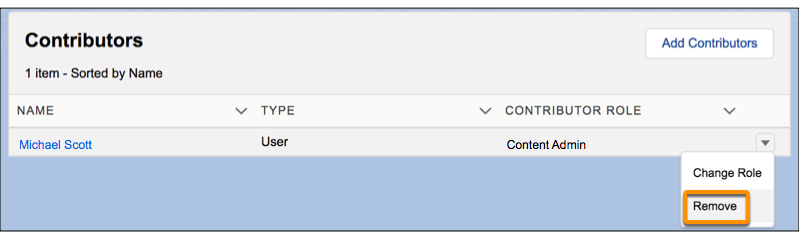
2. On the Contributors tab, click the down button and select **Remove**.

Note To prevent you from accidentally removing your access to a workspace, you can’t edit or remove your own contributor role. To change your level of access, another admin must update your role.
After you remove a contributor from a CMS workspace, the contributor can no longer access that workspace.
#### See Also
- [Role-Based Access in Experience Builder](https://help.salesforce.com/s/articleView?id=experience.networks_access_control_overview.htm&type=5&language=en_US)
- [Control Chatter Access Through Permission Sets](https://help.salesforce.com/articleView?id=collab_pbr_perm_sets.htm&type=5&language=en_US)