---
schema_version: "1"
id: c8d7f98f5ff504c6d5ae66fcd97b78f0152037412aa721abb16eebb95dd35777
title: Bulk Move Reports or Dashboards with Metadata API
collection: admin
version: current
locale: en-us
portal_url: https://docs.salesforce.com/admin/current/en-us/xcloud/264-0-0/bulk_move_reports_dashboards.md
canonical_url: https://help.salesforce.com/s/articleView?id=xcloud.bulk_move_reports_dashboards.htm&release=264.0.0&type=5
source_site: help.salesforce.com
content_type: documentation
content_hash: 24c44bdee5ac14b014e978eb75052cd998f00d9511ca7b9cf457064dca12e019
description: You can move reports or dashboards between folders and subfolders in Lightning Experience. If you want to move reports or dashboards in bulk, use Metadata API.
products:
- Salesforce Platform
- Cross Cloud
release: "264"
---
# Bulk Move Reports or Dashboards with Metadata API
You can move reports or dashboards between folders and subfolders in Lightning Experience. If you want to move reports or dashboards in bulk, use Metadata API.
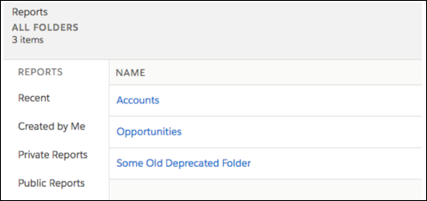
For example, the Some Old Deprecated Folder folder contains two reports: My Accounts Report and My Opty Report. You want to move My Accounts Report to a new folder called Accounts and My Opty Report to the new Opportunities folder.
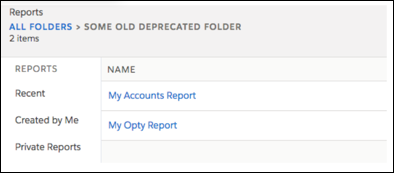
This example uses Reports and Dashboards REST API to get the details of the reports that you want to move and Metadata API to move the reports. (The same process works for dashboards.) You can use Postman or cURL to call Reports and Dashboards REST API. You can use Salesforce Extensions for Visual Studio Code or Salesforce CLI to execute Metadata API. You can follow a similar process using the force.com ANT migration tool.
1. Get a list of your reports using the Reports and Dashboards REST API [report resource PATCH method](https://developer.salesforce.com/docs/atlas.en-us.api_analytics.meta/api_analytics/analytics_api_report_list_resource.htm).
2. Search the list to get the developer names of the reports you want to move and the ID of the folder they are in.
3. Use the folder ID to obtain the folder’s developer name with the [folder operation GET method](https://developer.salesforce.com/docs/atlas.en-us.api_analytics.meta/api_analytics/analytics_api_folders_ops.htm).
4. Create a `package.xml` manifest using the folder and file developer names as members.
```
Report
Some_Old_Deprecated_Folder/My_Accounts_Report_eQ
Some_Old_Deprecated_Folder/My_Opty_Report_CO
43.0
```
5. Retrieve a package that contains the reports using the Metadata API `retrieve()` call.
6. Unzip the package.

7. In the unzipped package, create the new folder and file structure.

8. In the `package.xml` file manifest, change the folder structure to match the changes that you made in the unzipped package.
```
Accounts/My_Accounts_Report_eQ
Opportunities/My_Opty_Report_CO
Report
43.0
```
9. Create the new folders in Lightning Experience.
10. Create the package for deployment.
This command creates a ZIP file from the contents of the unzipped package directory called unpackaged.
```
zip -r move_reports.zip unpackaged/
```
11. Deploy the package that contains the moved reports using the Metadata API `deploy()` call.
The move is complete. Some Old Deprecated Folder is empty, and you can delete it in the UI.
#### See Also
- [_Deploying and Retrieving Metadata (Metadata API Developer Guide)_](https://developer.salesforce.com/docs/atlas.en-us.api_meta.meta/api_meta/file_based.htm)