---
schema_version: "1"
id: 2e0095fcefe55b7c72cbf99659ad3b4c16666a77ab589cbfe22860cc9c20af72
title: Create a Briefcase
collection: admin
version: current
locale: en-us
portal_url: https://docs.salesforce.com/admin/current/en-us/xcloud/264-0-0/briefcase_builder_add_new_briefcase.md
canonical_url: https://help.salesforce.com/s/articleView?id=xcloud.briefcase_builder_add_new_briefcase.htm&release=264.0.0&type=5
source_site: help.salesforce.com
content_type: documentation
content_hash: 8e3b19865b3f46af11fb6fe1be974a9d3be26b9859da3a5fea67cb7673e6cc7e
description: Create a briefcase by using Briefcase Builder in Setup.
products:
- Mobile App
- Cross Cloud
release: "264"
---
# Create a Briefcase
Create a briefcase by using Briefcase Builder in Setup.
### Required Editions
Available in: Lightning Experience
Available in: Enterprise, Performance, Unlimited, and Developer Editions
User Permissions Needed
To create a briefcase in Setup:
Customize Application
1. From Setup, in the Quick Find box, enter Briefcase Builder, and then select **Briefcase Builder**.
2. Click **New Briefcase**.
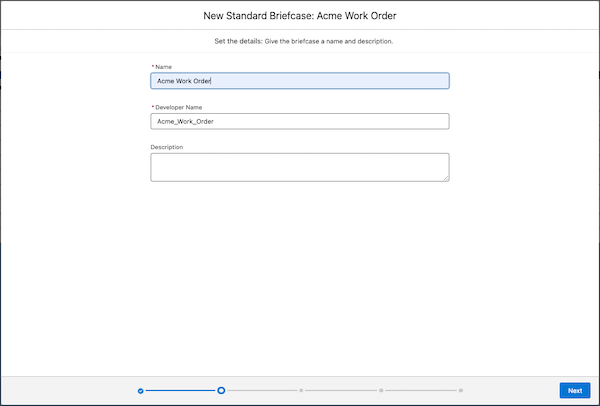
3. Enter a name and an optional description for your briefcase.
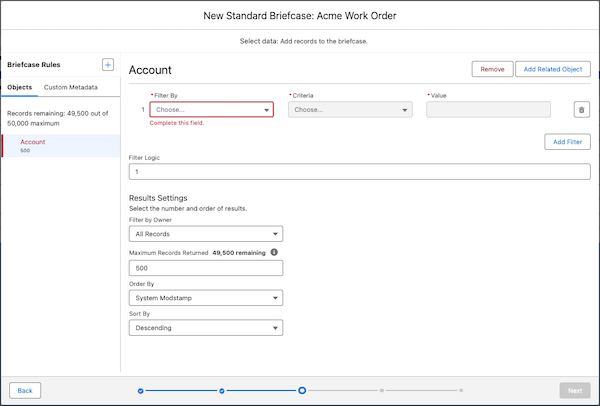
4. Select the data to add to the briefcase. Use object rules to configure which objects are included in your briefcase and how the objects’ records are related to each other.
To add a top-level object rule, click the **+** button next to Briefcase Rules, and then click the object that you want to add. To add a related object rule, select its top-level object rule in the left pane, and then click **Add Related Object**.
In each object rule, use filters to specify which records from the object to include in the briefcase.
For more information on your options for object rules and filters, see [Data Selection](https://help.salesforce.com/s/articleView?id=xcloud.briefcase_builder_select_record_data.htm&release=264.0.0&type=5 "Learn how you can use object rules and filters to select the most relevant records for your mobile workforce.").
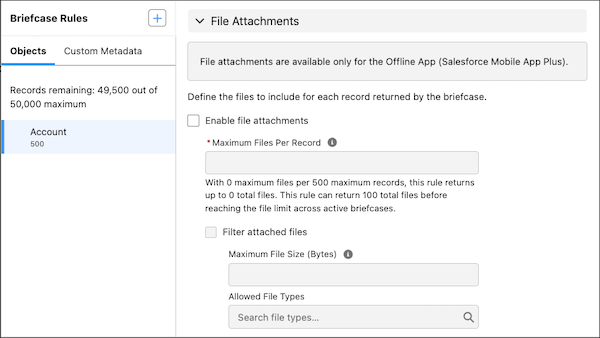
5. For the Offline App (Salesforce Mobile App Plus), you can optionally enable offline priming for file attachments.
In the settings for an object rule, select **Enable file attachments**, and then enter the maximum number of files to return for each record. You can optionally filter file attachments by file size or file type.
The total number of files returned by an object rule is calculated by the maximum files per record multiplied by the maximum records returned. The total number of files returned by a briefcase is the sum of files returned by all object rules in the briefcase. For example, an Account object rule with 10 maximum records and 2 maximum files per record returns up to 20 files. A Contact object rule with 20 maximum records and 3 maximum files per record returns up to 60 files. A briefcase with the Account and Contact rules returns up to 80 files.
You can configure up to 100 file attachments across all active briefcases.
6. If you have [custom metadata types](https://help.salesforce.com/s/articleView?id=platform.custommetadatatypes_about.htm&type=5&language=en_US) available, you can optionally add custom metadata rules to your briefcase. For example, add a custom metadata rule to your briefcase to support a custom flow in the Salesforce Field Service mobile app.
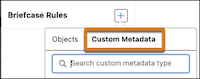
To add a custom metadata rule, click the **+** button next to Briefcase Rules, click **Custom Metadata**, and then select the custom metadata type that you want to add.
For more information on custom metadata rules, see [Data Selection](https://help.salesforce.com/s/articleView?id=xcloud.briefcase_builder_select_record_data.htm&release=264.0.0&type=5 "Learn how you can use object rules and filters to select the most relevant records for your mobile workforce.").
7. Assign the briefcase to users, user groups, or profiles. These assignments determine who can access the records in the briefcase.
Only user groups are supported. Chatter groups, or collaboration groups, aren’t supported.
Users who perform various tasks can be assigned to multiple briefcases. When assigning multiple briefcases to one user, they get access to all the offline data combined from all the assigned briefcases. If a user doesn’t have access to the field used to define a dataset, then that user can’t access any records for that dataset.
8. Select the external client apps that you want to associate with this briefcase. For more information on considerations for the apps that you associate with the briefcase, see [App Selection](https://help.salesforce.com/s/articleView?id=xcloud.briefcase_builder_app_select.htm&release=264.0.0&type=5 "Learn important considerations about selecting external client apps to associate with your briefcases.").
9. To save and activate the briefcase, click **Activate**. To save the briefcase’s settings without activating it for use, click **Save**.