
Find briefcases that you already registered. View the actions for a previously defined briefcase. And edit, activate, deactivate, delete, or clone a briefcase.
Required Editions
| Available in: Lightning Experience |
| Available in: Enterprise, Performance, Unlimited, and Developer Editions |
Edit
You can change the name and description of a saved briefcase, update selected data and assignees, and turn activation off or on. In the Briefcase Builder setup, to view the inline menu for a briefcase, click the down arrow. The Briefcase inline menu includes deactivate, edit, clone, and delete options.

To launch the guided edit flow, select Edit. To change the briefcase configuration, select a tab. To continue editing when you’re done working on a tab, select another tab. Or to exit the edit flow, click Done.
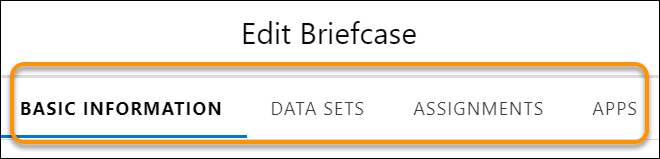
To edit the associated configuration for the briefcase, select a tab.
Activate, Deactivate, or Delete
To quickly change the activation status for a briefcase or to delete a briefcase, click the down arrow to view the inline menu for the briefcase, and then select Activate, Deactivate, or Delete.
Clone
To create a briefcase by copying an existing briefcase configuration, click the arrow in the briefcase’s Actions column and select Clone. On the Clone Briefcase page, enter a unique briefcase name.

You can optionally change these settings in the cloned briefcase.
- Data fields for the Object: Filter By, Filter Logic, Record Scope, Record Limit Per Object
- Assignments
- Activation
To save and activate the cloned briefcase, click Activate. To save the briefcase’s settings without activating it for use, click Save.