Apply your company’s branding to these assets in the Salesforce app for iOS.
To brand your Salesforce app for iOS, provide these elements for your Mobile Publisher project.
- Image assets in PNG format.
- Screenshots captured by the Publisher Playground App. Don’t use a mobile browser for screenshots because it can lead to your app being rejected by Apple.
- Images and screenshots can’t include Alpha channels or transparencies. To remove the Alpha channel on a Mac device, use the Preview app to duplicate the image, deselect the Alpha option, and save the image.
| Field | Description |
|---|---|
| Product Details | |
| App Name | The name under the app icon on the device. This name is different from the App Store name. Max 12 characters. |
| App Help URL | A URL with help information for your app. Your users can access this link from the bottom of your app's Navigation Menu. If you leave this field blank, it defaults to the standard Salesforce Help URL. |
| App Store Default Language | The default language to display for your listing on the App Store. |
| App Store Name | The App Store name must include the app name. Choose a name that isn’t too similar to existing app names. Max 30 characters. |
| App Store Description |
The description for your app's listing on the App Store. The best descriptions are concise, informative, and highlight the main features of your app. Max 4,000 characters. If your app uses the Fully Managed distribution method, emojis aren’t supported in the App Store description. |
| App Store Keywords | Keywords to make your app are easy to find in search results. Max 100 characters total. Separate each keyword with a comma. |
| App Store Subtitle | A one-line summary of your app that displays under your app name throughout the App Store in iOS 11 and later. Max 30 characters. |
| App Store Promotional Text |
Informs your users of current features. The text appears at the top of the app description in the App Store. Max 170 characters. If your app uses the Fully Managed distribution method, emojis aren’t supported in the App Store promotional text. |
| App Store Support URL | A URL with support information for your app. It appears on the App Store listing. If you leave this field blank, it defaults to the standard Salesforce Support URL. |
| App Store Marketing URL | A URL with marketing information for your app. It appears on the App Store listing. If you leave this field blank, it defaults to the standard Salesforce Marketing URL. |
| Authorized Domains | |
| Domain URL | The default domains to log in to are production and sandbox. If you don’t add an extra domain, production is the default domain. URL must begin with https://. |
| Domain Label |
|
| Beta Tester Information | |
| First Name | First name of beta tester. |
| Last Name | Family name of beta tester. |
| Email Address | Email address of beta tester. Your beta tester receives an email when the beta version of your app is ready to test. |
| App Header Color | |
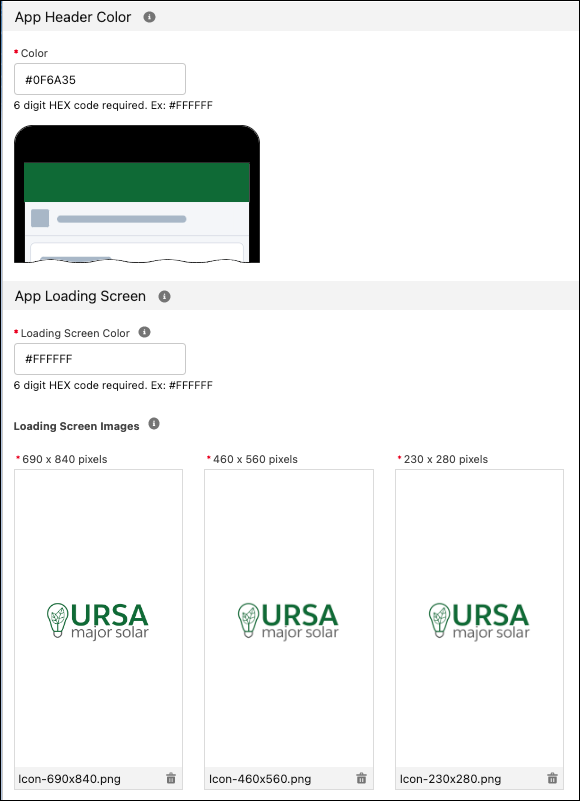
| Color | The background color for the header of the app. Color format is 6 HEX digits. Must start with #. See the Examples section for images. |
| App Loading Screen | |
| Loading Screen Color | The background color for the loading screen of the app. Color format is 6 HEX digits. Must start with #. See the Examples section for images. |
|
Loading Screen Images:
|
Image with the logo on the loading screen. 32-bit transparent PNG. See the Examples section for images. |
| Icons | |
|
App Store Icon:
|
The App Store icon appears in your app's listing on the App Store. Use the same design as your mobile device icons. |
|
Mobile Device Icons:
|
The mobile device icons appear on the mobile device itself. Use the same design as your App Store icon.
|
| Salesforce External Client App | |
| Name | The name appears when your users log in to your app for the first time. If possible, use the same name as your App Store name. 5–40 characters. English only. |
|
Icon:
|
The external client app icon appears when your users log in to your app for the first time. Use the same design as your app icons. The corners of the icon aren’t rounded automatically. Apply rounded corners to the icon manually. PNG format and max 100 KB. |
| App Store Screenshots | |
|
iPhone 6.7” Screenshots:
|
Requirements:
Refer to Submit your iOS apps to the App Store. |
|
iPhone 6.5” Screenshots:
|
Requirements:
Refer to Submit your iOS apps to the App Store. |
|
iPhone 5.5” Screenshots:
|
Requirements:
|
|
iPad Screenshots:
|
One size screenshot for all versions of the iPad. Requirements:
|
| Country Availability | |
| Country Availability | Select the countries where you want your app to be available. Default is all countries. |
Examples